
README file from
GithubRequires Obsidian 1.13.0 or later. Settings are searchable in Obsidian settings.
简体中文 | English
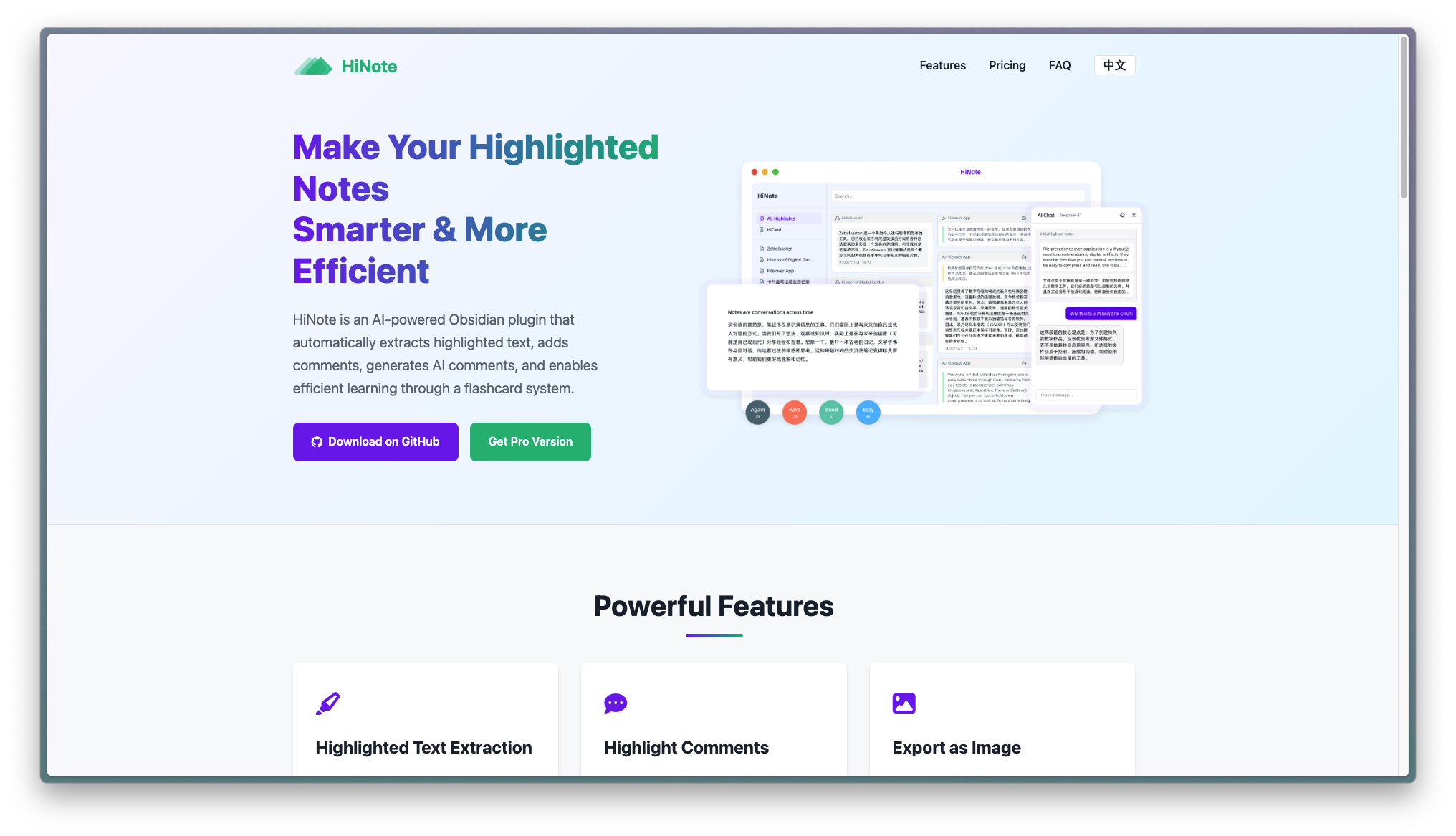
This AI-programmed Obsidian plugin can automatically extract highlighted text from notes, allowing users to add comments, generate AI comments, and engage in dialogue with the highlighted text. Users can highlight text in various formats, export it as knowledge card images or create new notes, while enjoying additional extended features in the main view.
This plugin is developed with AI assistance and is currently in Beta testing. Please use it with caution and back up your data regularly.
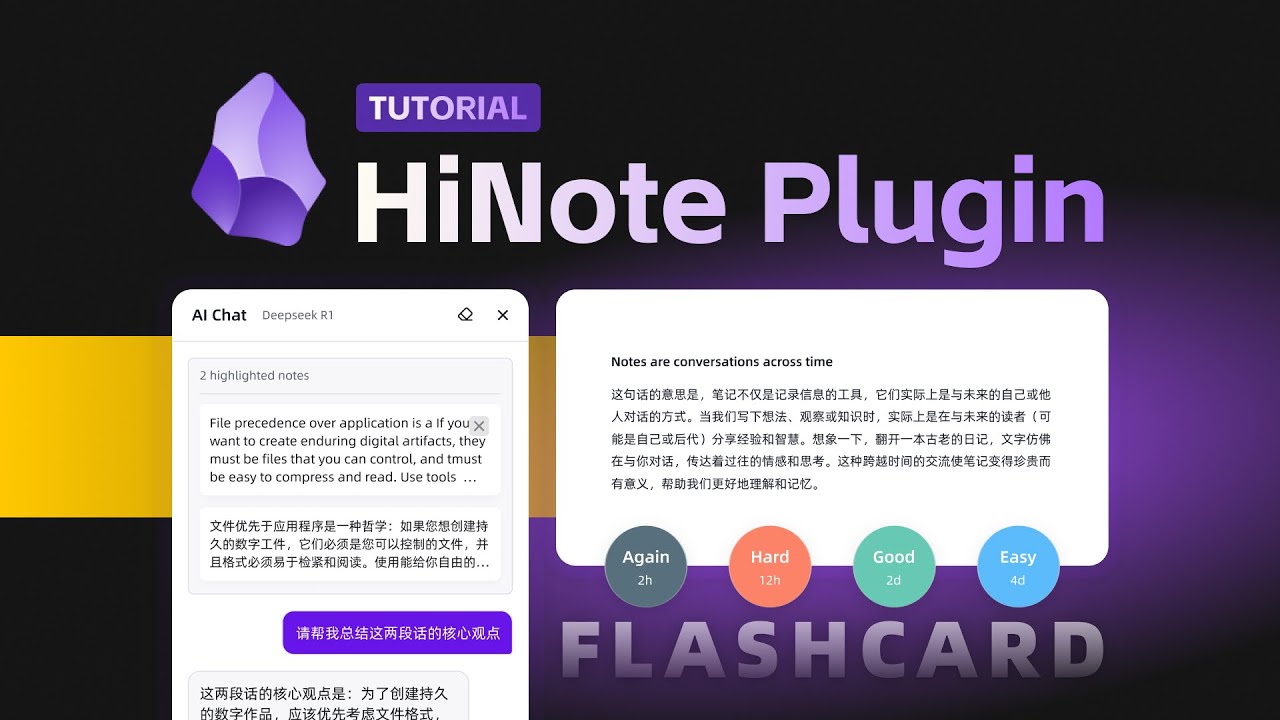
👇🏻 Click the image to view the video tutorial
✨ Key Features
🎯 Auto-extract highlights in multiple formats | 📝 Add comments and notes to highlights | 🤖 AI-assisted comments and intelligent dialogue | 📸 Export as beautiful knowledge cards | 📝 Generate new notes linked to source | 🧠 Spaced repetition learning system (Pro)
💡 Tip: Upgrade to Pro to unlock the FSRS-powered flashcard system for efficient memorization of your highlights
Highlighted text retrieval
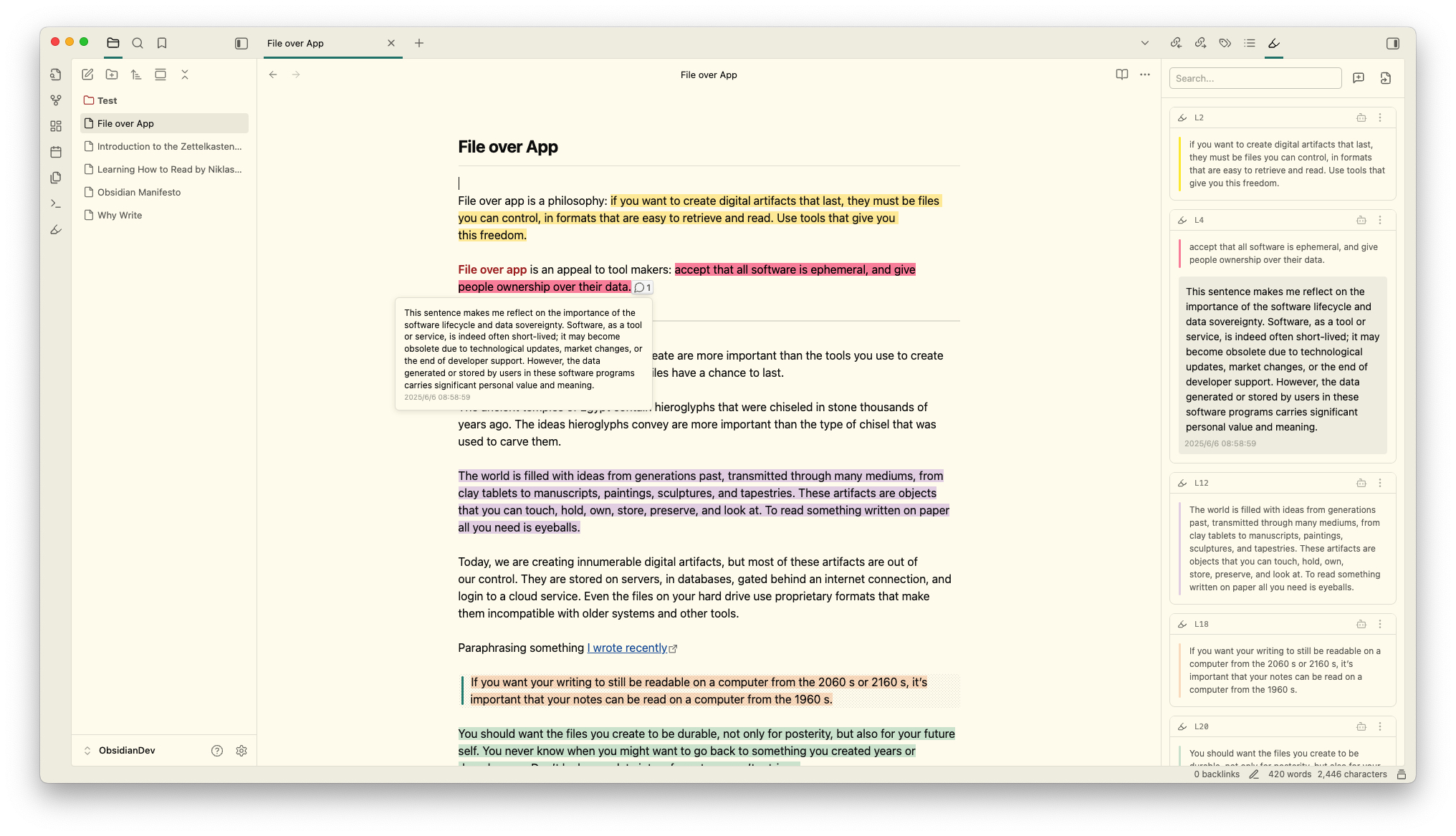
When you open a note with highlighted text, the sidebar automatically displays the highlighted text in card format. The following three formats of highlight tags are supported: ==, <mark>, and <span>. Custom formats can also be defined using regular expressions.
HiNote also recognizes Obsidian 1.14 color highlights, such as ==🔴Important text==. Place a red, orange, yellow, green, blue, or purple circle (or matching square) immediately after the opening ==. Cards use the corresponding theme color; their text and exported quotations omit the color marker. Changing the color preserves associated comments. Native editor color controls require Obsidian 1.14; HiNote remains compatible with Obsidian 1.13.
Select the colored line on a highlight card to choose default yellow, red, orange, green, blue, or purple (keyboard: focus the line and press Enter or Space). HiNote writes the change to the source note: Markdown highlights use the leading color emoji; HTML mark and span highlights keep their tags and content and update the inline background color. Default yellow removes the Markdown marker or applies the theme highlight background to HTML. File comments, Canvas cards, and other custom formats do not offer this control. If the note changed since the card was scanned, refresh the highlights before trying again.
Exclusions match actual file suffixes: use *.xcd.md for a note stored as HiNote.xcd.md, even if Obsidian displays it as HiNote.xcd. Saving exclusions automatically updates the highlight index, file list, and search results without reloading the plugin. Removing a rule makes those files available again; stored comments are not deleted.
Select multiple cards and use the palette button in the selection toolbar to recolor them together. Changes are grouped into one write per file. Unsupported cards are skipped; stale files are left unchanged and reported. The selection stays active after recoloring.
Clicking highlight text in the sidebar scrolls the note to its source without selecting text, moving the caret, or focusing the editor. A brief translucent theme-accent background identifies the destination while preserving Live Preview or Reading view. The hint respects reduced-motion preferences.
Favorites
Select the star on a highlight card to save it to Favorites, directly below All Highlights in the main view. Favorites show the same highlights and comments, newest favorites first. Search stays within favorites, including when using search prefixes. Select multiple cards to favorite them together; when all selected cards are already saved, the same toolbar action removes them from favorites.
Removing a favorite preserves the original highlight, comments, and flashcards. Favorites are stored locally with highlight records in .hinote; deleting the last comment or flashcard does not remove a favorite. If a source highlight cannot be located, its saved content remains available with a status message. Excluded notes stay hidden until their exclusion is removed.
Highlighted comments
The highlight comment feature allows you to quickly engage with highlighted text, preventing your ideas from slipping away. Simply click on the Widgets in the editing area or directly click the add comment button on the card to open the input box.
The note comment feature allows you to add your thoughts to the entire document without relying on any highlighted text. Click the add file comment on the right side of the search bar to open the input box at the top of the highlight list.
All comments and highlight data are stored in the
.hinotefolder in the root directory of your vault, giving you complete control over your data.
Export as image
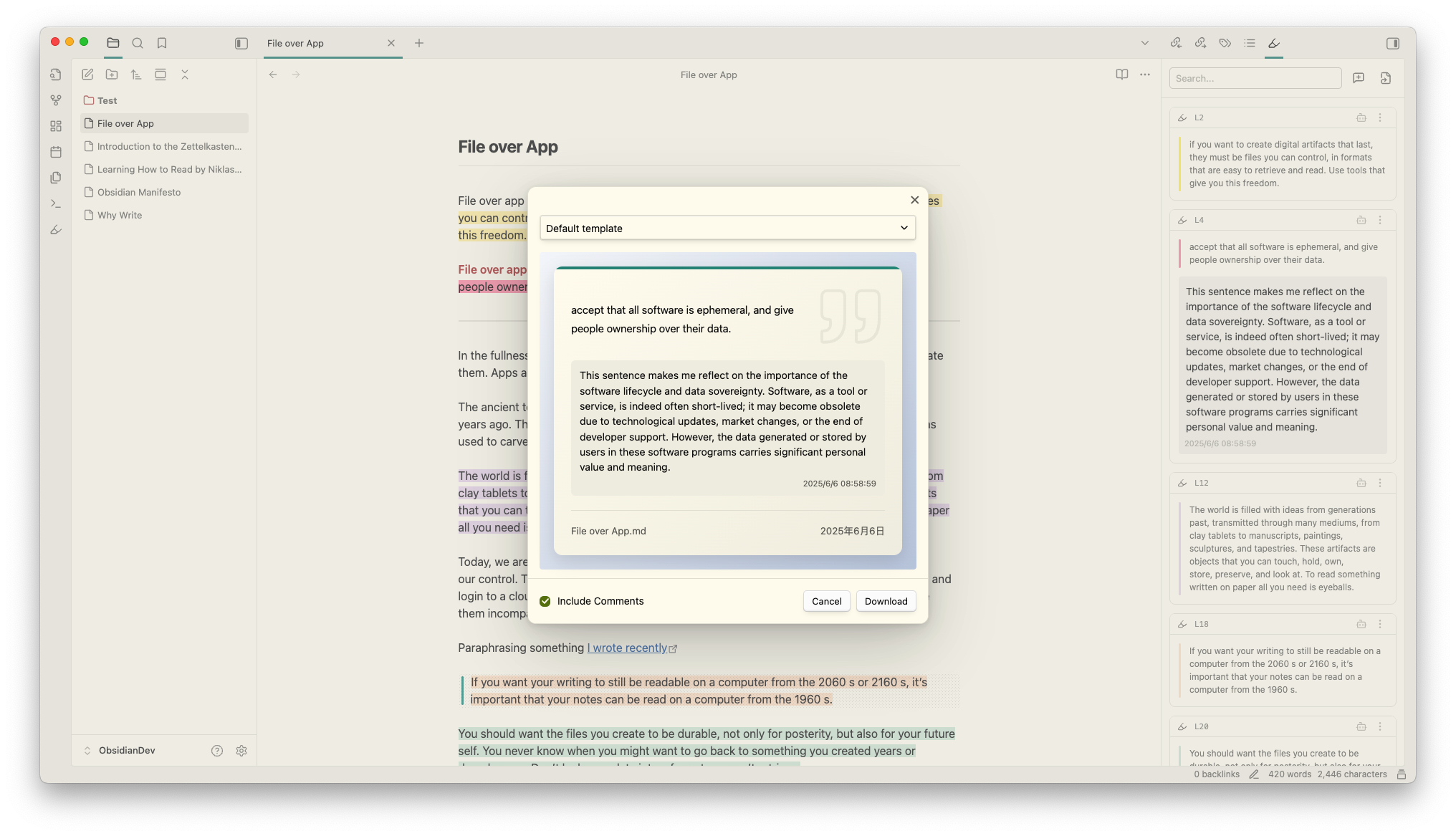
Export your highlighted text and comments to create beautifully designed knowledge cards for easy sharing.
Export as note
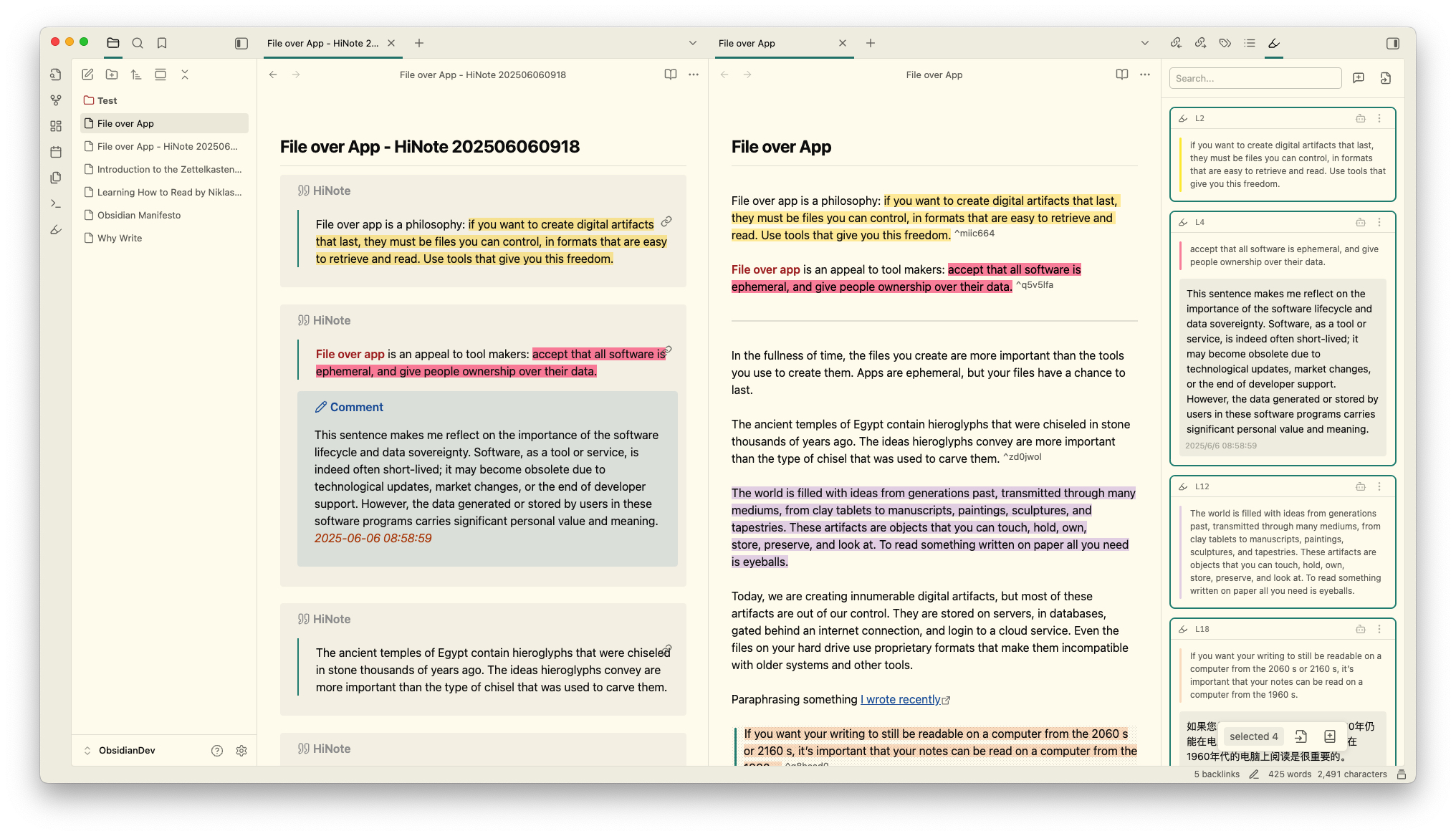
Export all your highlighted text and comments as a new note, displayed in Callout format. Each highlight and comment can be linked back to the source note through block references (Block ID).
Extended features of the main view
Drag the right sidebar window to the main view to unlock more features, such as a list of notes with highlighted text and all highlighted cards.
Favorites provide a separate collection of saved highlights. HiCard opens in its own tab through the Open HiCard command or ribbon icon, with Today, Study groups, Card management, Statistics, and Learning settings pages.
- Notes List: Displays all notes in the knowledge base that contain highlighted text, with the number of highlights indicated.
- All Highlights: Shows all highlighted cards in the knowledge base, allowing you to focus more on the highlighted content.
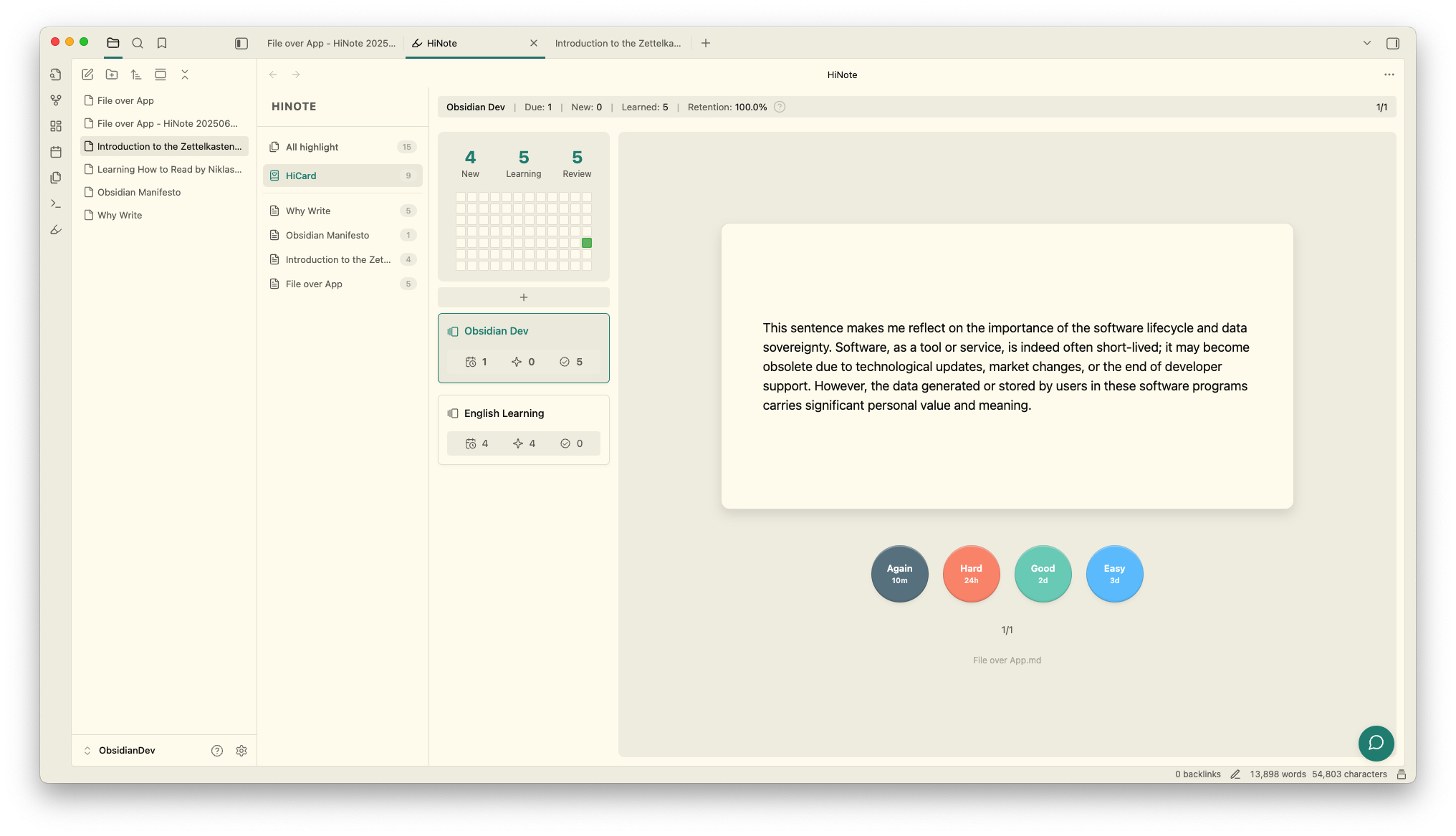
- HiCard: Implements the functionality to generate FlashCards from your highlighted text and comments, assisting you in memorizing and learning (Pro feature)
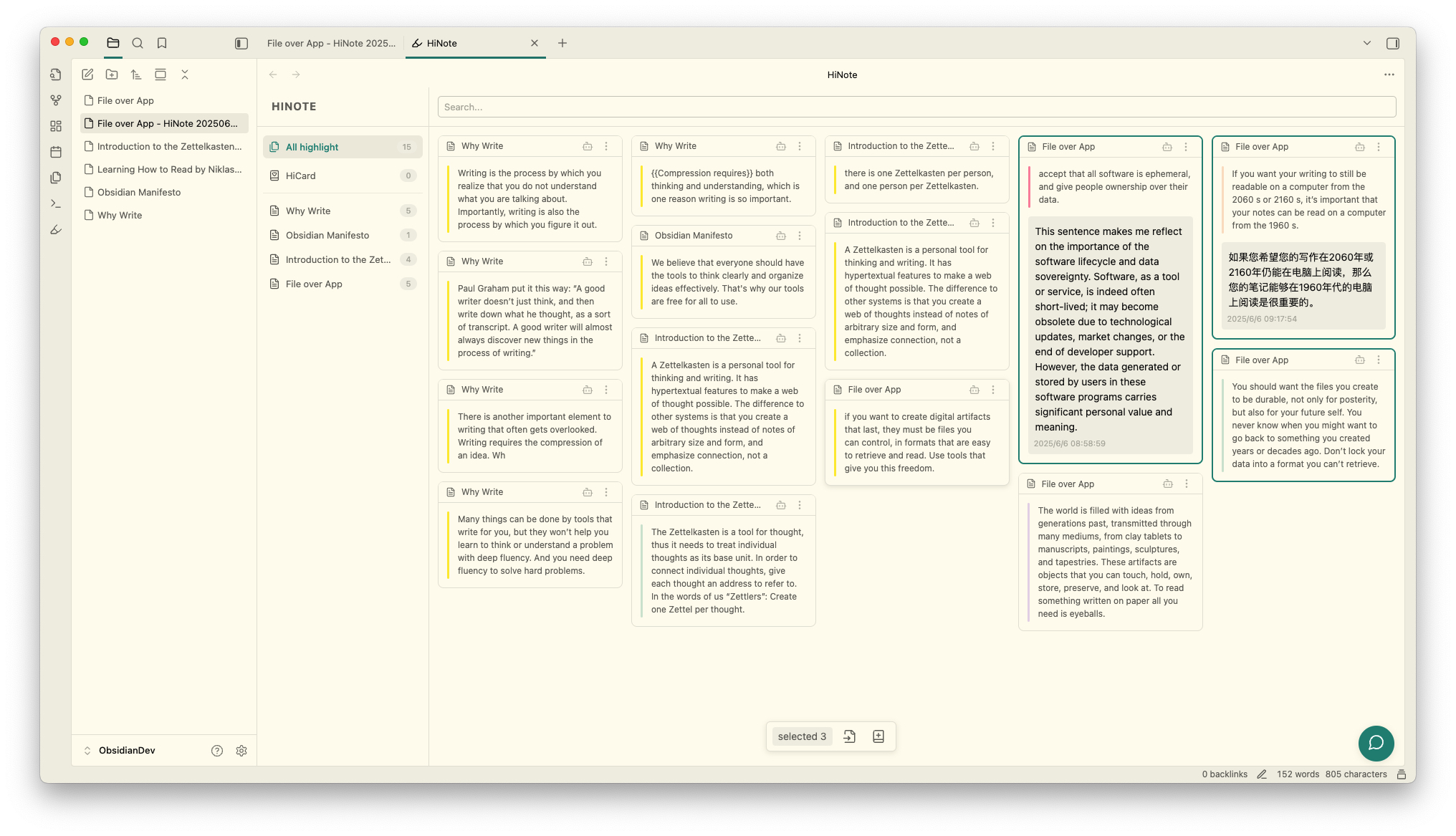
Click HINOTE at the top of the file list to refresh the list and current content. Searching does not change the selected page; clearing a vault-wide search returns to that page. Unsaved comment drafts are kept in the current view session and restored when the same comment editor is reopened. Drafts do not survive a plugin reload or application restart.
AI Comment
AI can assist you in thinking and add the generated content as a comment below the highlighted text.
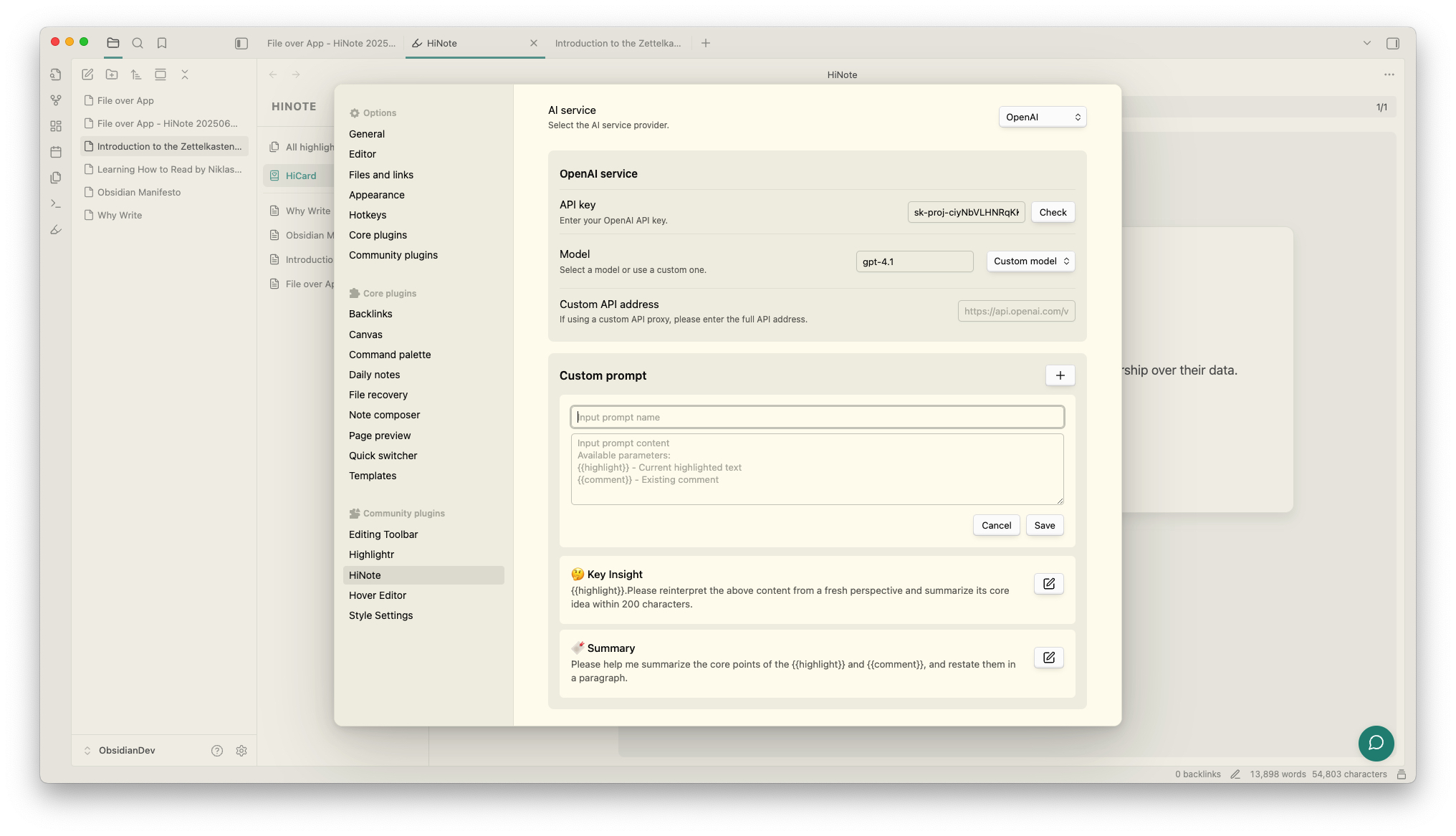
First, you need to configure the AI provider, API Key, and model in the plugin's settings menu. Currently supported providers include OpenAI, Gemini, Anthropic, Deepseek, SiliconFlow, and Ollama.
Next, configure your custom Prompt. Here, you can use two fields to obtain the highlighted text and comment content: {{highlight}} and {{comment}}.
Finally, you can use your custom Prompt in the AI button on the highlighted card. Or you can input your custom Prompt in the comment input box and directly click the Tab key to trigger the AI service.
Pro Features
HiNote offers additional premium features that enhance your note-taking and learning experience:
Flashcard System
The Flashcard feature is available in the Pro version of HiNote. This advanced spaced repetition system helps you memorize your highlighted content more effectively:
- Convert your highlights into flashcards with just one click
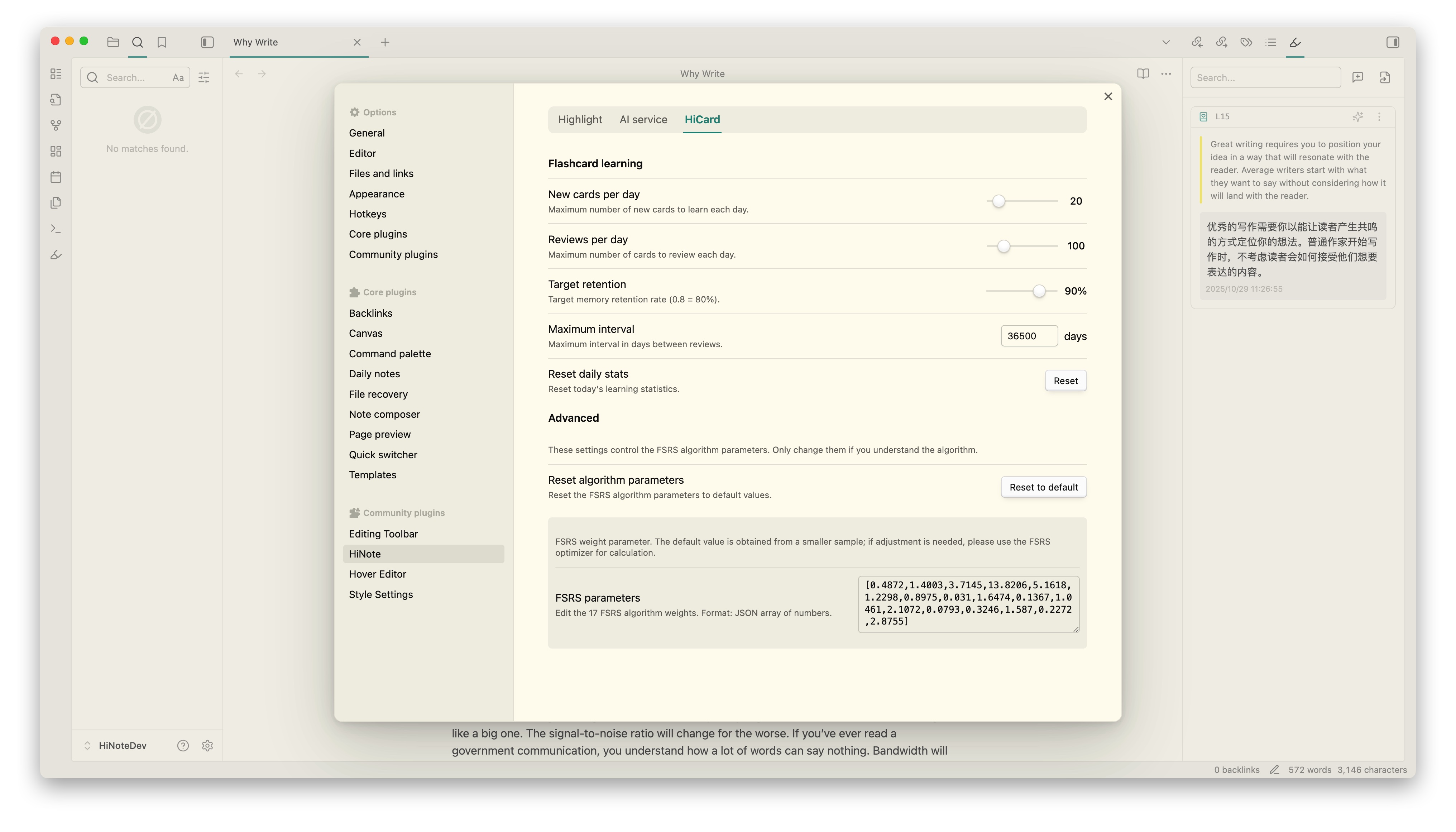
- Utilize the FSRS (Free Spaced Repetition Scheduler) algorithm for optimal learning efficiency
- Customize review schedules to match your learning style
Open HiNote: Open HiCard from the command palette, or select the HiCard ribbon icon. You can assign a shortcut in Settings → Hotkeys. HiCard opens in its own workspace tab; repeated opens focus the existing tab. It can sit alongside highlights or be moved using Obsidian’s tab controls. Existing cards, groups, review history, and Pro activation are shared without migration. Creating cards from highlights and comments remains available.
In HiCard, select a card to reveal its answer, then rate it. With the review area focused, Space flips the card and 1–4 select a rating. Undo last rating restores the last saved rating and its statistics during the current session. Failed saves keep the current card available for retry.
All cards includes every card, including cards outside custom groups. Ungrouped cards helps you find those cards without creating a group first. Pause card removes a card from learning queues without deleting its history or changing its due date; use Paused cards → Resume card to return it to normal scheduling.
Review and undo changes become visible only after storage confirms the write. Other views and queued saves continue to see the last committed state while a write is pending. Automatic refresh waits while an answer editor is open, and updates the remaining count, group counts and progress together. Empty review queues show the next due time when available. Narrow panes provide a Groups button to return to the group list.
Daily limits apply across your library; a custom group limit is an additional cap for that group. Short-term learning cards return automatically when due and do not consume the regular review limit again. Set the new-card limit to zero to pause introducing new cards. Filtered groups update dynamically as matching content changes. The recall success rate counts ratings other than Again, rather than estimating current memory strength.
FSRS parameters and learning states are stored locally with flashcard data. Older cards retain their history; missing learning states are inferred from their last interval until the next rating records the full algorithm state.
Pro authorization is rechecked after seven days. If the service is temporarily unreachable, a previously verified license can be used offline for up to 30 days from its last successful verification. An explicit rejection does not receive this grace period.
To access these premium features, you'll need to upgrade to Pro.
Support
If you find this plugin useful and would like to support its development:
- Buy me a coffee on Ko-fi
- Give the project a ⭐ star to show your support!
License
This plugin is released under the MIT License. The basic features are free and open-source, while some advanced features require a Pro license.
Local data safety
Existing .hinote mappings remain compatible. New highlight records use independent storage identifiers; renaming a note preserves its storage file. Before replacing existing highlight, flashcard, or mapping data, HiNote keeps the previous contents in a sibling .bak file. This is a single previous version, not a substitute for vault backups.
Unreadable or invalid data stops the affected operation instead of being replaced with an empty library. If legacy mappings point multiple notes to the same file, or a missing mapping cannot be recovered unambiguously, restore the mapping/data from a vault backup before editing. HiNote does not guess ownership or automatically merge conflicting records.
Highlight associations use unique text, existing block information, and context, with one-to-one matching across each note. Repeated text is never associated by proximity alone. When an association is uncertain, stored comments and flashcards are preserved but may not appear on a current highlight. Check highlight associations in settings reports unlocated records and skipped files without deleting them. Manual reassociation is not yet available.
Anchor updates merge only location fields into the latest stored records, preserving comments and their timestamps. Context matching has a computation budget; cases exceeding it remain unresolved. Existing IDs are preserved, and this matching change does not modify note content.
Scanning creates only temporary view keys. The first saved comment or flashcard allocates an independent permanent record ID. Existing record IDs and flashcard source IDs remain unchanged, and .hinote retains its v2 format without migration. See the highlight data model for implementation boundaries (Chinese).
API keys and Keychain
AI providers use Obsidian Keychain. Select or create a secret in HiNote's AI service settings; only its name is saved in plugin settings. Configure the secret on each device. HiNote reads it when starting an AI operation, so changes in Keychain apply to subsequent requests.
Upgrading to 0.6.0 does not migrate existing keys. Legacy API key fields are removed from plugin settings on first load. Keep the keys you need before upgrading and configure Keychain again. Historical backups and sync history are not modified. Ollama without authentication does not require a secret.
AI model selection supports manual IDs and an explicit Refresh models action with searchable results. Opening settings does not fetch models. Custom services require an explicit API protocol. Test current model sends a short request without note content and may incur provider charges. Requests stop waiting after 45 seconds; the underlying request may still finish on the provider.