
README file from
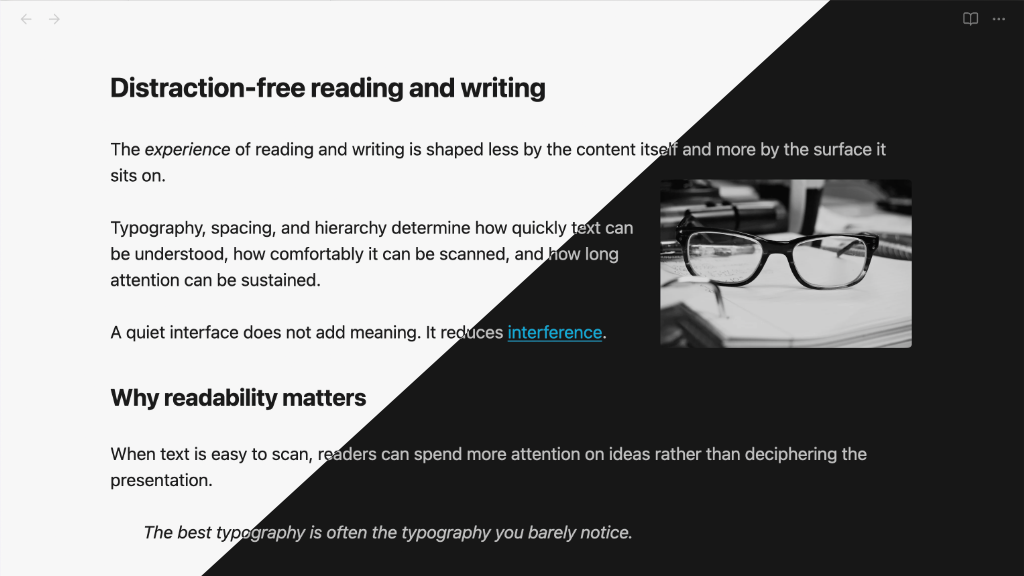
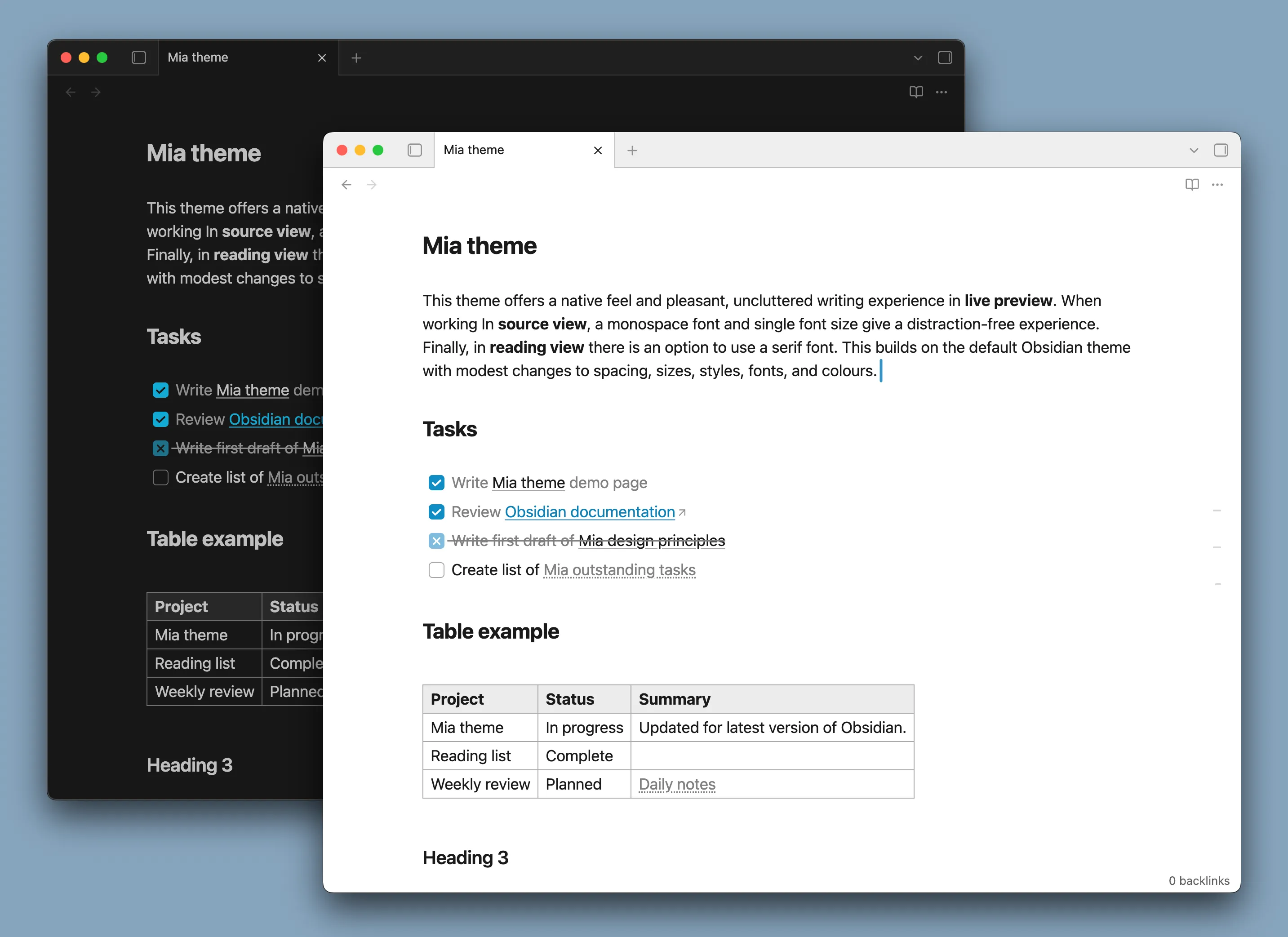
GithubMia is a lightweight Obsidian theme for macOS and iOS. It offers a native feel and pleasant, uncluttered writing experience in live preview. When working In source mode view, a monospace font and single font size is used for a distraction-free experience. In reading view there is an option to use a serif font. Mia builds on the default Obsidian theme, with modest changes to spacing, sizes, styles, fonts, and colours.
Features
- Light mode and Dark mode support
- System fonts with spacing, headings, link styling designed for usability and readability
- A true source mode view for working with markdown
- Alternative choice for external link icon, or don't show any icon
- Monochrome external links option
- Embedded Bases tables are styled more like regular tables
- Single images are centered by default
- Control Image placement, aspect ratio, and effects using image alt tags
- Images are slightly dimmed in dark mode (configurable)
- Checkbox style for cancelled tasks
[-] - CSS class
readerfor reading in a serif font (similar to Safari reader) - PDF export at 11pt with black text
- Fully customisable using the "Style Settings" plugin
Install Mia from the Obsidian Theme Gallery page.
Source mode view
The source mode view is designed for working with text and markdown directly, using a monospace (or similar) font. When combined with the Obsidian setting "Readable line length", the heading characters will hang in the left margin (configurable).
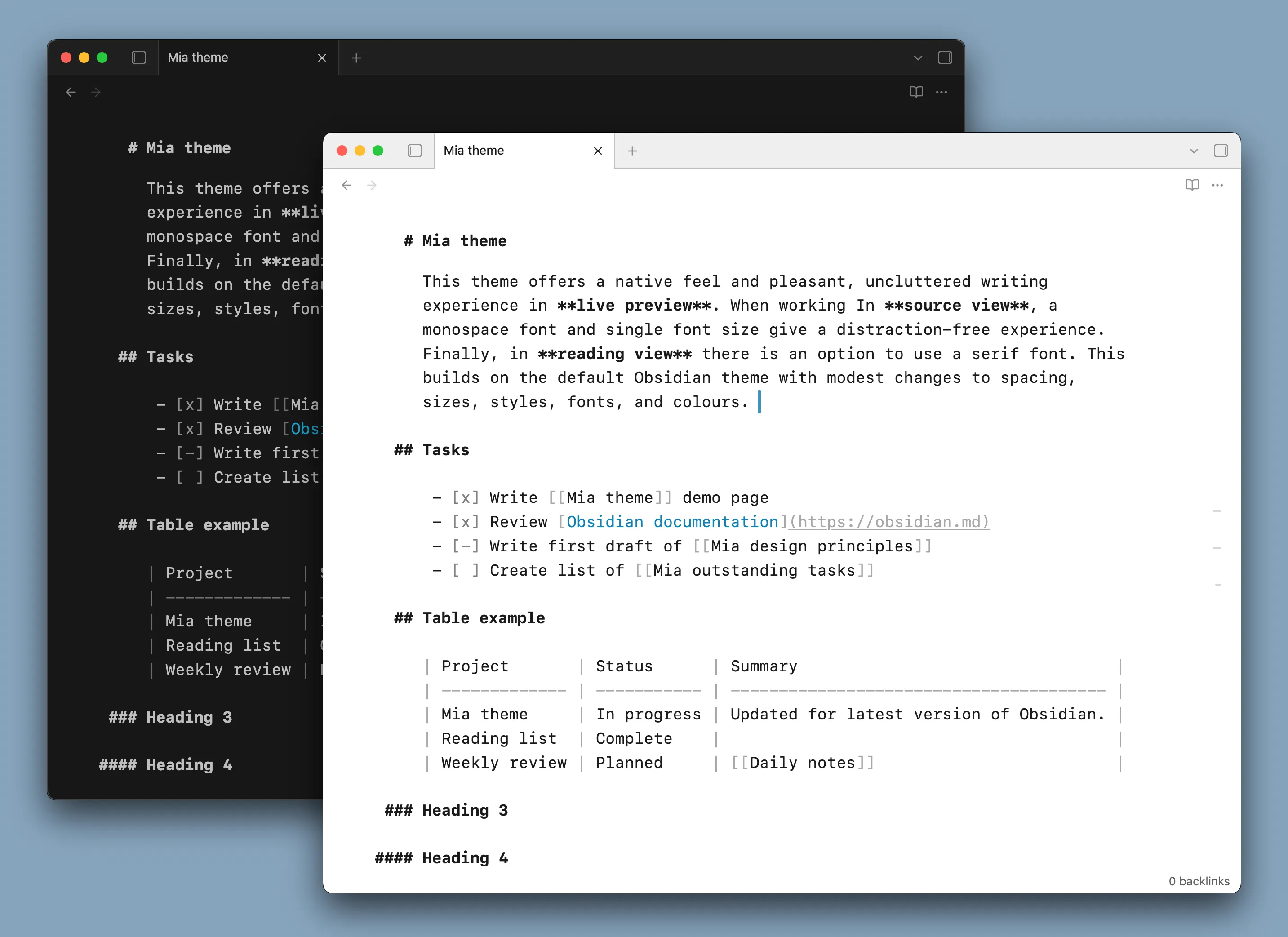
By default, the monospace font "SF Mono" is used. The monospace content (code and pre-formatted text) will also use "SF Mono".
"SF Mono" is available on iOS devices, but may need to be installed on older macOS versions, and other platforms. It is available at Fonts - Apple Developer.
You may use any other font in source mode (see "Theme settings" below). Some good options are the iA Writer fonts, and Roboto Mono.
If you are on macOS or iOS, you do not need to install any other fonts. If you want the theme to look the same as on macOS, install "SF Pro", and set it as the interface font in Obsidian.
Reader view
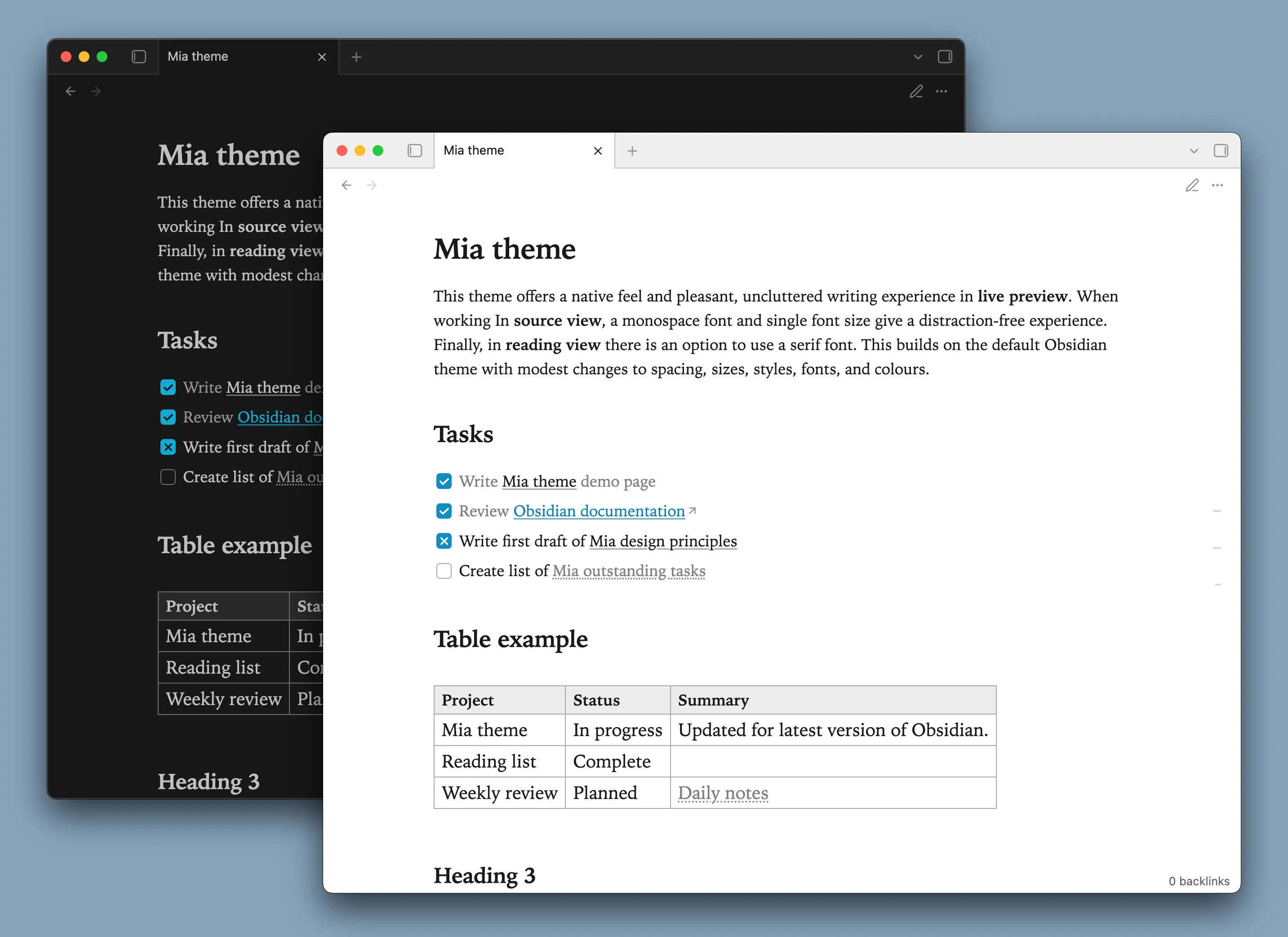
The regular reading view uses the system font.
Use reader in a cssclasses property to use a serif font ("Iowan Old Style" by default) for reading view.
cssclasses: reader
You can configure Mia to always use reader view, in Style Settings. (Use no-reader in cssclasses to selectively disable this.)
Theme settings
If you have the Style Settings plugin installed, you will see a "Mia theme" section where you may fine-tune various aspects of the theme, including links, readable line width, and table styling.
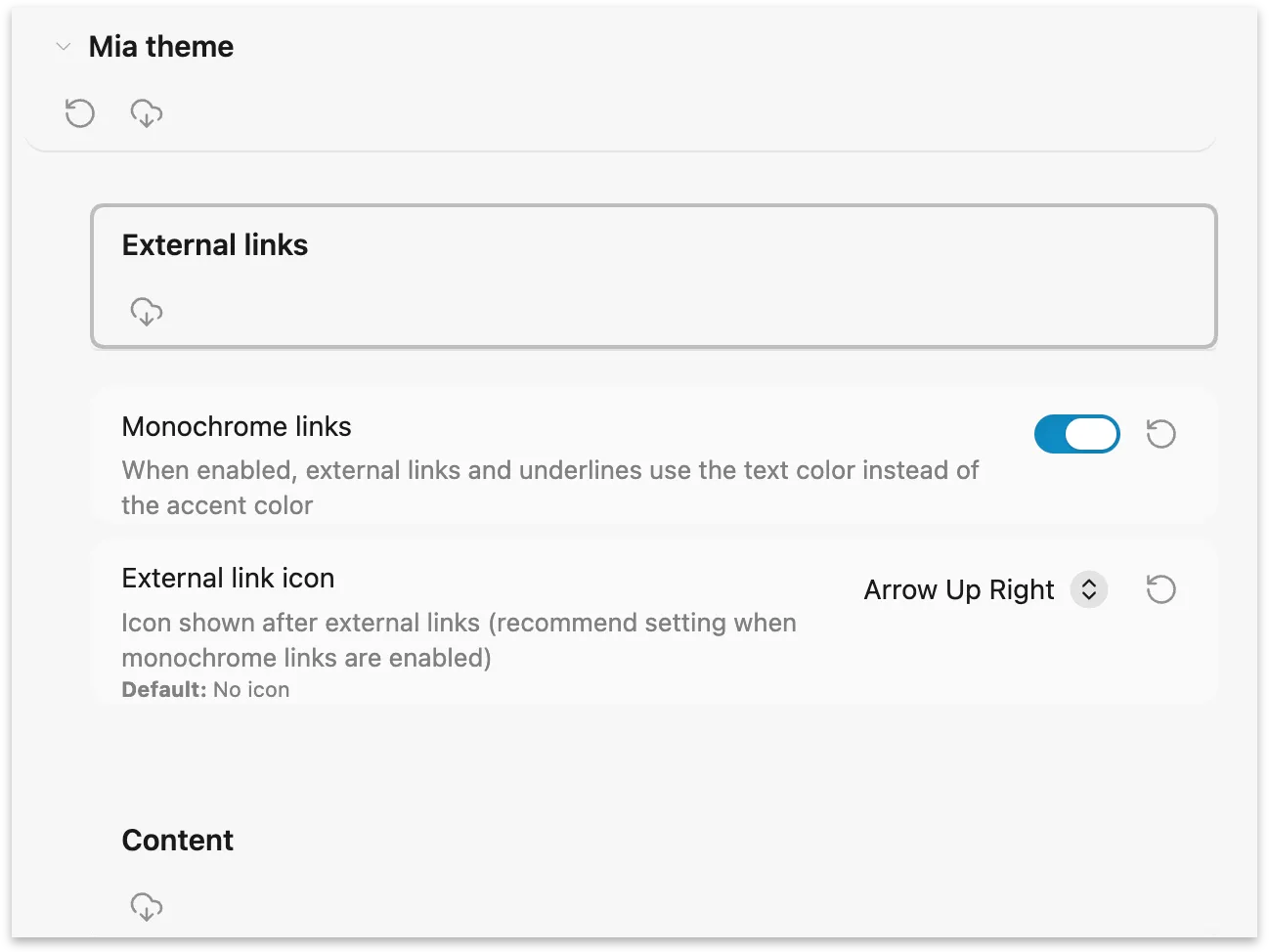
Some settings may be adjusted by setting css variables in a snippet.
| Variable name | Description | Default |
|---|---|---|
| --mia-line-width | Adjust Readable line width | 800px |
| --blockquote-border-thickness | Blockquote border thickness | 0 |
| --checklist-done-decoration | Completed task decoration (text is muted by default) | none |
| --mia-image-muted | Opacity of images in dark mode | 0.85 |
| --mia-font-source-override | Font for 'Source mode' view | SF Mono |
| --mia-font-source-monospace-override | Font for monospace content (code, preformatted) in 'Source mode' view | SF Mono |
| --mia-print-text-size | Body text size when exporting to PDF; headings scale based on this selection | 11pt |
Extras
Cursor customisation
I recommend the excellent Cursor-Smith Plugin for a sublime typing experience. Here is a cursor preset for the Mia theme, shown in the scheme screenshots:
1|Mia|0sLine~1c00c3ff~2c118ac2~14b0~21n0.7~22n0.1~24b0~28n3~29b0~31b0~50n0.45~54n2~63n4~77n2.5~79n250~82n0.5~85b0~89b1~91b1~94n0.8~103b0~117b1~128b1
Snippets
The following snippets are available in the Github repo:
| Snippet | Purpose |
|---|---|
| mia-export-pdf | Export PDF with page numbers and some widow/orphan control(uses the print text size setting available in Style Settings) |
| dynamic-font-size | Make content body text larger for bigger displays |
| square-tabs | Square tabs for a cleaner look |
Image alt classes
A variety of alt-classes may be applied to an image, to arrange it on the page, control its aspect ratio, or filter it. You may specify multiple classes to combine effects; optionally specify a size (image width) at the end.
| alt tag | effect |
|---|---|
| float-left | left-align image; content wraps around it |
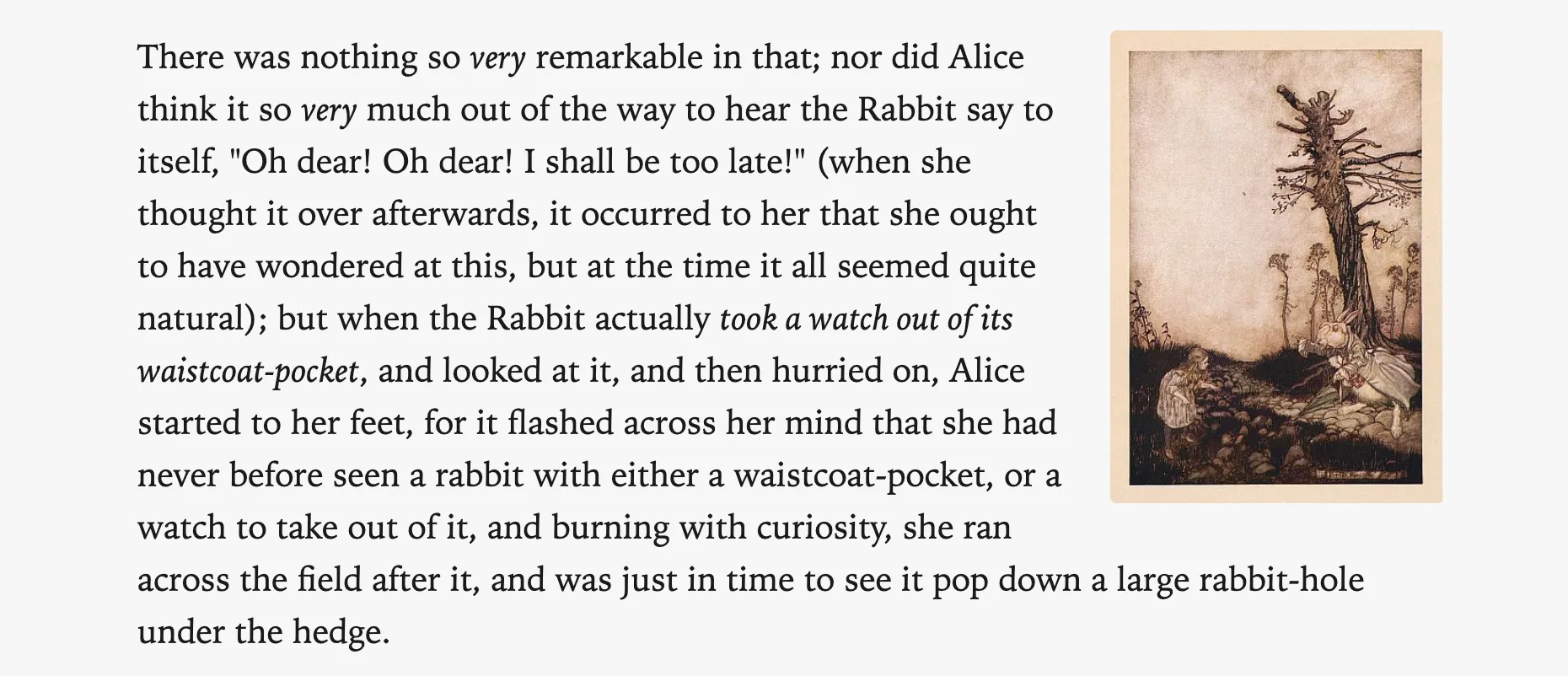
| float-right | right-align image; content wraps around it |
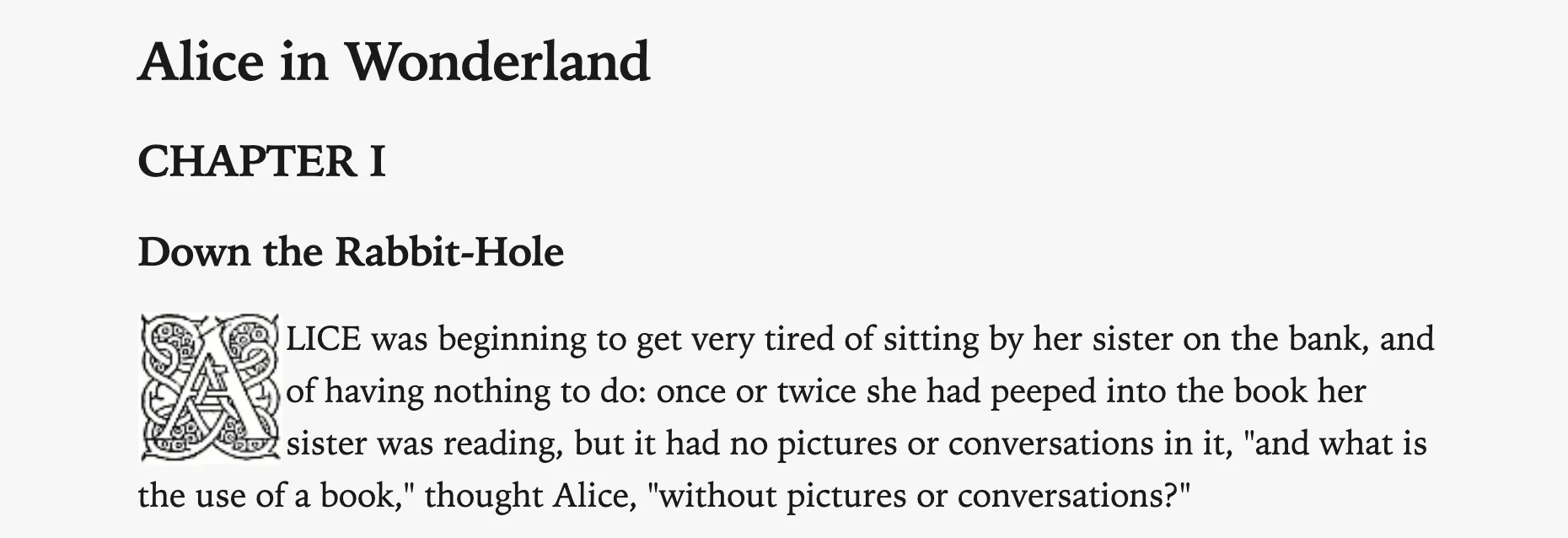
| drop-cap | image is left-aligned with nominal margin, and content wraps around it |
| inline | prevent image from being centered by default |
| banner-top-250 | restrict image to 250px tall, cropped to the top of the image |
| screen, 16:10 | constrain aspect ratio to 16 ∶ 10 |
| square, 1:1 | constrain aspect ratio to 1 ∶ 1 |
| bw, grayscale | render image as black and white |
| sepia | render image with a subtle sepia effect |
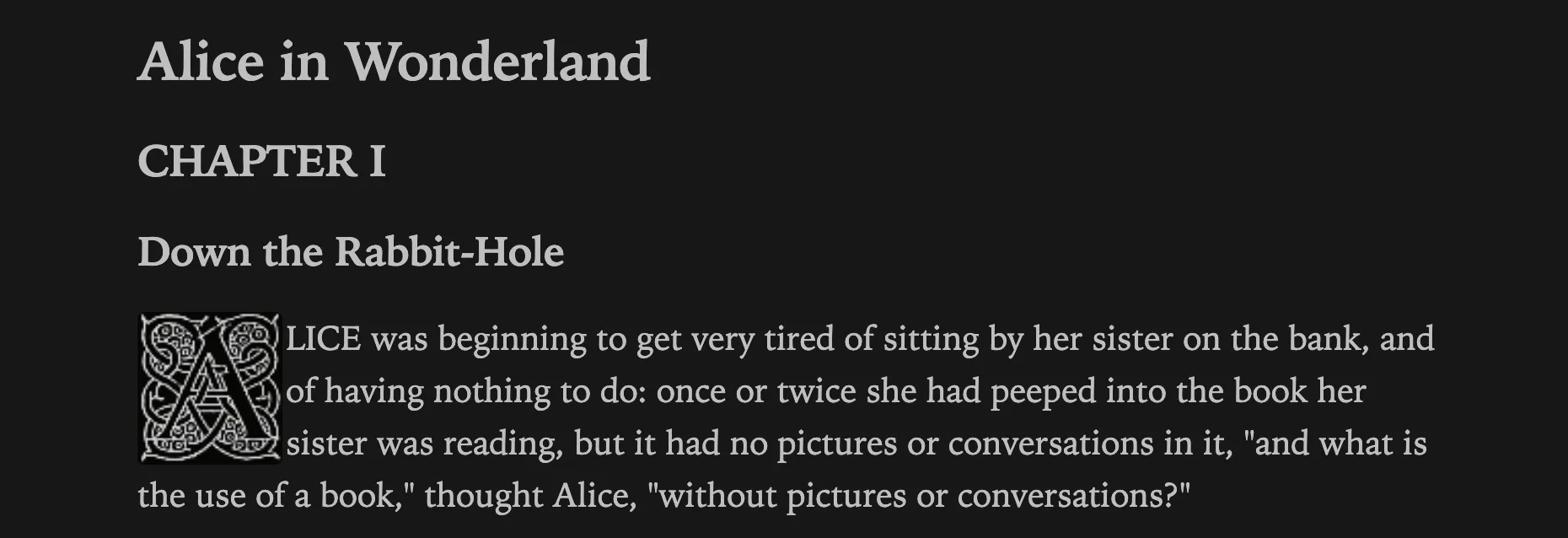
| invert-dark | invert image colourswhen using the dark theme |
| invert-light | invert image colours when using the light theme |
Example: align image to right
![[Alice and Rabbit.jpg|float-right|198]]
There was nothing so _very_ remarkable in that; nor did Alice think it so _very_ much out of the way to hear the Rabbit say to itself, "Oh dear! Oh dear! I shall be too late!" ...
Output:
Example: drop cap inverted when using dark mode
Here is an example using alt tags for a drop-cap image which be inverted in dark mode:
![[A.png|drop-cap|invert-dark|86]]LICE was beginning to get very tired of sitting by her sister on the bank, and of having nothing to do: once or twice she had peeped into the book her sister was reading, but it had no pictures or conversations in it, "and what is the use of a book," thought Alice, "without pictures or conversations?"
In light mode (and reading view), the invert-dark has no effect:
In dark mode, the drop cap is inverted:
Credits
- Image inversion is from contributions by den and BambusControl in this forum post.
- Square tabs snippet is based on code from Minimal theme.
- Style Settings plugin to provide support for theme customisation.
- Cursor-Smith Plugin is active in the theme screenshots.
- Some code editor colours from Flexoki — Steph Ango.
- Extract from Alice's Adventures in Wonderland by Lewis Carroll – Project Gutenberg.