
README file from
GithubWorkout Planner for Obsidian



Log your sets in Obsidian and see your progress in the same notes you plan your training in. Workout Planner keeps every set in one CSV file in your vault, then draws tables, charts, timers and a dashboard (with a muscle heat map) wherever you put a code block.
It works on desktop and mobile, so you can log from your phone between sets.
Contents
- Install
- Your first workout in five minutes
- How it fits together
- Logging sets
- Seeing your progress
- Code block reference
- Exercise pages
- Muscle tags and the heat map
- Commands
- Settings
- Your data
- Dataview and Templater
- Troubleshooting
- Support
Install
- In Obsidian, open Settings → Community plugins → Browse.
- Search for Workout Planner, then select Install and Enable.
To install by hand, download main.js, manifest.json and styles.css from the latest release into <your vault>/.obsidian/plugins/workout-planner/.
Your first workout in five minutes
The quickest way to see everything working is the example folder. Go to Settings → Workout Planner and select Create examples. You get sample exercises, a few workouts with a month of logs, and a dashboard. Open them and look around.
To start with your own data instead:
-
In Settings → Workout Planner, set the CSV folder (where your logs go) and the exercise folder (where your exercise pages go), then select Create files.
-
Make a note called
Push Dayand add a table for one exercise:```workout-log exercise: Bench Press ``` -
Select the + button under the table (or the dumbbell icon in the ribbon, or the Create workout log command). Enter reps and weight and save. The table updates on its own.
-
Once you have a few sessions, add a chart under the table:
```workout-chart
exercise: Bench Press
type: weight
```
How it fits together
There are three kinds of files:
| What | Where | What it does |
|---|---|---|
| The log | workout_logs.csv in your CSV folder |
One row per set. Every view reads from here. |
| Exercise pages | Your exercise folder, one note per exercise | Say what kind of exercise it is (so the log form asks for the right fields) and which muscles it trains (for the heat map). Optional, but recommended. |
| Your notes | Anywhere | Workout plans, journals, dashboards. You add code blocks to them to show tables, charts, timers and stats. |
When you log a set from a note, the note's name is saved as the set's workout. That's how workout: Push Day filters work later.
Logging sets
Open the log form in any of these ways:
- the + button under a
workout-logtable (it fills in the exercise for you) - the dumbbell icon in the ribbon
- the Create workout log command
The form fills in the reps and weight of your last set, has +/− buttons for both, and shows recent exercises as one-tap chips (on a phone they sit under Recent exercises and workout, at the bottom of the form). It asks for the fields that fit the exercise: reps and weight for a squat, seconds for a plank, distance and time for a run (see Exercise pages).
Each set can also carry:
- notes, as free text
- a protocol, the training technique shown as a badge: standard, drop set, myo-reps, rest-pause, superset, 21s, or your own
To change or delete a set, use the buttons on its row in a table.
On your phone
The plugin is built to be used between sets. On a phone:
- each set in a
workout-logtable becomes a compact row with its edit and delete buttons always in reach, with no sideways scrolling - the dashboard puts Quick actions first and shows the summary as a 2 × 2 grid
- charts are replaced by a table of their values, which is easier to read on a small screen
Seeing your progress
| You want to… | Use |
|---|---|
| See every set of an exercise or workout | workout-log table |
| See a lift go up over time | workout-chart with type: weight or volume |
| Track runs, rides, planks | workout-chart with type: duration, distance, pace or heartRate |
| Get an overview: totals, recent workouts, muscles trained, protocol stats | workout-dashboard |
| Time your rest | workout-timer |
| Know how long a planned workout takes | workout-duration |
| Lay out a workout on a canvas | Export workout to canvas command |
You don't have to write code blocks by hand: the Insert workout chart / table / timer / dashboard / duration commands open a form and insert the block for you.
Code block reference
Every parameter is optional. Exercise names match loosely by default ("squat" finds "Squat (high bar)"); add exactMatch: true when you want only that exact name.
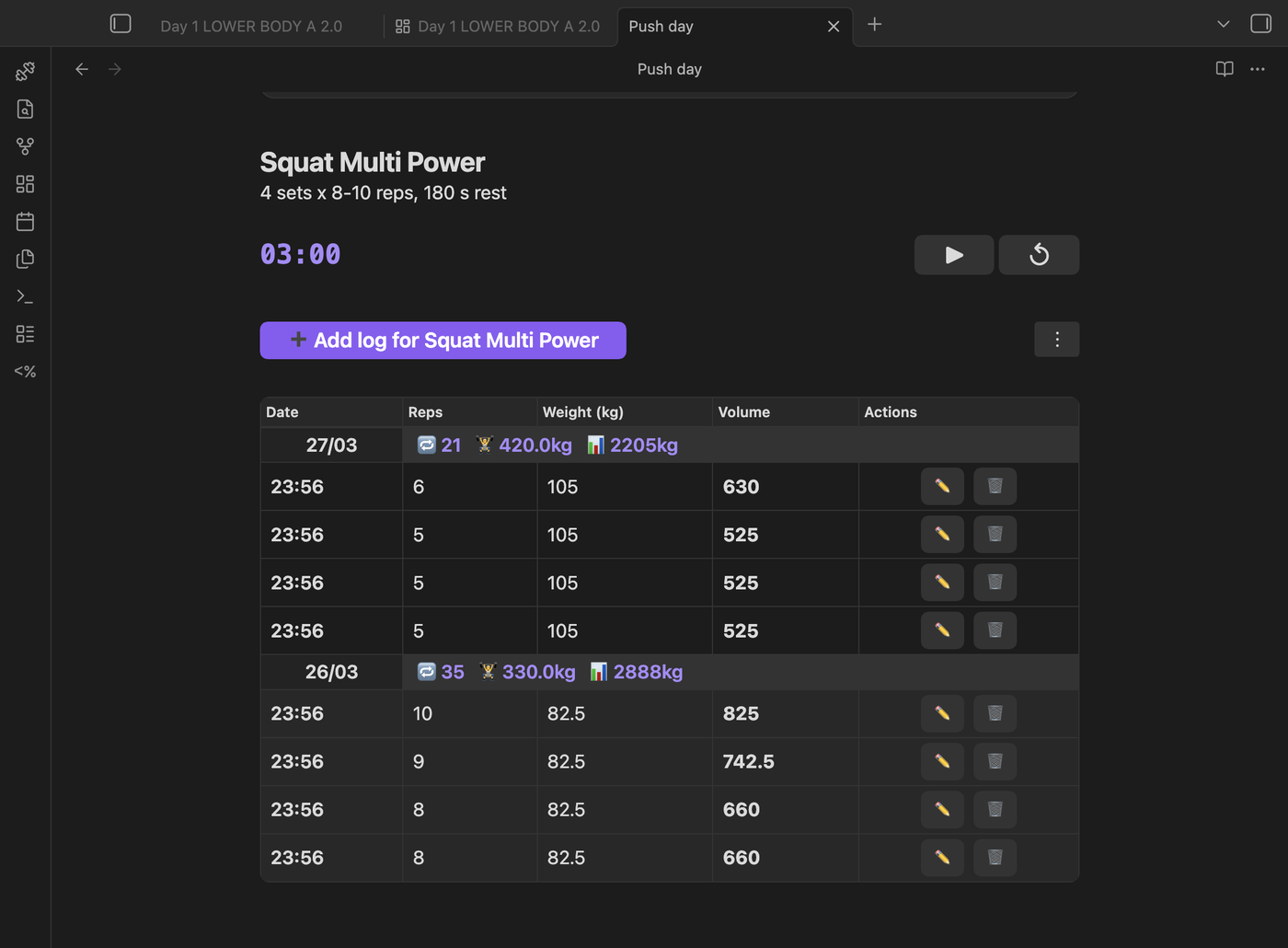
workout-log
A table of sets, newest first, with edit and delete buttons. Sets from the same day are grouped under a row with that day's totals.
exercise: Bench Press
dateRange: 14
limit: 20
| Parameter | Default | What it does |
|---|---|---|
exercise |
— | Only this exercise |
workout |
— | Only this workout (note name) |
exactMatch |
false |
Match the exercise name exactly |
dateRange |
all | Today and the previous N days |
limit |
50 |
Maximum rows |
sortBy |
date |
date, exercise, weight, reps or volume |
sortOrder |
desc |
asc or desc |
columns |
all | Columns to show, e.g. ["date", "reps", "weight"] |
showProtocol |
true |
Show the protocol badge column |
showAddButton |
true |
Show the + button |
targetWeight, targetReps |
— | Show a progressive-overload target above the table |
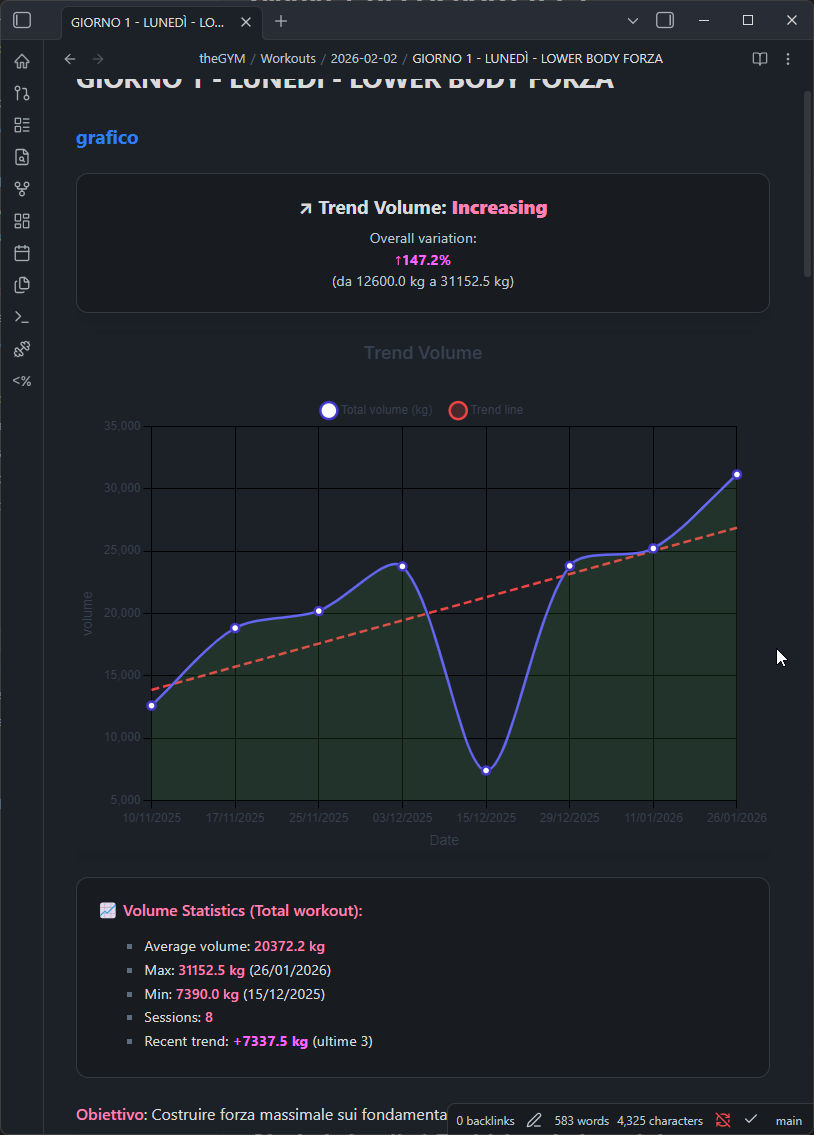
workout-chart
A line chart for one measure over time.
exercise: Squat
type: volume
dateRange: 90
showTrendLine: true
| Parameter | Default | What it does |
|---|---|---|
exercise |
— | Only this exercise |
workout |
— | Only this workout |
type |
volume |
volume, weight, reps, duration, distance, pace or heartRate |
chartType |
exercise |
How each day's point is built (below) |
dateRange |
30 |
Days to include |
limit |
— | Only the latest N points |
showTrendLine |
false |
Draw a trend line |
showStats |
true |
Show average, best and lowest under the chart |
title |
Trend <type> |
Chart title |
height |
4:3 | 300 (pixels) or any CSS length such as 50vh |
exactMatch |
false |
Match the exercise name exactly |
chartType picks which sets count and how a day becomes one point:
chartType |
Sets used | Each day's point |
|---|---|---|
exercise |
sets of exercise |
average |
workout |
sets of workout |
total |
combined |
sets of exercise within workout |
total |
all |
every set (filters ignored) | total |
The header above the chart calls the trend Increasing, Decreasing or Stable. It is stable when the trend line moves by less than 5% of the average across the whole period, so steady small gains still count as increasing. For pace, lower is better, so a falling line is shown as improving.
On a phone the chart is replaced by a table of the same values.
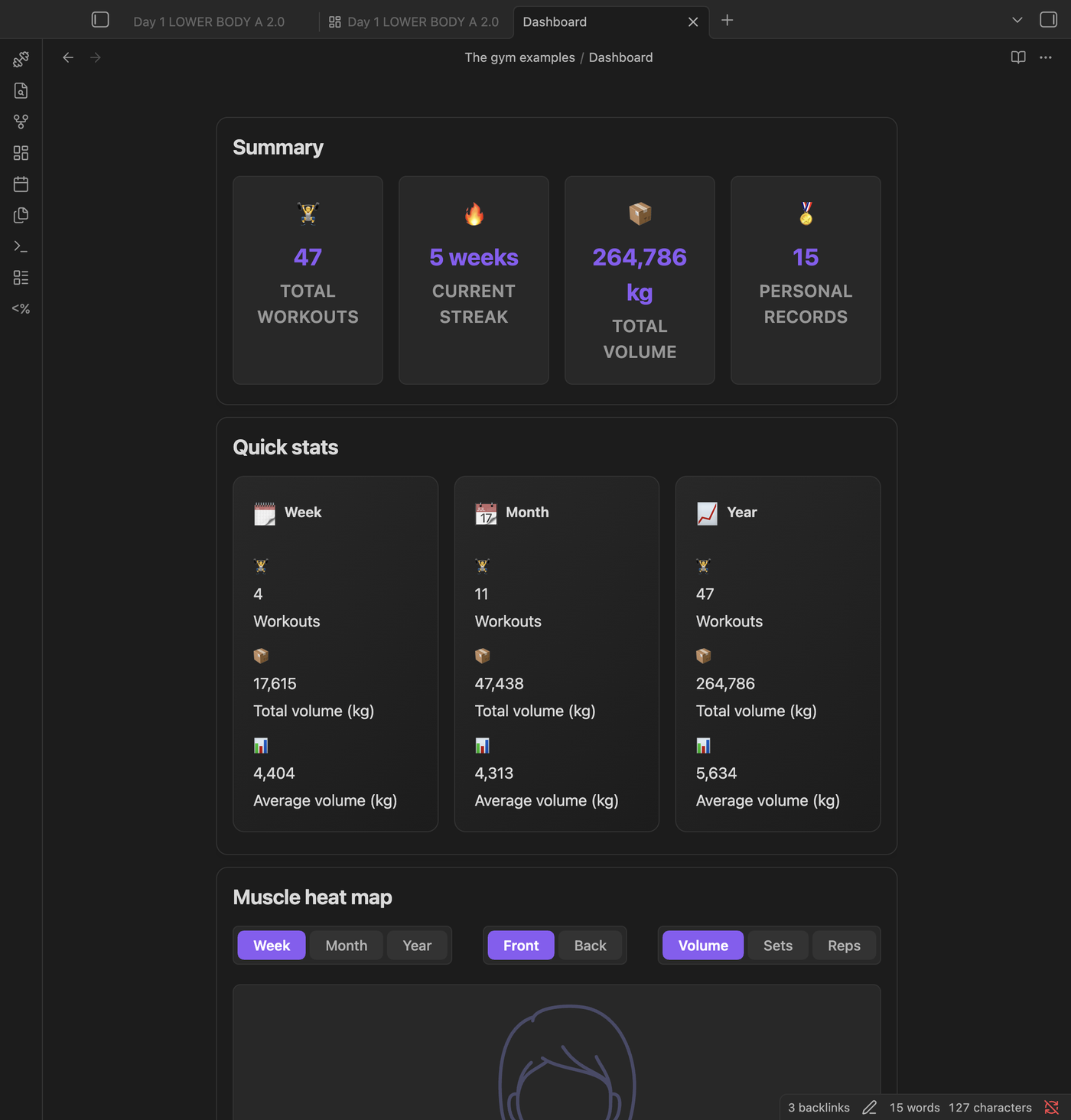
workout-dashboard
Summary cards, quick stats, volume trend, recent workouts, a muscle heat map, protocol usage and effectiveness, and planned vs. actual workout length.
title: Last three months
dateRange: 90
| Parameter | Default | What it does |
|---|---|---|
title |
— | Heading above the dashboard |
dateRange |
all | Only sets from the last N days |
showSummary, showQuickStats, showVolumeAnalytics, showRecentWorkouts, showQuickActions |
true |
Hide a section with false |
recentWorkoutsLimit |
5 |
Workouts in the recent list |
volumeTrendDays |
30 |
Days in the volume trend chart |
The heat map has buttons for the period (week, month, year), the side of the body, and what to measure: Volume (reps × weight), Sets or Reps. Bodyweight and timed exercises have no weight, so they only light up under Sets and Reps.
workout-timer
type: countdown
duration: 90
| Parameter | Default | What it does |
|---|---|---|
type |
countdown |
countdown, interval or stopwatch |
duration |
30 |
Seconds (countdown and interval) |
rounds |
1 |
Rounds (interval) |
sound |
true |
Beep when time is up |
autoStart |
false |
Start as soon as the note opens |
superset |
false |
Canvas export only: draw this exercise and the next one as a superset |
showControls |
true |
Show start, pause and reset |
preset |
— | Start from a saved preset; other parameters override it |
exercise, workout |
— | Restart the timer when you log a set for this exercise or workout, handy for rest periods |
On a phone, the browser only allows sound after you've tapped Start once, so a timer started by autoStart stays silent until then.
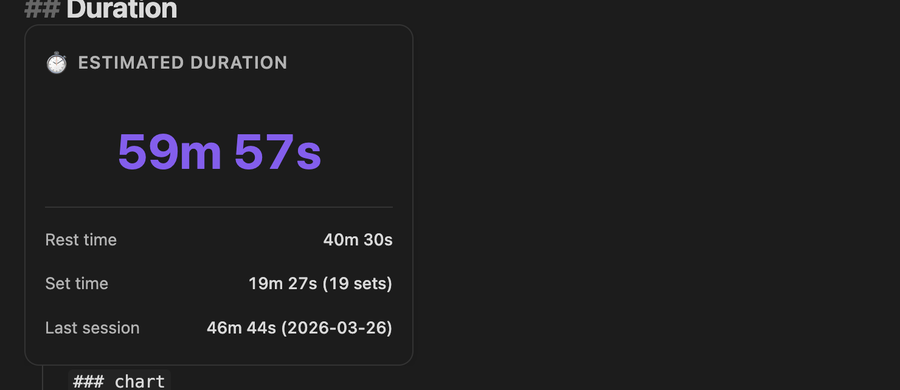
workout-duration
Estimates how long a workout note takes: rest from its workout-timer blocks plus time for each set.
workout: Workouts/Push Day.md
| Parameter | Default | What it does |
|---|---|---|
workout |
this note | Workout note to estimate: its path in the vault, a path relative to this note, or just its name |
Seconds per rep and per set come from Settings → Training parameters.
Exercise pages
An exercise page is a note in your exercise folder. Its frontmatter tells the plugin two things: what to ask for when you log it, and which muscles it trains. Create exercise page makes one for you.
---
exercise_type: strength
tags:
  - chest
  - triceps
---
exercise_type |
The log form asks for | You can also write |
|---|---|---|
strength (default) |
reps, weight | bodyweight, weights |
timed |
duration | duration, time, timer, interval, hold, isometric |
distance |
distance, duration (optional) | running, run |
cardio |
duration, distance and heart rate (optional) | — |
custom |
only the fields you list under parameters |
— |
type: works the same as exercise_type:. To add your own fields, list them under parameters, for example rounds for jump rope:
---
exercise_type: timed
parameters:
  - key: rounds
    label: Rounds
    type: number
    required: false
tags:
  - calves
---
If you change an exercise's type after logging it, Convert exercise moves the existing sets over and lets you choose which old field goes where.
Muscle tags and the heat map
The heat map reads the tags of each exercise page. Tags can be a list, a single word (tags: chest) or a comma-separated line (tags: chest, triceps).
Broad groups: chest, back, shoulders, biceps, triceps, forearms, traps, quads, hamstrings, glutes, calves, abs, core
Specific muscles are each drawn in its own area of the body and counted toward its group:
| Group | Specific muscles |
|---|---|
chest |
upper_chest, mid_chest, lower_chest |
shoulders |
front_delts, side_delts, rear_delts |
back |
lats, rhomboids, lower_back (or ql) |
core |
obliques, serratus |
A broad tag spreads over its whole area: chest lights all three parts of the chest a little, upper_chest lights only the top one fully.
Tags in your own language, like petto or schiena, work too. The plugin maps them to the groups above using muscle-tags.csv, next to your log. Edit it with Manage muscle tags (add, rename, search, spot duplicates) or by hand:
tag,muscleGroup,language
petto,chest,it
dorsali,lats,it
A tag that is already a group name (upper_chest, Upper chest, upper-chest) always works, even if your muscle-tags.csv doesn't list it.
Commands
Open the command palette (Ctrl/Cmd + P) and type the name.
| Command | What it does |
|---|---|
| Create workout log | Log a set |
| Insert workout chart / table / timer / dashboard / duration | Insert a code block through a form |
| Create exercise page | New exercise page with type and tags |
| Create exercise section | Add a heading, timer and table for an exercise to the current note |
| Add exercise block | Insert an exercise block, with name autocomplete |
| Convert exercise | Move an exercise's sets to another exercise type |
| Manage muscle tags | Edit muscle-tags.csv |
| Generate tag reference | Create a note listing every muscle tag |
| Audit exercise names | Find the same exercise logged under different spellings |
| Export workout to canvas | Lay out the current workout on an Obsidian canvas |
| Create CSV log file | Create an empty log |
| Migrate exercise types, Add missing IDs to code blocks | Maintenance after upgrading from older versions |
Settings
| Section | Settings |
|---|---|
| Setup & data | CSV folder, exercise folder, weight unit (kg or lb), create the CSV files, create examples |
| Mobile logging | Match exercise names exactly by default, show the ribbon icon, weight step for the +/− buttons |
| Timer presets | Saved timers (type, duration, rounds, sound) and the default one for new timers |
| Custom protocols | Your own techniques, each with a name, a short label of up to 3 letters, and a color |
| Training parameters | Weight step for overload targets, seconds per rep, default reps per set, seconds per set when reps are unknown (used by workout-duration) |
| Advanced | The block inserted by Create exercise section, template generation, and Run all maintenance |
Each set keeps the unit it was logged in. The weight field in the log form has a kg/lb picker, so you can log 225 lb even if the setting is kg; the table shows that set as "225 lb". Charts, volume, stats and the API convert every set to the unit in the settings. Changing that setting doesn't relabel old sets: sets logged before this version get the previous unit saved first (a copy of the CSV is kept next to it, last 3 copies). Run all maintenance does the same with the current unit.
Your data
Everything is in workout_logs.csv, one row per set, so you can open it in a spreadsheet, back it up, or sync it like any other file.
date,exercise,reps,weight,volume,origine,workout,timestamp,notes,protocol
2025-01-17T10:30:00.000Z,Bench Press,8,100,800,[[Push Day]],Push Day,1737138600000,,standard
| Column | Meaning |
|---|---|
date |
When the set was logged (ISO 8601) |
exercise, workout |
Exercise and workout name |
reps, weight, volume |
Volume is reps × weight |
origine |
Link to the note it was logged from |
timestamp |
Unique ID of the row (milliseconds) |
notes, protocol |
Free text and training technique |
Exercise types with their own fields (duration, distance, heartRate, or your parameters) add columns at the end. The last column, weightUnit, is kg or lb: the unit of that row's weight and volume. An empty value means the unit in the settings.
If you edit the file by hand, keep the header row, and wrap any value that contains a comma, quote or line break in double quotes. Notes starting with =, +, - or @ are stored with a leading ' so spreadsheets don't run them as formulas; the plugin hides it again.
Dataview and Templater
The plugin exposes WorkoutPlannerAPI (also window.WorkoutPlannerAPI) once it has loaded.
| Method | Returns |
|---|---|
getWorkoutLogs(filter?) |
Sets, each with date, exercise, reps, weight, volume, workout, notes, timestamp, protocol. weight and volume are in the settings unit; enteredWeight and enteredUnit are what was logged |
getExerciseStats(exercise) |
totalVolume, maxWeight, prWeight, prReps, prDate, totalSets, averageWeight, averageReps, lastWorkoutDate, trend |
getExercises(filter?) |
Exercise names, sorted: the file names of your exercise pages (subfolders included), or the names in your log when you have no exercise pages. { tag: "chest" } keeps the exercises whose page has that tag, so it is empty without exercise pages. |
getWorkoutLogs accepts exercise (partial, case-insensitive), workout, dateRange: { start, end }, protocol and exactMatch.
Recent squats, in Dataview:
const logs = await WorkoutPlannerAPI.getWorkoutLogs({
  exercise: "Squat",
  dateRange: { start: moment().subtract(30, "days").format("YYYY-MM-DD") },
});
dv.table(
  ["Date", "Reps", "Weight"],
  logs.map((l) => [l.date.slice(0, 10), l.reps, l.weight]),
);
Best bench press:
const s = await WorkoutPlannerAPI.getExerciseStats("Bench Press");
dv.paragraph(`Best: ${s.prWeight} × ${s.prReps} on ${s.prDate}`);
In a Templater template, to start a note with your latest numbers:
## Squat

<%\*
const s = await WorkoutPlannerAPI.getExerciseStats("Squat");
tR += s.totalSets
? `Best ${s.prWeight} × ${s.prReps} (${s.prDate}), last session ${s.lastWorkoutDate}`
: "No squats logged yet";
%>
Troubleshooting
A table or chart is empty. Check the exercise name and the dateRange (charts default to the last 30 days). With exactMatch: true the name must match exactly; leave it out to match loosely.
Bodyweight or timed exercises don't show on the heat map. Switch the heat map to Sets or Reps: their volume is 0 because they have no weight.
An exercise is missing from the heat map. Its page needs muscle tags, and the page has to be in the exercise folder set in the settings.
The log form asks for reps and weight for a plank. Set exercise_type: timed (or type: duration) in the exercise page.
The timer makes no sound on my phone. Tap Start once; phones block sound until you interact with the page.
I changed the CSV folder and nothing updated. Open notes reload a moment after you stop typing the new folder. If one still shows old data, reopen it.
Support
Workout Planner is free and open source. If it helps your training and you want to say thanks, you can buy me a coffee. Obsidian also shows a donate button on the plugin's page in Settings → Community plugins. Bug reports and ideas are just as welcome as issues.
Translations
Every language except English is machine-translated, so some phrases may sound off. Corrections are welcome as an issue or pull request.
Credits and license
Charts use Chart.js (MIT). Workout Planner is released under the MIT License.