
README file from
GithubTimeSaver
An Obsidian plugin for processing tasks.
Developed based on the needs of my own work flow and the demand of a friend on website. Any suggestions are welcome.
Repository
odayou/obsidian-task-processing-extension
✨ 0.0.7 Highlights
- Four-corner image resizing: hover
![[image]],, or an HTML<img>and drag any corner to resize proportionally. Images can be resized repeatedly; standard Markdown images are converted to HTML images with a width attribute. - Three-layer non-intrusive stats UI: status bar shows current note duration and counted notes live; a right-side panel shows total / by task / by #tag / note count; auto-compute on note open / save / editor blur.
- Very forgiving time formats: Chinese
2026年8月28日10:53, concatenated date-time2026-08-2810:53, en-dash / hyphen mix, seconds precision, dated timestamps — written any reasonable way, it parses. - Cross-note aggregation & Dataview/Bases integration: one command sums task time across all notes or a chosen folder, grouped by
#tag, and can write results into each note's frontmatter for database queries. - Grouped settings with per-item toggles: insert task / time / copy link, the stats context-menu entry, and auto-compute are all independently controllable — on by default only where you need them.
Features
- Calculate the time spent on each task from the recorded details (extract tasks from the current document) and show the total.
- Quick commands: insert pending / completed tasks, insert the current time, copy link.
- All commands are available from the command palette or the editor right-click menu (each can be toggled).
- Status bar live summary (v0.0.6): current note duration and counted notes stay on the status bar (no date-less "all notes" grand total).
- Right-side stats panel (v0.0.6): total time, per-task breakdown, by #tag, and note count — see your global time distribution at a glance.
- Cross-note aggregation & Dataview integration (v0.0.6):
Compute total time in all notesaggregates task time across all notes (or a folder) and groups by#tag— the cross-note view shows the #tag breakdown and note count, not a date-less grand total; optionally writes into each note's YAML frontmatter. - Very forgiving time formats (v0.0.6): Chinese dates, concatenated date-time, en-dash / hyphen, seconds and dated timestamps — see Time format support.
- Four-corner image resizing (v0.0.7): supports both Obsidian and standard Markdown images, preserving aspect ratio and saving the resized width.
Usage
In the edit view, in a document that has tasks (standard task format) and time moments, call the command total time (or trigger it via the right-click menu / panel), and the time spent on each task will be listed with the total.
- For the global view: open the right-side panel via the left ribbon or the
Toggle TimeSaver panelcommand; the status bar shows current-note duration and the count of notes computed. - To aggregate all notes: run
Compute total time in all notes(hidden from the right-click menu by default — enableShow stats entry in context menuin settings). - Auto-compute is always on (no toggle): on note open, editor blur, or file save — silent recompute, no config needed.
- To resize an image, hover
![[image]],, or an HTML<img>in Live Preview and drag any corner handle. The aspect ratio stays fixed, and the width is saved when you release the pointer; you can resize it again later. Standard Markdown images are converted to HTML images with a width attribute. Adjust the corner-handle inset (0–120 px) under Settings → Image resizing.
Build and install locally
Run these commands from the plugin project root:
npm install
npm run build
The bundled JavaScript output is main.js in the project root. The build does not create a ZIP. To install manually, put main.js, manifest.json, and styles.css together in your vault's .obsidian/plugins/time-saver/ folder, then enable TimeSaver under Settings → Community plugins. On Windows, the vault folder is commonly under %APPDATA%\obsidian\<vault name>\.obsidian\plugins\time-saver\; create the plugin folder if needed.
main.js is generated and Git-ignored, so it is not included in normal source commits. For a GitHub Release, attach it together with manifest.json and styles.css. During development, run npm run dev to watch source changes and rebuild main.js automatically.
Preview
- Four-corner image resizing
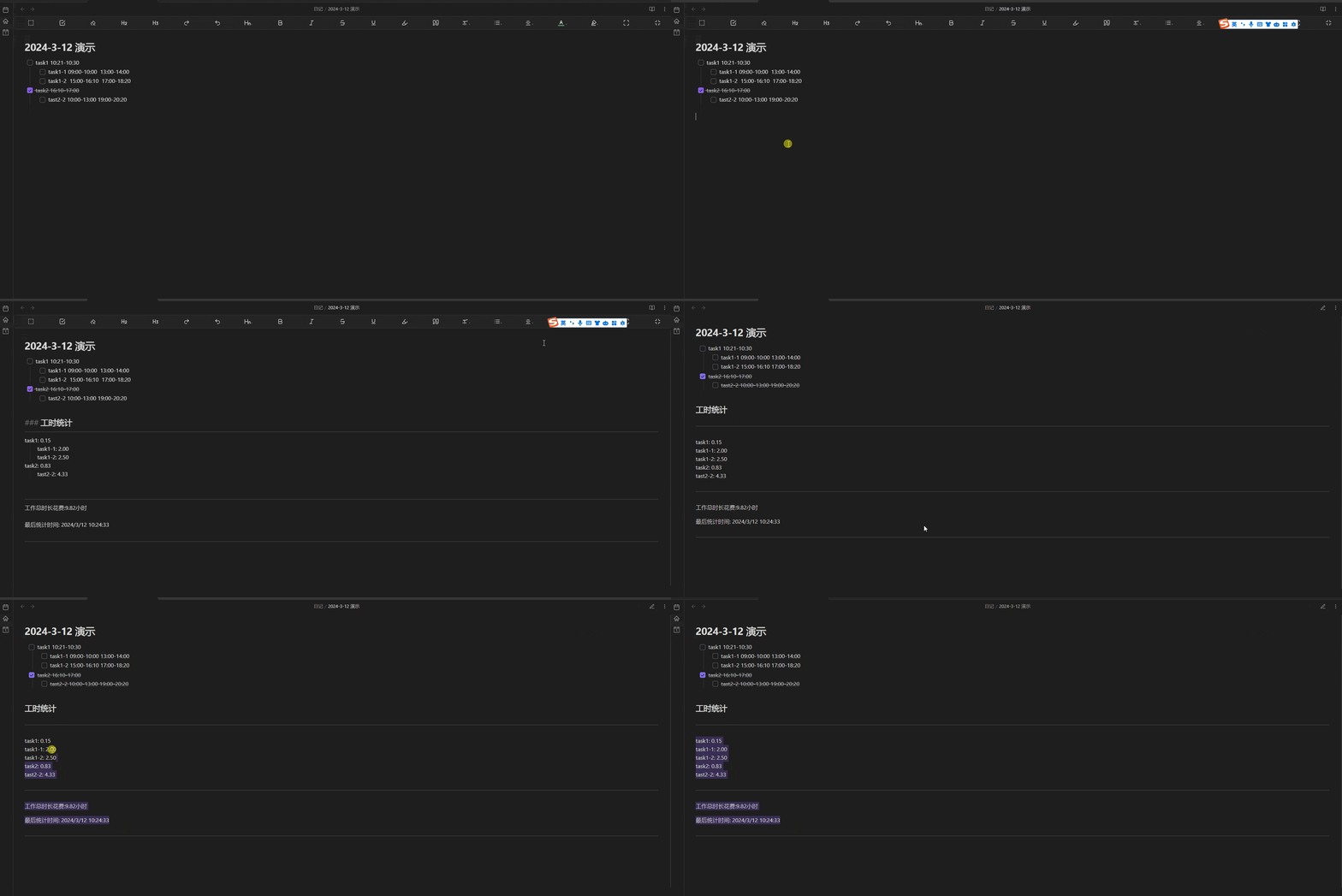
- Time statistics effect display

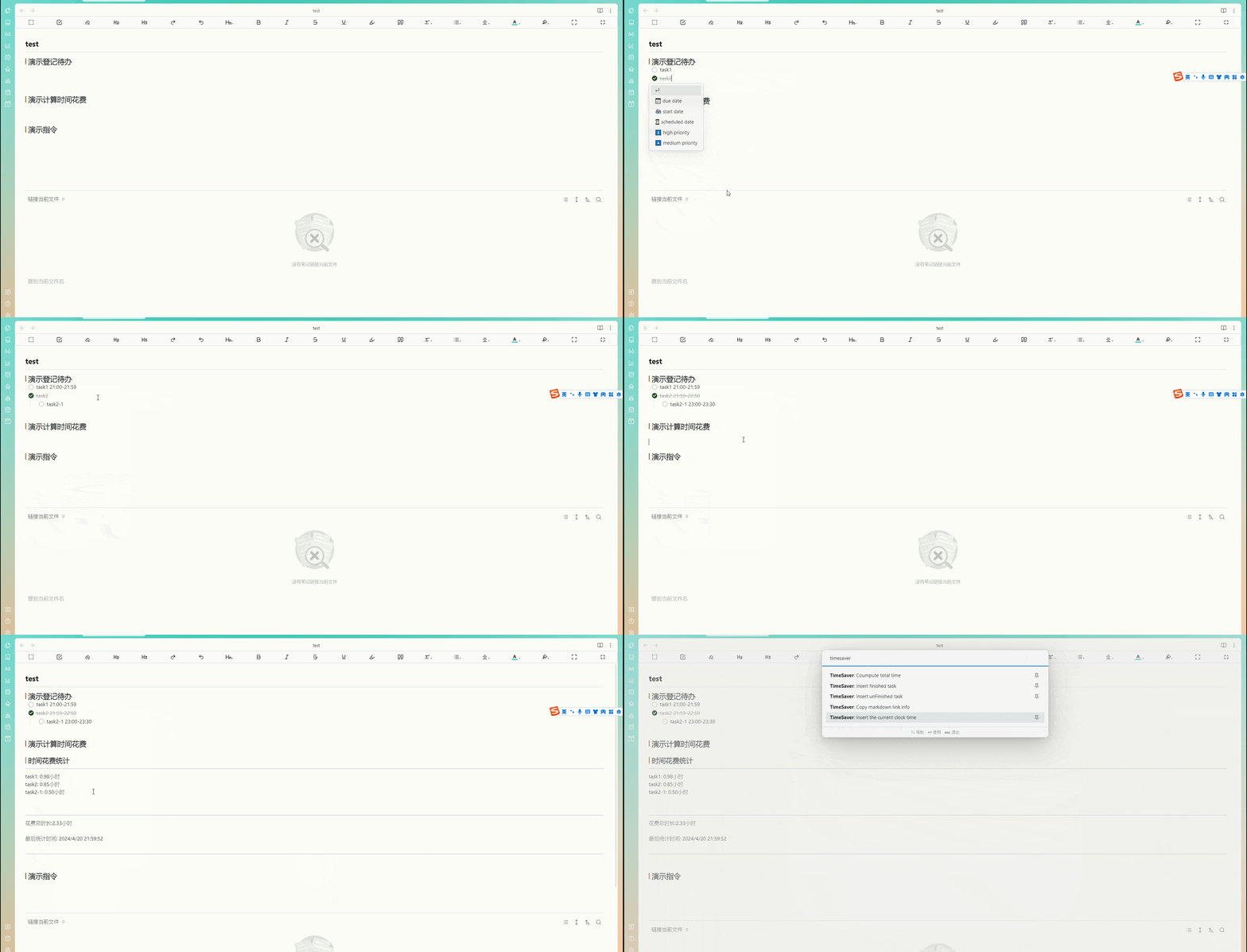
- Comprehensive demo
- Task time statistics demo
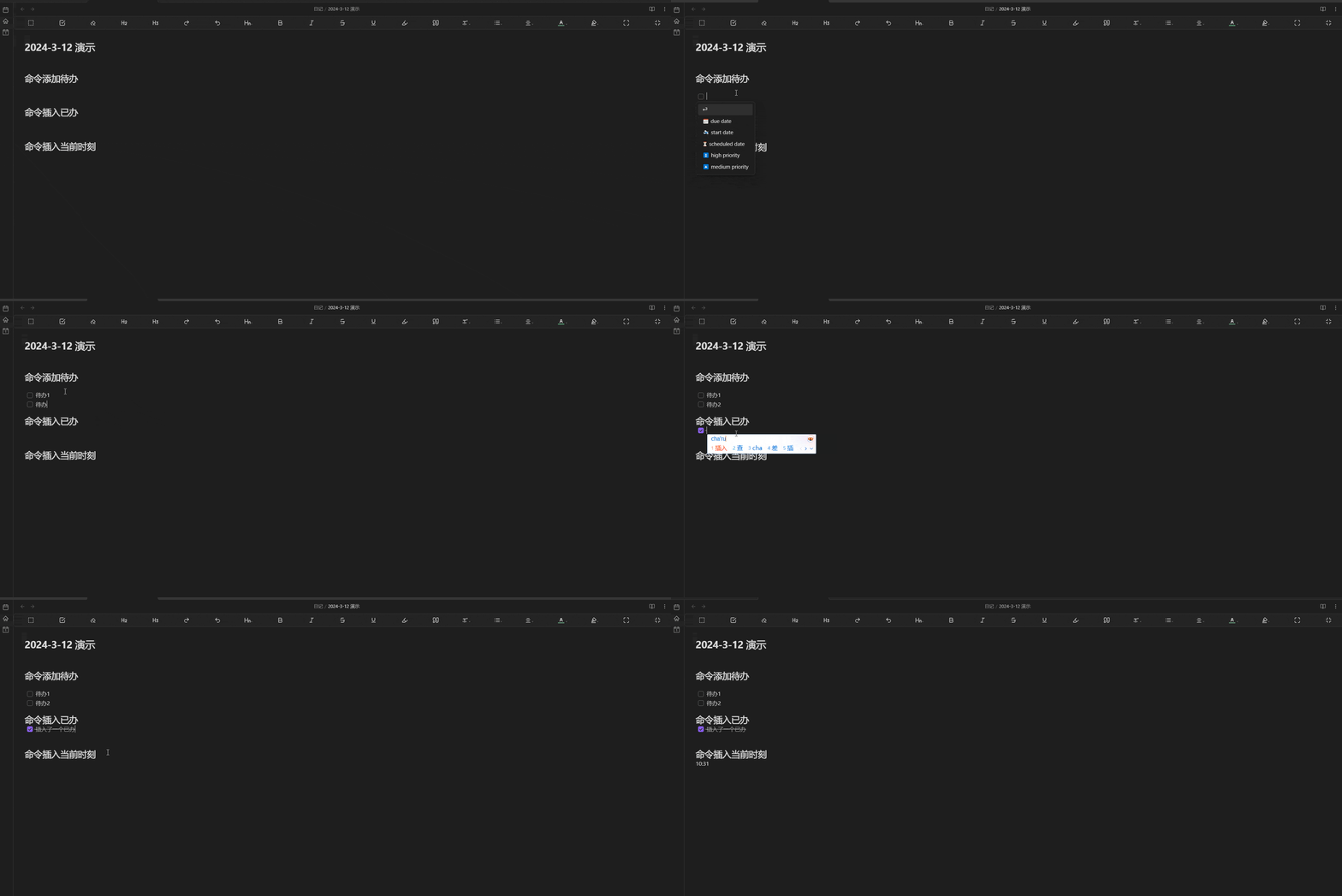
- Quick commands demo
- All features are integrated into the right-click menu

Demo
Tasks
- [ ] 10:21-10:30 task1
    - [ ] 09:00-10:00 13:00-14:00 task1-1 #tag
    - [ ] 15:00-16:10 17:00-18:20 task1-2 some English words and more
- [x] 16:10-17:00 task2 #tag
    - [ ] 10:00-13:00 19:00-20:20 tast2-2
Time statistics
### 时间花费统计
---
task1: 0h 9m (0.15小时)
    task1-1 #tag: 2h 0m (2.00小时)
    task1-2 some English words and more: 2h 30m (2.50小时)
task2 #tag: 0h 50m (0.83小时)
    tast2-2: 4h 20m (4.33小时)

---
总时长: 9h 49m (9.82小时)
最后统计时间: 2025/2/27 22:15:22
Panel, status bar & one-click stats (v0.0.6)
- Status bar: with
Show status baron, the bottom bar shows the current note duration and the count of notes computed, updating as you edit or switch notes; click the status bar to open a quick menu: compute current note, compute all notes, export stats, toggle panel. Computing the current note no longer requires the edit mode — reading view, a note open in another pane, or even a note restored by Obsidian at startup are all auto-computed; non-Markdown files (e.g. Canvas) show a gentle hint instead of a false "please open a Markdown note" error. - Right-side panel: open via the left ribbon icon or the
Toggle TimeSaver panelcommand; when no stats yet, the panel showsCompute current note/By date/Compute all notestrigger buttons; once computed it shows total, per-task detail, by #tag, and note count, with built-inRefresh,Copy all, andExport to current notebuttons; date aggregation is additionally labeled "only daily notes" and listed per day. - Auto compute (always on): no toggle — it silently recomputes on note open (incl. files restored when Obsidian starts), editor blur, and file save; read-only scan, never rewrites your note.
Time format support
TimeSaver is very lenient about how you write a time span. All of the following are recognized (each near the same 09:00–11:30 span):
| Format | Note |
|---|---|
09:00 - 11:30 |
basic (space + hyphen) |
09:00 – 11:30 |
en-dash (–) as separator |
09:00:00 - 11:30:00 |
with seconds |
2026-08-28 09:00 - 11:30 |
dated moment (western-) |
2026/08/28 9:00 - 11:00 |
slash date + single-digit hour |
2026年8月28日10:53 |
Chinese year/month/day, dateconcatenated with time |
2026/8/2810:53 |
slash date concatenated with time |
2026/08/2810:53 |
zero-padded date concatenated with time |
2026-08-2810:53 |
hyphen date concatenated with time |
Notes:
- 0 or more spaces are allowed between date and time (they may be concatenated).
- Western date separators
-//and Chinese年 月 日are both supported. - When the end moment omits the date, it inherits the start moment's date to avoid false midnight wrap-around.
Note: these mixed formats have no universal standard (ISO 8601 is
2026-08-28T10:53, different from everyday notes; JSDate.parse/ dayjs can't parse Chinese year/month/day either), so common writings are covered explicitly via regex and can be extended as needed.
Cross-note aggregation & Dataview integration (v0.0.6)
Settings
Three new options in the plugin settings:
- Scope:
All notesorSpecific folder. WhenSpecific folderis selected, provide a vault-relative path such astasks/daily. - Folder: only used when Scope = Specific folder.
- Sync to frontmatter: when enabled, running the aggregation command writes each task-bearing note's result into its YAML.
Usage
From the editor right-click menu, or the command palette, run Compute total time in all notes. The plugin scans the target notes and shows a notice with:
- The #tag breakdown across all notes (no date-less grand total shown)
- Number of notes that contain tasks
- A
#tag-sorted breakdown (e.g.#writing 2h 30m)
Frontmatter structure
With "Sync to frontmatter" on, each task-bearing note gets:
---
time-saver:
  total_minutes: 589
  by_tag:
    writing: 270
    meeting: 90
    ops: 229
---
Query with Dataview
With Dataview installed, treat TimeSaver's output as a database.
List each note's time (DQL):
TABLE `time-saver`.total_minutes AS Minutes, `time-saver`.by_tag AS ByTag
FROM "tasks"
WHERE `time-saver`
Cross-note tag summary (DataviewJS):
const pages = dv.pages('"tasks"').where(p => p["time-saver"]);
const byTag = {};
let total = 0;
for (const p of pages) {
  total += (p["time-saver"].total_minutes || 0);
  const tags = p["time-saver"].by_tag || {};
  for (const [t, m] of Object.entries(tags)) byTag[t] = (byTag[t] || 0) + m;
}
dv.paragraph("Total: " + (total / 60).toFixed(1) + " hours");
dv.table(["Tag", "Minutes"], Object.entries(byTag).sort((a, b) => b[1] - a[1]).map(([t, m]) => [t, m]));
Tip:
time-savercontains a hyphen, so in DataviewJS access it with bracket notationp["time-saver"].
Aggregate by date (daily notes)
The command Aggregate by date (daily notes) (or the status-bar menu "Aggregate by date", or the panel "By date" button) groups all date-named daily notes by day, answering "how much did I spend this day / week".
Important and explicit expectation: this view only covers daily notes — notes whose filename looks like
2026-08-28/2026.08.28/2026/08/28. Ordinary notes (e.g.ProjectA.md) have no reliable date anchor, are not counted and never appear in the result. This is a deliberate boundary, so we don't force date-less notes into a timeline.
- The panel tops with a grey note: "Only daily notes (filename like 2026-08-28 …)".
- Results are sorted descending by date (most recent on top); each day shows its total and #tag breakdown.
- Time source: frontmatter first (when sync is on), otherwise a body scan; notes marked
disabledvia "Remove stats" count as 0 and are excluded. - Honors the
Scope/Foldersettings: if scoped to a folder, only daily notes inside it are picked.
Export as CSV
The command Export stats as CSV (or the status-bar menu "Export stats as CSV") scans all notes in the current scope and produces a per-note CSV:
| Column | Meaning |
|---|---|
note / path |
filename / vault path |
is_daily / date |
whether it's a daily note / the daily date (blank for non-dailies) |
total_minutes |
total minutes for the note |
total_human |
human-readable, e.g.2h30m |
by_tag |
per-#tag split, e.g. #writing:150; #meeting:90 |
- Written to the vault root as
time-saver-export-YYYY-MM-DD.csv(UTF-8 BOM, opens cleanly in Excel), and copied to the clipboard for pasting into a sheet / invoice / other tool. - CSV hands your data back to you — chart it, bill it, or migrate to Toggl etc.
Mobile
- Commands (
Compute current/all notes,Aggregate by date,Export CSV, …) and the right-side panel are also available on Obsidian mobile, triggered via:- the left ribbon icon opens the TimeSaver panel (which has
Compute / By date / Refresh / Exportbuttons); - the command palette (Ctrl/Cmd+P) to invoke any command directly.
- the left ribbon icon opens the TimeSaver panel (which has
- Mobile has no status-bar menu entry (Obsidian mobile doesn't render plugin status-bar items); auto-compute (open / blur / save) still works silently on mobile.
Settings overview (v0.0.6)
Settings are grouped by type. Key toggles:
- General: UI language.
- Insert features:
Insert task,Insert time,Copy link(on by default; turn off to hide from the context menu). - Stats & panel:
Status bar,Open panel on startup,Show stats entry in context menu(off by default). (Auto-compute is always on — no toggle.) - Cross-note aggregation:
Scope,Folder,Sync to frontmatter.
Changelog
See CHANGELOG.md.