
README file from
GithubTagFolder
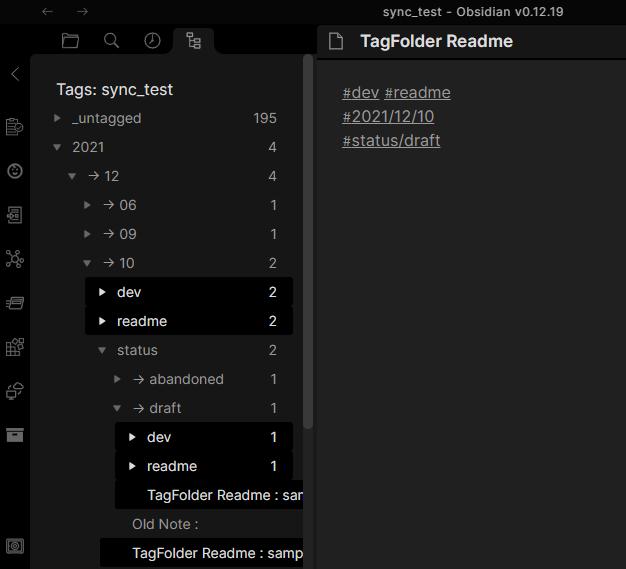
Browse your Obsidian notes through their tags as if they were folders. Notes with multiple tags appear in every matching branch, and nested tags keep their hierarchy.
Get started
Requires Obsidian 1.7.2 or later.
- Install and enable TagFolder from Obsidian's community plugins.
- Open the command palette with
Ctrl+P(Cmd+Pon macOS) and runShow Tag Folder. - Expand a tag folder and select a note to open it.
TagFolder opens in the left sidebar. To open it automatically when Obsidian starts, enable Always Open. Notes normally appear within the tag tree; List files in a separated pane moves the file list to a separate pane.
Browse by tags
Tags used together can form additional branches to narrow the matching notes.
Choose a tree style
Open Settings → TagFolder → Tags → Suggested tag tree style to preview a style, then choose Apply:
Simple listshows notes directly beneath each tag and displays their other tags as labels.Drill-downuses other tags as additional folders and shows notes at the deepest matching level.Full treealso shows notes at intermediate levels.
The related settings remain individually editable after applying a style.
Basic example
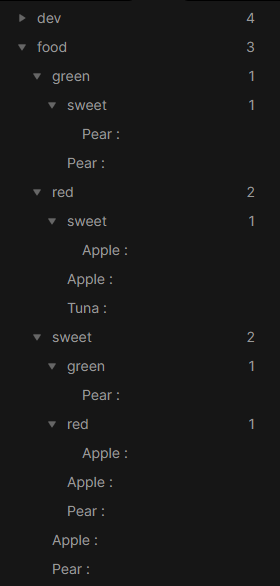
For example, these notes appear under every tag branch they match:
Apple : #food #red #sweet
Pear  : #food #green #sweet
Tuna  : #food #red
Nested tags
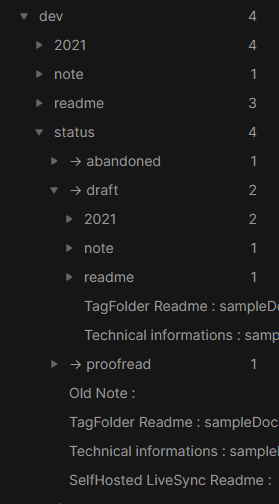
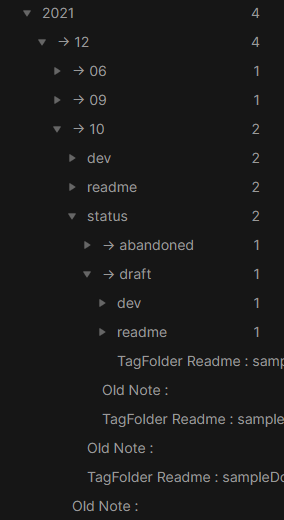
Nested tags retain their parent hierarchy. For example, #status/draft appears beneath #status:
TagFolder Readme: #dev #readme #2021/12/10 #status/draft
Technical information: #dev #note #2021/12/09 #status/draft
SelfHosted LiveSync Readme : #dev #readme #2021/12/06 #status/proofread
Old Note: #dev #readme #2021/12/10 #status/abandoned
Status tag hierarchy
Date tag hierarchy
Sort notes and tags
Use the Change sort order button in the toolbar. In the tag tree, choose Items to sort notes or Tags to sort tag folders. In a separate file list pane, the note-order options appear directly in the menu.
Choose Tag grouping Ascending or Tag grouping Descending to keep notes together by their written tag sequence. For example, #project #client and #project #client #report share the same leading tags and stay together. See Order method under Files for the full ordering rules.
Choose what appears
Open Settings → TagFolder → Filters to control which notes and tags appear. These settings change TagFolder's views while keeping files in their existing Vault locations.
| Goal | Setting | Example value |
|---|---|---|
| Show only notes from selected folders | Target Folders |
Projects/,Reference/ |
| Exclude notes in a folder | Ignore Folders |
Templates/ |
| Exclude an entire note when it has a matching tag | Ignore note Tag |
#private,#private/* |
| Hide matching tags while keeping notes available under other tags | Ignore Tag |
#status,#status/* |
| Keep archived notes under their archive tags in the tree | Archive tags |
#archive,#archive/* |
For a note tagged #project #private/client, setting Ignore note Tag to #private/* removes the note from both the tag tree and note lookup. The same value in Ignore Tag hides #private/client while leaving the note available under #project.
Tag filters match exact tag names by default: #private matches only #private itself, while #private/* matches its descendants. Use #private,#private/* to match both. A leading # is optional, and matching ignores letter case. See Filters for more pattern examples.
Ignored-note and ignored-tag patterns also apply to Open note by tags and Open note with similar tags. Archive tags changes the note's location in the tree; archived notes remain available to those lookup commands. To filter notes temporarily without changing saved settings, see Find notes.
Find notes
Search the tag tree
Use the search field to combine tags, exclude tags with -, and separate alternatives with |. For the notes above:
sweet -red | food -sweet
This shows Pear (sweet but not red) and Tuna (food but not sweet).
With Search tags inside TagFolder when clicking tags enabled, clicking a tag in a note updates the search field to show the current conditions. Clear the field to remove the search query.
Open notes by tags
Run Open note by tags from the command palette to find and open a note by incrementally adding tag conditions. Tags without a leading - use OR matching, and notes matching more of them appear first. Prefix a tag with - to exclude matching notes completely. A separate note input fuzzily filters titles and Vault-relative paths.
Run Open note with similar tags while a Markdown note is active to start with that note's tags selected. The active note itself is omitted from the results.
Selecting a parent tag such as #project also finds notes with nested tags such as #project/client.
The dialogue is keyboard-operable:
- Type a tag, then press
SpaceorEnterto accept a completion. - Press
Backspacein an empty tag input to remove the last tag, or pressArrowLeftto select a tag chip and remove it withBackspaceorDelete. - Press
TaborShift+Tabto switch between the tag and note inputs. - Press
ArrowUporArrowDownto select a completion or note. - Press
Enterto open the selected note, orCtrl+Enter/Cmd+Enterto open it in a new tab.
Create notes
Use the New note button in TagFolder to create a note with the current tags. To reuse an open note's tags, run Create a new note with the same tags from the command palette.
The following options are under Settings → TagFolder → Tags.
Store tags in frontmatter for new notes
This setting changes how tags are stored in new notes created by TagFolder. When disabled, tags are stored as inline hashtags at the top of new notes. When enabled, tags are stored in the frontmatter and displayed in the note's Properties.
Template for new notes
When this setting is set to a valid Markdown template path, TagFolder uses that template immediately when creating a new note from the tag tree. The .md extension is optional. If a non-empty path is invalid, TagFolder opens a template picker. If the setting is empty, TagFolder creates the note without a template and uses the configured Properties or hashtag behaviour.
If templates change while the settings tab is open, reopen it to refresh the suggestions. The template picker refreshes its list each time it opens.
Templates can include these placeholders, which are replaced with the tags from the clicked location:
| Placeholder | Replacement |
|---|---|
{{expandedTags}} or {{tags}} |
Tags as hashtags, e.g. #tag1 #tag2 |
{{tagList}} |
Tags as comma-separated text, e.g. tag1, tag2 |
{{tagPath}} |
Tags as a slash-separated path, e.g. tag1/tag2 |
{{tagName}} |
The last tag in the clicked context |
{{tagsJson}} |
Tags as a JSON array |
{{tagsYaml}} |
Tags as YAML list lines |
Settings
Open Settings → TagFolder to customise the tree and file list. The sections below follow the setting groups; language options are at the end of this reference.
Behavior
Always Open
Place TagFolder on the left pane and activate it at every Obsidian launch.
Use pinning
Pin tags using the configured pin information file. Pinned tags are sorted by key in its frontmatter; the default file is taginfo.md.
Pin information file
Choose the file which stores pin information. This can also be configured from the context menu.
| Item | Meaning of the value |
|---|---|
key |
Pins the tag and determines its order. |
mark |
The label shown instead of 📌. |
alt |
Displays this label without merging tags. No # is required. |
redirect |
Redirects and merges the tag into the configured tag. No # is required. |
Disable narrowing down
Show related tags alongside note titles instead of using them to create additional folders.
Files
Display method
Choose whether entries show their name, path, or both.
Order method
You can order items by:
- Displaying name
- Filename
- Tag grouping
- Modified time
- Fullpath of the file
Tag grouping treats tags in their written order as a sequence of branches. In ascending order, #project #client comes before #project #client #report, keeping that branch together before moving to the next branch. Notes with the same tags in a different order belong to different branches. Untagged notes come first, and virtual tags are excluded from grouping. Descending order reverses this sequence.
Names and tags are compared using the Obsidian interface language, with natural numeric ordering.
Use title
Show the frontmatter title or first level-one heading in place of NAME.
Frontmatter path
Set the dotted path used to retrieve the title from frontmatter.
Tags
Suggested tag tree styles
Preview and apply a style as described in Choose a tree style. Each style updates the related tag-tree settings together.
Order method
You can order tags by:
- Filename
- Count of items
Use virtual tags
Add virtual tags based on when a note was last edited:
| Icon | Edited ... |
|---|---|
| 🕐 | Within an hour |
| 📖 | Within 6 hours |
| 📗 | Within 3 days |
| 📚 | Within 7 days |
| 🗄 | Older than 7 days ago |
Display folder as tag
Show a note's folder as a tag.
Actions
Search tags inside TagFolder when clicking tags
Search within TagFolder when clicking a tag instead of opening the default search pane. Ctrl+click adds an inclusion or clears an exclusion; Ctrl+Shift+click removes an inclusion or adds an exclusion.
List files in a separated pane
Show matching files in a separate pane. When disabled, files appear directly in the tag tree.
Arrangements
Hide Items
Choose where notes appear in the tag tree.
- Hide nothing
- Only intermediates of nested tags
- All intermediates
For these notes:
2021-11-01 : #daily/2021/11 #status/summarized
2021-11-02 : #daily/2021/11 #status/summarized
2021-11-03 : #daily/2021/11 #status/jot
2021-12-01 : #daily/2021/12 #status/jot
The options produce the following trees:
- Hide nothing
daily
	→ 2021
		→ 11
			status
				→ jot
					2021-11-03
				→ summarized
					2021-11-01
					2021-11-02
				2021-11-01
				2021-11-02
				2021-11-03
			2021-11-01
			2021-11-02
			2021-11-03
		2021-11-01
		2021-11-02
		2021-11-03
		2021-12-01
		→ 12
			:
	2021-11-01
	2021-11-02
	2021-11-03
	2021-12-01
- Only intermediates of nested tags
Show notes only where a nested tag path ends or branches into another tag.
daily
	→ 2021
		→ 11
			status
				→ jot
					2021-11-03
				→ summarized
					2021-11-01
					2021-11-02
			2021-11-01
			2021-11-02
			2021-11-03
		→ 12
			:
- All intermediates
Show notes only at the deepest levels.
daily
	→ 2021
		→ 11
			status
				→ jot
					2021-11-03
				→ summarized
					2021-11-01
					2021-11-02
		→ 12
			:
Merge redundant combinations
When this feature is enabled, a/b and b/a are merged into a/b if there are no intermediates.
Do not simplify empty folders
Keep empty folders, even if they can be simplified.
Do not treat nested tags as dedicated levels
If you enable this option, every nested tag is split into normal tags.
#dev/TagFolder will be treated like #dev and #TagFolder.
Reduce duplicated parents in nested tags
For a note (example note) with nested tags that share a parent, such as #topic/calculus and #topic/electromagnetics:
- Disabled
topic
	 - > calculus
		 topic
			   - > electromagnetics
				   example note
		 example note
- Enabled
topic
	 - > calculus
		  - > electromagnetics
			  example note
		 example note
Filters
For examples of which setting to use, see Choose what appears.
Folder settings accept comma-separated Vault-relative paths. Use a trailing slash for a folder's contents, such as Templates/ in Ignore Folders. Wildcards apply to the tag settings below.
Tag filter settings accept comma-separated tag names. A leading # is optional, so tag1 and #tag1 are treated the same.
By default, entries match exact tags only. Use * for glob matching:
tag1
#tag1/*
project/*/done
tag1matches only#tag1.#tag1/*matches nested tags such as#tag1/tag2and#tag1/tag3.tag1,tag1/*matches both the parent tag and its descendants.project/*/donematches nested tags with any single or multi-level text betweenproject/and/done.
Note lookup and similar-note lookup use the same ignored-note and ignored-tag patterns as the tag tree.
Target Folders
Limit TagFolder to files in these folders.
Ignore Folders
Exclude notes in these folders.
Ignore note Tag
Exclude notes with matching tags.
Glob entries can ignore a whole nested tag group, for example #tag1/*.
Ignore Tag
Hide matching tags while keeping their notes available under other tags. Glob entries can hide matching nested tags while leaving non-matching tags visible.
Archive tags
If configured, notes with matching tags are shown under those tags instead of unrelated top-level tag folders.
Glob entries can archive a whole nested tag group, for example #archive/*.
Language
The interface is available in English and Simplified Chinese.
- Go to Settings → TagFolder → Language and choose
Auto (follow Obsidian),English, or简体中文. Autofollows the Obsidian interface language and falls back to English when the language cannot be matched.- The bundled Chinese translation uses Simplified Chinese. Traditional Chinese falls back to English in
Auto; choose简体中文explicitly to use the Simplified Chinese interface. - Names and tags are sorted using the Obsidian interface language. Choosing a different TagFolder display language changes labels while preserving that sorting language.
Development
Contributor setup, tests, and UI/Vault workflow architecture are documented in the developer guide.