

README file from
GithubKey Sequence Shortcut
Key Sequence Shortcut is an obsidian plugin, allow binding key sequences to an obsidian command. For example
- If we assume "t" stands for "toggle", we can bind "tl" to "Toggle Preview", "tb" to "Toggle Sidebar".
- If we assume "x" stands for "text", we can bind "xl" to "Toggle Bulllet List", "xc" to "Toggle Check list status"
A key sequence is easier to memorize than typical key shortcut like "Ctrl-j".
Install
Install by search "Key Sequence Shortcut" in Obsidian "Commnuity plugins" option.
Usage
- Command "Open Key Sequence Menu" (bind to
Ctrl-m). Type "xl" will executeeditor:toggle-bullet-list, no need to type "Enter".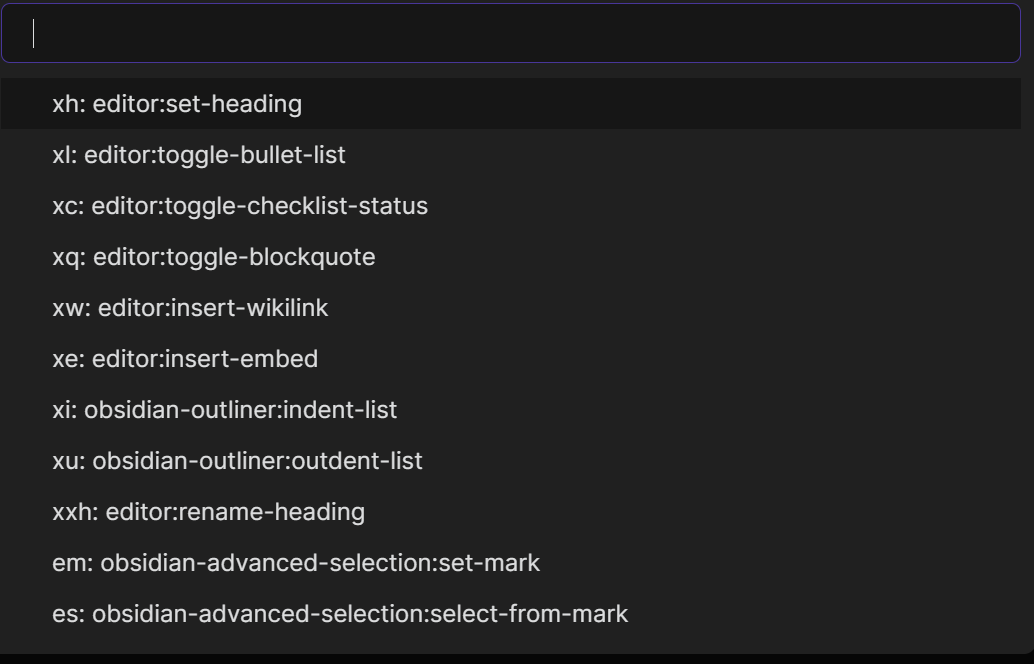
- Configuration
- The default configuration file is "kssrc.md" at workspace root folder. Can be customized.
- Comment line: use double quote to start a comment line
- Normal line: key-sequence<TAB>command-id<TAB>description. The last part "<TAB>description" is optional.
- We can easily find command id by running command "Insert Command Id and Name" (bind to
Ctrl-*) Key Sequence Shortcutwill run corresponding command as long at user input matches any configuration item, so "xh" will hide key sequences like "xha", "xhb". Please avoid to have one key sequence to be the prefix of other key sequences.
- The default configuration file is "kssrc.md" at workspace root folder. Can be customized.
- Run command "Reload Key Sequence Shortcut Config File" to reload after configuration file change
Choosing TAB as the separator is a trade-off. I understand we can't easily enter a TAB in Obsidian, it will indent the line. However, the last column in config file is "description" which can easily contain characters like ";" or "|" or space. Considering this, I still choose TAB. To enter it, I simply type TAB in any other editors (e.g. Notepad on Windows platform) ans paste it into Obsidian.
Optional input method integration (2.1.0)
Key Sequence Shortcut works on its own, including on mobile. If an enabled,
compatible Vim Input Method Memory
plugin (vim-input-method-memory) is available, the palette waits for temporary
English input before opening. The override stays active while the palette closes
and dispatches a command, then the input method provider reconciles the current
editor/focus state. Cancelling or unloading releases only this palette's override.
Availability is checked whenever you open the palette. Missing, disabled,
outdated, or disposed providers disable only IME integration, not the palette
or commands. A compatible legacy installation with ID
obsidian-vim-im-switch-plugin is also supported; older push/pop-only versions
are not called. A real preparation failure is reported in a notice and the
console instead of opening with an unprepared input method.
Key sequence matching, TAB-separated configuration, descriptions, and existing hotkeys are unchanged. Exact matches and selected suggestions both execute once, after the existing 100 ms editor-focus delay; there is no timed IME restoration.
Development and release
Use Node.js 22 LTS and run npm ci, npm test, and npm run build.
Tests bundle the maintained TypeScript into memory and exercise the lifecycle
with an Obsidian mock and deterministic timers; no vault or native IME helper is
required. The production build generates main.js without a source map.
Run node tests/lifecycle.cjs --release after building to exercise that exact
release bundle with the same tests.
For an existing Community Plugins listing, merge the reviewed source first,
then publish a GitHub release whose tag exactly matches the default branch's
manifest.json version (for example 2.1.0, without a v prefix). Attach the
built main.js and matching manifest.json; this plugin has no styles.css.
Keep package.json, package-lock.json, manifest.json, and versions.json
in sync. Include the changes and optional-provider requirements in the release
notes so readers can see what changed; notification delivery depends on their
GitHub subscription settings.
Configuration example
" p for project
pf	darlal-switcher-plus:switcher-plus:open	"Quick Switcher++: Open"

" x for text
xh	editor:set-heading
xl	editor:toggle-bullet-list
xc	editor:toggle-checklist-status
xq	editor:toggle-blockquote
xw	editor:insert-wikilink
xe	editor:insert-embed
xi	editor:indent-list
xu	editor:unindent-list

" xx for refactor
xxh	editor:rename-heading

" e for editor
em	obsidian-mark-and-select:set-mark
es	obsidian-mark-and-select:select-from-mark
"	following two commands only available on mobile
er	editor:redo
eu	editor:undo
Compare with similar plugins
Key sequence shortcut
- Type Ctrl-M to trigger, then support character sequence like "phw" as hotkey.
- Auto command suggestion to help memorize
- text based configuration
Sequence hotkeys , Hotkeys chords
- support arbitrary hotkey sequences, so you can use key sequence like "Alt-b Ctrl-a p h w"
- No command suggestion
- UI based configuration
Chorded hotkeys
- Support character sequence as hotkey.
- Type faster than average to trigger. This triggering method sounds strange to me, I haven't use the plugin in my daily life, not sure how well it works.
Acknowledgement
This plugin is inspired by Vim multi-key shortcut and VSpaceCode. Text editing will never been so much fun without such key sequence shortcut.
In the Obsidian world, I love vimrc-support plugin so much and I am using it literally everyday. It already support key sequence shortcut in editor VIM mode. Then why do I create Key Sequence Shortcut plugin? Because many situations there are no VIM mode, below are some pain points:
- Users who don't like VIM mode
- On Obsidian Mobile (I have too many buttons in Mobile toolbar!)
- On desktop
- When I switch to Markdown preview mode, I lose the VIM editor mode and can't switch back with key sequence.