
README file from
GithubObsidian Gantt Calendar
A powerful visual task management plugin for Obsidian.
Multi-View Calendar — Task / Year / Month / Week / Day / Gantt — six views with seamless switching
Festival Display — Solar festivals, lunar festivals, and 24 solar terms
Data Visualization — Task heatmap, daily task counts, 8 gradient palettes
Smart Task Management — Global filter, priority tags, 6 date fields, time precision (HH:mm), smart write-back with line drift protection
Timeline Canvas — Continuous minute-positioned timeline in Week/Day/Sidebar views: click-to-create, edge resize (15-min snap), WYSIWYG drag with landing preview
Mobile Ready — Long-press menus as bottom sheets, touch drag, swipe paging, floating navigation dock, responsive layouts
Instant Startup — Skeleton screen renders immediately; the full-vault first scan runs asynchronously, so opening the layout is never blocked
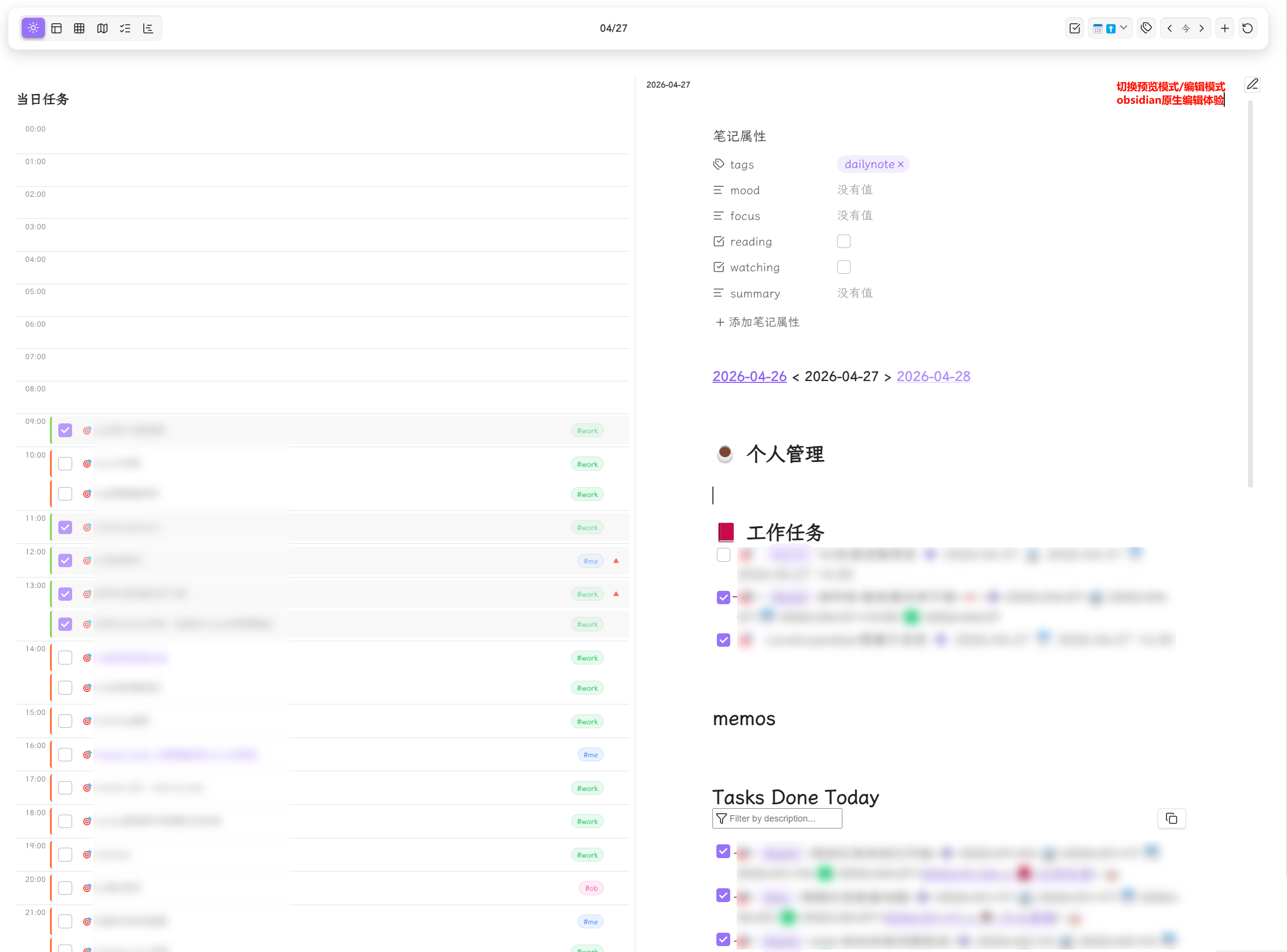
Daily Note Integration — Embedded editor with edit/preview mode toggle
Sidebar View — Task search, filter & sort + daily timeline
Highly Customizable — Festival colors, heatmap palettes, task display count, and more
Dual Format — Full support for Tasks plugin (emoji) and Dataview plugin (inline field) formats
Recurring Tasks — daily/weekly/monthly/yearly repeat with virtual instances shown across all views (Year/Month/Week/Day/Task/Gantt)
Feishu Sync — Bidirectional task sync with Feishu (Lark) via OAuth 2.0
Table of Contents
- Screenshots
- Requirements
- Installation
- Quick Start
- Task Syntax Reference
- Features
- Settings Reference
- FAQ & Troubleshooting
- Development
- Contributing
- Roadmap
- License
Screenshots
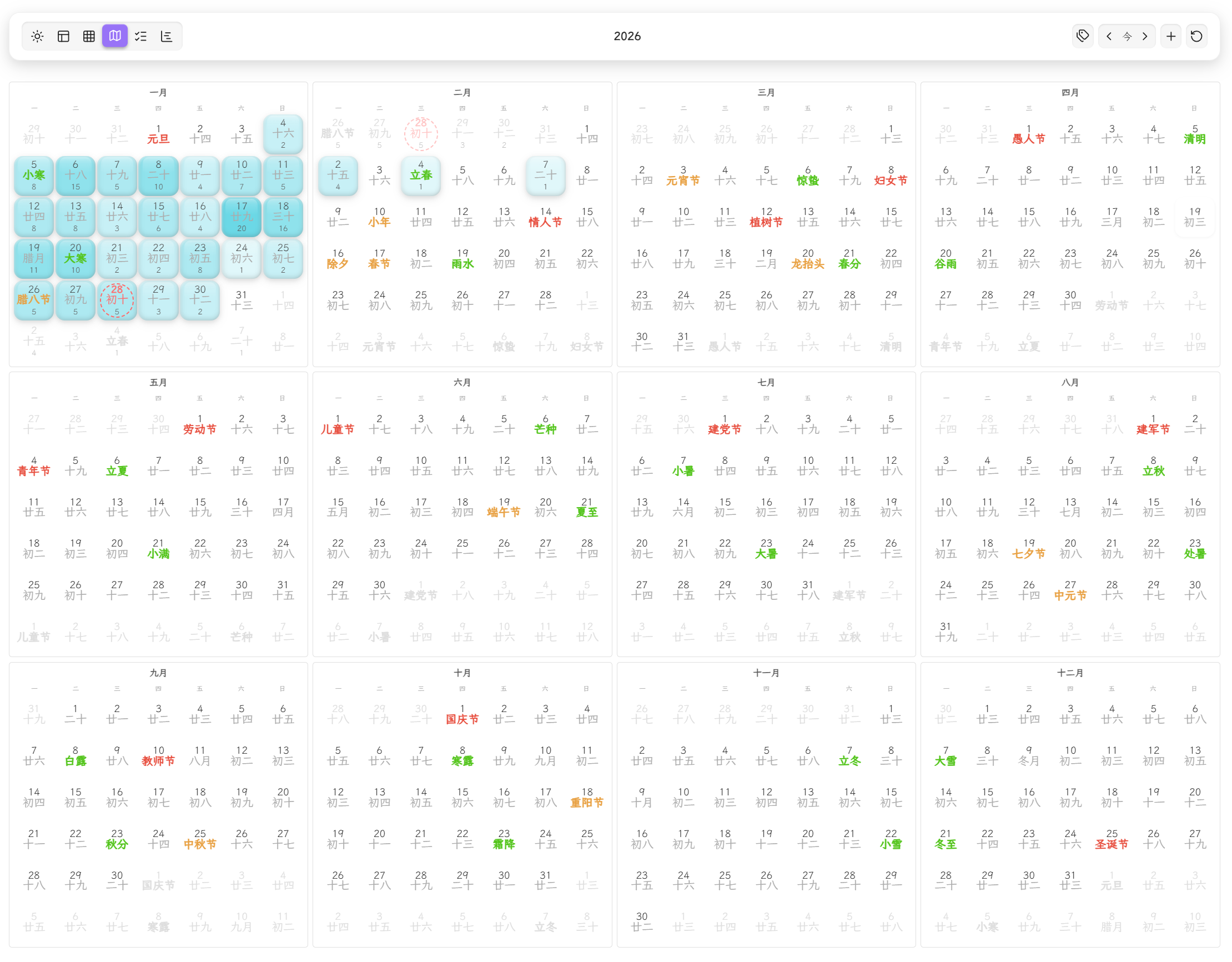
Year View
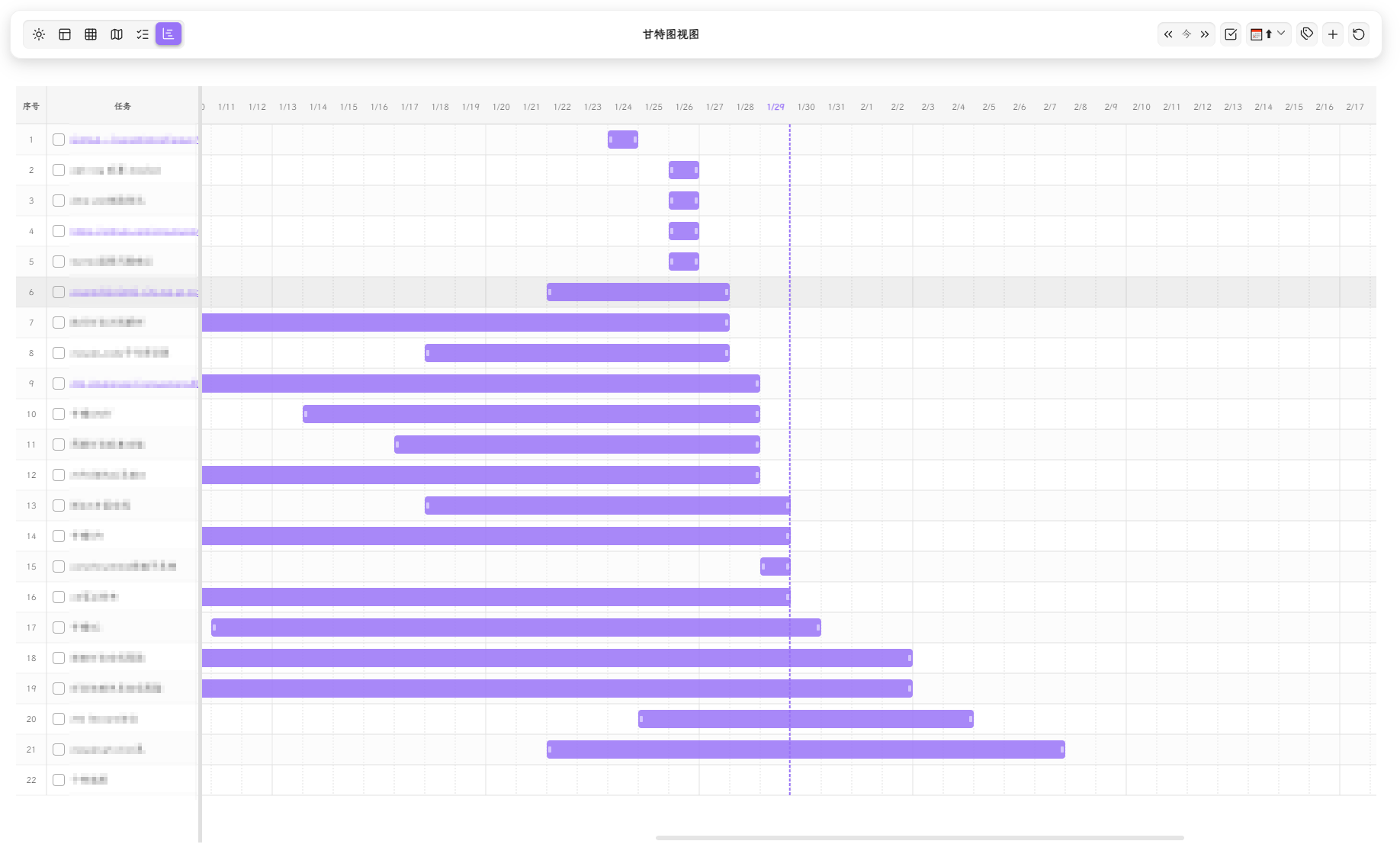
Gantt View
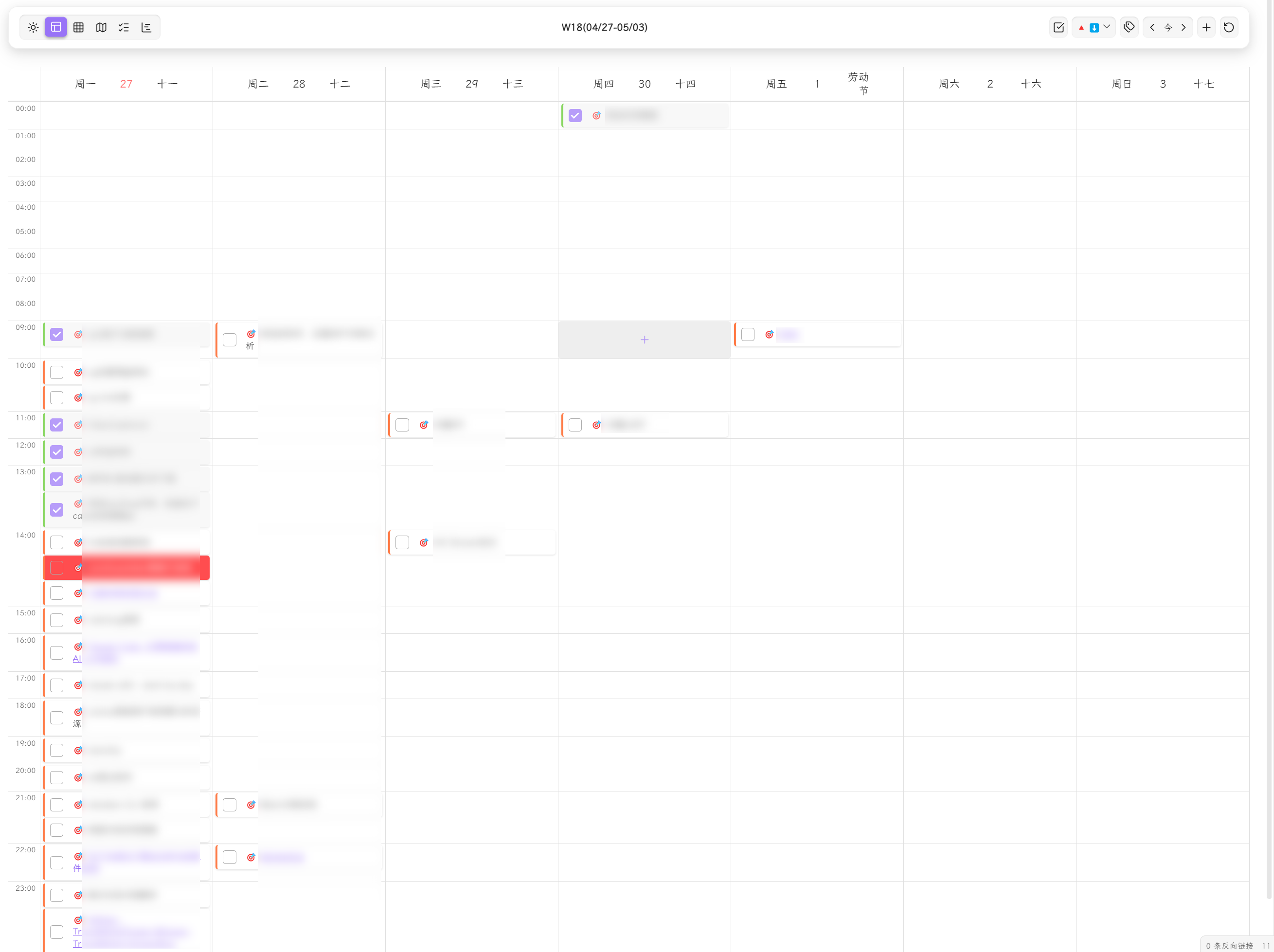
Week Timeline View
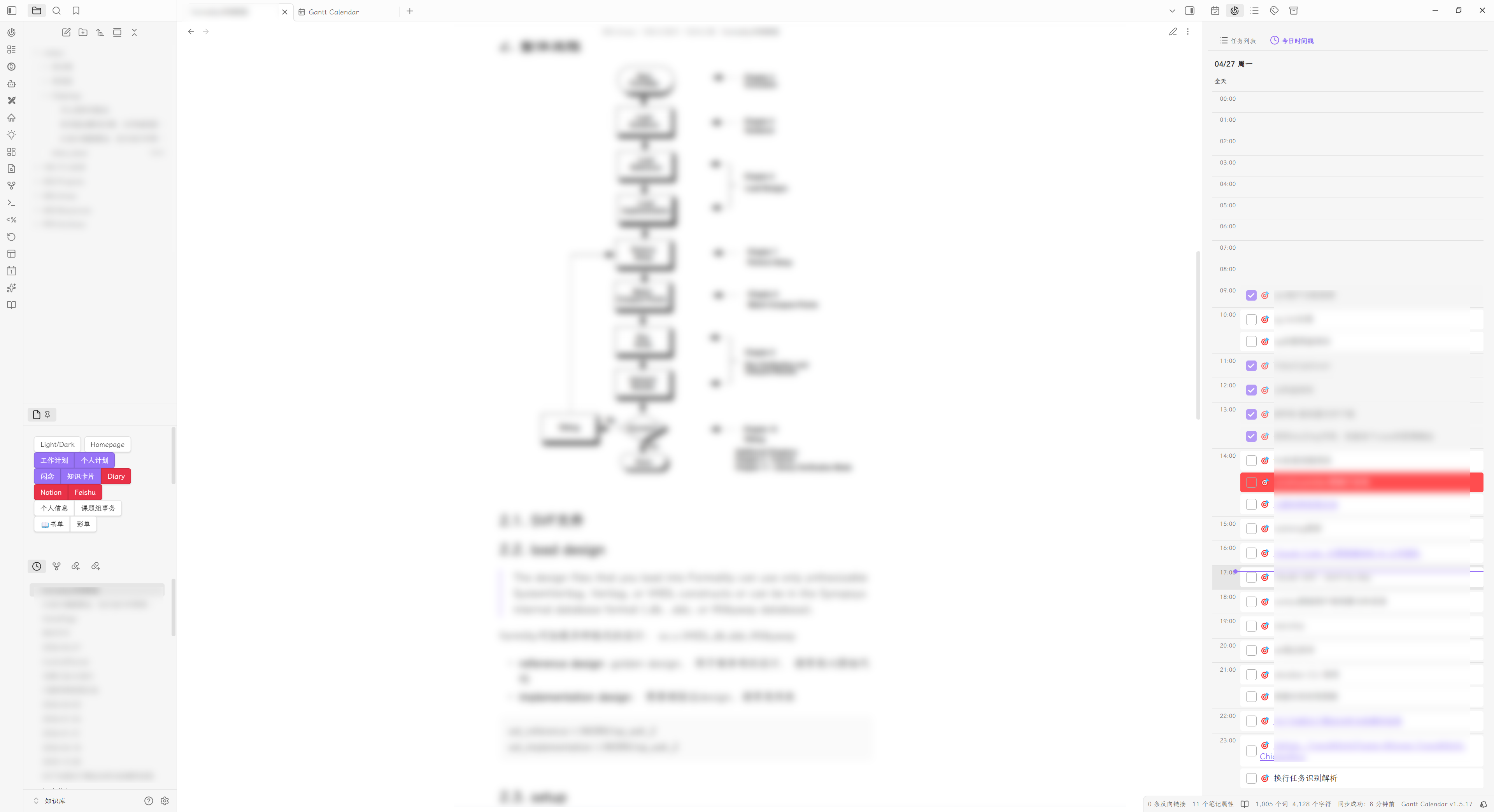
Sidebar View (Task List + Daily Timeline)
Day View with Embedded Editor
Requirements
| Item | Requirement |
|---|---|
| Obsidian | 1.13.0 or later |
| Platform | Desktop and mobile (isDesktopOnly: false) |
| Optional | Tasks and/or Dataview — the plugin parses both formats natively; installing them is not required |
| Optional | Obsidian core Daily Notes or the Periodic Notes community plugin, for the Day View embedded editor |
| Optional | A Feishu (Lark) account and a self-built Feishu app, for task sync |
The plugin only reads and writes standard Markdown task lines. Your notes stay plain text — uninstalling it leaves your vault fully intact.
Installation
Option A — Community Plugin Store (recommended)
- Open Settings → Community plugins → Browse
- Search for Gantt Calendar
- Click Install, then Enable
Also available from the plugin directory: https://community.obsidian.md/plugins/gantt-calendar
Option B — BRAT (beta builds, newest commits)
- Install and enable the community plugin BRAT
- Run the command
BRAT: Add a beta plugin for testing - Enter the repository URL:
https://github.com/sustcsugar/obsidian-gantt-calendar - Enable Gantt Calendar in Settings → Community plugins
Option C — Manual
- Download
main.js,manifest.jsonandstyles.cssfrom the latest Release - Create the folder
<your-vault>/.obsidian/plugins/gantt-calendar/ - Copy the three files into it — the folder name must be
gantt-calendar - Restart Obsidian, then enable Gantt Calendar in Settings → Community plugins
All three files are required. Copying only
main.jsleaves the plugin unstyled and it will not load.
Updating
Re-run the same channel you installed with. For a manual install, overwrite the three files and disable/re-enable the plugin. Settings in data.json are preserved.
Quick Start
1. Open the view
Three equivalent entry points:
- Ribbon icon — click Gantt Calendar in the left sidebar
- Command palette —
Gantt Calendar: Open Calendar View(defaults to Month),Open Task View, orOpen Sidebar - Auto-open — the right sidebar automatically activates on startup
Use the view switcher on the left of the toolbar to move between the six views.
Available commands
| Command | What it does |
|---|---|
Gantt Calendar: Open Calendar View |
Opens the main view, switched to Month |
Gantt Calendar: Open Task View |
Opens the main view, switched to Task |
Gantt Calendar: Open Sidebar |
Opens the right-sidebar view |
Gantt Calendar: Feishu Task Bidirectional Sync |
Runs one Feishu sync immediately |
All commands are available in the command palette and can be bound to hotkeys.
2. Create your first task
Click Add Task (the + button, top-right of the toolbar) to open the create modal, or just type a task line into any Markdown file:
- [ ] 🎯 Complete project documentation 📅 2025-12-20
The task appears in every view immediately — no reload needed.
3. Give it a time range (optional but recommended)
Tasks with a start and a due date become real Gantt bars and timeline blocks:
- [ ] 🎯 Complete project documentation 🛫 2025-12-10 📅 2025-12-20
Add a time to the minute and the task lands on the timeline canvas:
- [ ] 🎯 Daily standup 📅 2025-12-20 09:30
4. Try the interactions
| Action | Where | Result |
|---|---|---|
| Drag a task card | Month / Week | Reschedules the task in the source file |
| Click empty canvas | Week / Day / Sidebar | Creates a task at that time (15-min snap) |
| Drag a block's top/bottom edge | Week / Day / Sidebar | Adjusts start/end; hold Alt for 5-min precision |
| Drag a Gantt bar / endpoint | Gantt | Shifts dates, or changes the progress percentage |
| Right-click any task | Everywhere | Edit / set priority / postpone / cancel / delete |
| Click a task | Configurable | Jumps to the source file, or opens the edit panel |
5. Wire up Daily Notes (Day View)
Enable Obsidian's core Daily Notes (or Periodic Notes) plugin, then open Settings → Gantt Calendar → Daily Notes and turn on Use Obsidian daily note settings. The Day View now loads that date's note in an embedded editor next to the task timeline.
Alternatively, switch off that toggle and set the folder / filename format / template path manually.
Task Syntax Reference
Tasks plugin format (emoji)
- [ ] 🎯 Complete project documentation ⏫ ➕ 2025-01-10 🛫 2025-01-12 ⏳ 2025-01-14 📅 2025-01-15 #work
| Emoji | Meaning | Emoji | Meaning |
|---|---|---|---|
🎯 |
Global filter marker | 🔺 |
Highest priority |
⏫ |
High priority | 🔼 |
Medium priority |
🔽 |
Low priority | ⏬ |
Lowest priority |
➕ |
Created date | 🛫 |
Start date |
⏳ |
Scheduled date | 📅 |
Due date |
✅ |
Completion date | ❌ |
Cancelled date |
🔁 |
Recurring task | #tag |
Tag |
Dataview plugin format (inline fields)
- [ ] 🎯 Complete project documentation [priority:: high] [created:: 2025-01-10] [start:: 2025-01-12] [scheduled:: 2025-01-14] [due:: 2025-01-15] #work
| Field | Meaning | Field | Meaning |
|---|---|---|---|
priority:: |
Priority | created:: |
Created date |
start:: |
Start date | scheduled:: |
Scheduled date |
due:: |
Due date | completion:: |
Completion date |
cancelled:: |
Cancelled date | repeat:: |
Recurrence rule |
Which formats are parsed is configurable — Tasks only, Dataview only, or Both (default).
Time precision
- Date only —
YYYY-MM-DD(e.g.2026-04-27) - Date + time —
YYYY-MM-DD HH:mm(e.g.2026-04-27 14:00)
Timed tasks render as positioned blocks on the Week / Day / Sidebar timeline canvases. Date-only tasks and spans of 24 h or more land in the all-day row.
Task statuses
The checkbox character drives the status. Built-in statuses:
| Symbol | Status | Symbol | Status |
|---|---|---|---|
|
Todo | x / X |
Done |
! |
Important | - |
Cancelled |
/ |
In progress | ? |
Question |
> |
Started | — | — |
Custom statuses can be added in Settings → Gantt Calendar → Tasks → Task status, each with its own symbol, colours, and description.
Recurring tasks
- [ ] 🎯 Weekly review 🔁 every week on Monday 📅 2026-01-05
- [ ] 🎯 Pay rent 🔁 every month on 1 📅 2026-01-01
- [ ] 🎯 Water the plants 🔁 every 3 days 📅 2026-01-05
- [ ] 🎯 Change filter 🔁 every 6 months when done 📅 2026-01-05
| Rule fragment | Meaning |
|---|---|
every day |
Daily |
every 3 days |
Every N days |
every week on Monday |
Weekly on a given weekday |
every month on 15 |
Monthly on the 15th |
every year on 01-01 |
Yearly on Jan 1 |
every weekday |
Every Mon–Fri |
when done |
Next date is computed from the completion date instead of the scheduled date |
The plugin renders virtual instances of recurring tasks across Year / Month / Week / Day / Task / Gantt views. How many future instances are shown is set by Settings → Gantt Calendar → Tasks → Recurring instance count (0 disables them).
Editing a recurring task edits the source line. Virtual instances are read-only projections — real instances are materialised by the Tasks plugin when you complete an occurrence.
Putting it together
# Project Phoenix

- [ ] 🎯 Kick-off meeting 🛫 2026-04-20 10:00 📅 2026-04-20 11:30 ##meeting
- [ ] 🎯 Write technical design ⏫ 🛫 2026-04-21 📅 2026-04-28 #design
- [ ] 🎯 Review with stakeholders 🔼 🛫 2026-04-29 📅 2026-04-30 #review
- [ ] 🎯 Ship v1.0 🔺 🛫 2026-05-01 📅 2026-05-15 #release
- [ ] 🎯 Weekly sync 🔁 every week on Friday 📅 2026-04-24 15:00 #meeting
Features
Layout
The plugin uses a toolbar + content area layout:
- Toolbar Left — View switcher (6 views)
- Toolbar Center — Current date range / title
- Toolbar Right — Functional buttons (sort, filter, navigation, add task, sync, refresh, settings)
On mobile the toolbar is replaced by a floating Navigation Dock — one-thumb access to view switching and key actions. On desktop narrow windows (≤520px) the Day View switches to the same vertical split as mobile.
Year View
- Year Overview — 12 month cards showing full-year task distribution
- Task Heatmap — 5-level color gradient for task density
- 8 palette options: blue / green / red / purple / orange / cyan / pink / yellow
- 3D heatmap effect (off / slight / prominent)
- Responsive Layout — Auto-switches between 4×3 / 3×4 / 2×6 / 1×12 grids
- Task Count — Optional per-day task total display
- Lunar Calendar — Chinese lunar dates in month cards
- Click Navigation — Click a date to switch to Day View
Month View
- Monthly Calendar — Standard month grid layout with daily tasks
- Week Numbers — ISO week numbers shown in the first column
- Task Display Limit — Configurable per-day task count (1–10) with "+N more" overflow
- Task Popup — Click a date to view all tasks for that day
- Festival Display — Solar/lunar/solar-term festivals with distinct colors
- Drag & Drop — Drag task cards between days to reschedule
- Recurring Tasks — Virtual instances for repeating tasks
- Week Start — Configurable Monday or Sunday start
Week View
- Continuous Time Canvas — Always-on 24-hour timeline (no more list/timeline mode switching); task blocks positioned by the minute (1h = 50px), hour + half-hour grid lines
- Smart Task Blocks — Blocks sized by actual duration:
- Single-time tasks render as 1-hour point blocks anchored by field role (start-field → forward
[t, t+60), due-field → backward[t-60, t)) - Same-day intervals render at true size; overnight intervals (<24h) span columns with continuation arrows
- Multi-day tasks (≥24h) move to the all-day row as spanning bars with time annotations (
"22:00 → 18:00") - Text wraps to multiple lines within block bounds (block is master, text is servant)
- Single-time tasks render as 1-hour point blocks anchored by field role (start-field → forward
- All-Day Row — Date-only tasks + ≥24h spanning bars, unlimited lane rows with
+Ncollapse beyond 3 - Click-to-Create — Click any empty canvas spot to create a task at that time (15-min snap); drag vertically to pre-select a range
- Edge Resize — Drag block top/bottom edges to adjust start/end (15-min snap, Alt = 5-min fine-tune); resizing a point task upgrades it to an interval
- WYSIWYG Drag & Drop — Landing anchored to block edges (not cursor) with drop preview; dropping a point task writes both start & end
- Overlap Lanes — Up to 3 side-by-side columns; 4th+ stacks with shadow
- Mobile — 3-day sliding window with horizontal swipe
- Today Highlight — Current day emphasized; current time indicator line
- Lunar Info — Lunar dates and festivals in day headers
Day View
- Continuous Time Canvas — Same timeline semantics as Week View (minute-positioned blocks, edge resize, click-to-create, drop preview, multi-line text)
- All-Day Section — Date-only tasks + ≥24h spanning bars with time annotations; drop here to convert to all-day
- Drag & Drop — Block-edge-anchored with landing preview; point tasks upgrade to intervals on drop
- Current Time Indicator — Red line at the current time
- Daily Note Integration
- Embedded full editor (WorkspaceSplit mode)
- Edit / Preview mode toggle
- Auto-loads daily note for the selected date
- Supports Obsidian core daily notes, Periodic Notes plugin, and custom paths
- Resizable Split — Draggable divider between task and note panes (horizontal or vertical layout)
- Lunar Info Bar — Lunar date, festivals, and solar terms
- Narrow Window — At ≤520px width, switches to vertical split (timeline above, editor below) for comfortable use on small screens
Task View
- Task List — Centralized display of all tasks
- Date Range Filter — All / Today / This Week / This Month / Custom range
- Time Field Selector — Filter by any of 6 date fields
- Multi-dimensional Filtering — Status, priority, and tags (AND/OR/NOT operators)
- Sorting — 7 sort fields with asc/desc toggle
- Persistent State — Filter and sort settings persist across refreshes
- Recurring Tasks — Virtual instances for repeating tasks are expanded and sorted by date
Gantt View
- Interactive Gantt Bars — Custom SVG rendering engine
- Drag entire bar to shift dates
- Drag endpoints to adjust start/end dates
- Drag to change progress percentage
- Click to open task edit modal
- Navigation — Jump to today / scroll left / scroll right
- Incremental Refresh — Fingerprint-based diff (O(1) events) + immediate drag-write-back (no delay)
- Tag & Status Filtering — Filter gantt bars by tags and status
- Configurable Fields — Choose which date fields map to gantt start/end
- Time-Aligned — Day-granularity grid aligned with calendar view semantics; touch-friendly handles (22px hit area); bar-end time annotations
Sidebar View
Two-tab sidebar for quick task access:
Task List Tab
- Keyword search (debounced)
- Multi-dimensional filters: status, priority, tags (OR/AND), date range
- Sort by: priority / due date / start date
- Click a task card to jump to the source file or open the edit panel (Settings → General → Task Card Click)
Daily Timeline Tab
- 24-hour timeline for timed tasks (defaults to today)
- Date navigation on the right of the title row (previous / today / next)
- All-day task section
- Current time indicator line
- Drag & drop to adjust time
- Quick create on empty slots
Context Menu
Right-click any task for:
- Edit Task — Full edit modal (description, priority, dates, repeat, tags)
- Create Note — Generate a wiki-linked note from the task (same name or alias)
- Set Priority — 6 levels: highest / high / medium / normal / low / lowest
- Set Status — Custom statuses (important, question)
- Postpone — Delay 1/3/7 days (from due date or from today)
- Cancel / Restore — Toggle cancelled state
- Delete — Remove task from markdown file
Feishu (Lark) Sync
- Bidirectional Sync — Push local tasks to Feishu and pull Feishu tasks to Obsidian
- OAuth 2.0 — Secure authentication with automatic token refresh
- Push Filters — Filter by file paths, completion status, and date
- Conflict Resolution — Multiple strategies: local-wins, remote-wins, newest-wins, manual
- Auto Sync — Configurable automatic sync interval
- Sync Result Modal — Detailed per-task sync results with statistics
⚠️ Back up your vault before enabling sync. The sync engine is under active development and pushes/pulls write directly into your Markdown files.
- Create a self-built app at https://open.feishu.cn/app and note its App ID and App Secret.
- Under Permissions & Scopes, grant:
offline_access,calendar:calendar:readonly,task:task:read,task:task:write,task:tasklist:read,task:tasklist:write - Under Security Settings → Redirect URL, add the callback used by the plugin:
https://open.feishu.cn/api-explorer/loading - Publish a version of the app and have it approved.
- In Obsidian, open Settings → Gantt Calendar → Sync, paste the App ID / App Secret, click Authorize, finish the flow in your browser, then paste the
codeparameter from the callback URL back into the plugin. - Click Fetch task lists, then pick the list that should act as the sync target.
- Choose Sync direction (
bidirectional/import-only/export-only), Conflict resolution, and optionally an Auto sync interval (minutes;0disables it). - Run
Gantt Calendar: Feishu Task Bidirectional Sync, or press Sync now in settings.
Use Test sync to push/pull only the 5 tasks with the nearest due dates — a safe way to verify the connection before a full run.
Settings Reference
Settings live under Settings → Gantt Calendar, organised into five tabs.
General
| Setting | Description |
|---|---|
| Language | Follow system / English / 中文 |
| Default view | View shown when the plugin opens (Day/Week/Month/Year/Task/Gantt) |
| Task card click | Jump to the Markdown source file, or open the edit panel |
| Show nav button text | Show text labels next to the toolbar view-switch icons |
| Developer mode | Emit verbose debug logs instead of statistics + errors only |
| Timezone | Fixed UTC offset — affects "today" and calendar highlighting (DST is not auto-handled) |
| Time format | 24-hour (14:30) or 12-hour (2:30 PM) |
Calendar
| Setting | Description |
|---|---|
| Use Obsidian daily note settings | Read folder / format / template from core Daily Notes or Periodic Notes (recommended) |
| Daily Note folder | Manual mode only — folder holding the daily notes |
| Daily Note filename format | Manual mode only — e.g. yyyy-MM-dd |
| Daily Note template path | Manual mode only — template used when creating a note (blank = empty file) |
| Date filter field | Field used by calendar views to place tasks (Task View can switch this per-session) |
| Week start | Monday or Sunday |
| Show lunar dates | Lunar text in Year / Month / Week views |
| Show festivals & solar terms | Coloured highlight markers on lunar text |
| Festival colours | Separate colours for solar festivals, lunar festivals, and solar terms |
Views
| Group | Settings |
|---|---|
| Day View | Show Daily Note; layout — side-by-side or stacked |
| Month View | Tasks per day (1–10, also caps spanning-bar lanes); lunar font size (8–18 px) |
| Year View | Show daily task count; lunar font size; enable heatmap; heatmap palette (8 options); 3D heatmap effect |
| Gantt | Start field & end field mapping (created / start / scheduled / due / completion / cancelled) |
| Task card display | Toggle checkbox, tags, priority, and extra content per view (Day / Week / Month / Sidebar) |
Tasks
| Group | Settings |
|---|---|
| Task basics | Global filter marker (e.g. 🎯 , TODO , #task — ⚠ requires restart); enabled formats (Tasks / Dataview / Both); show global filter in task text; task note folder path |
| Task creation | Target heading for new tasks in the daily note; default priority; recurring instance count |
| Task status | Default statuses plus custom ones — each with symbol, description, and light/dark colours |
Sync
See Setting up Feishu sync above. Key items: task list selection, target file for pulled tasks (default gantt-calendar-feishu-sync.md), sync direction, conflict resolution, auto-sync interval, and push filters (paths / completion status / date).
FAQ & Troubleshooting
My tasks don't show up.
- Confirm the line is a real task:
- [ ]followed by text. - If a global filter marker is configured, every task must carry it (
- [ ] 🎯 …). Change or clear it in Settings → Tasks → Global filter marker — this requires an Obsidian restart. - Check that the enabled task format matches how you write tasks (Tasks emoji vs Dataview inline fields).
- In calendar views, tasks are placed by the date filter field — a task with no such date simply has nowhere to appear. Task View shows everything regardless.
I changed the global filter and nothing happened. That setting is read once at load. Fully restart Obsidian (not just toggle the plugin).
Dragging a task in the calendar didn't change the file. Check that the target line was not edited in another pane meanwhile — the plugin detects line drift and refuses the write rather than corrupting your notes. Refresh the view and try again.
Gantt view is empty.
The Gantt start/end field mapping doesn't match your tasks. Set them in Settings → Views → Gantt — e.g. start = start date, end = due date.
Recurring tasks show up many times. Those are virtual instances. Lower or zero the count in Settings → Tasks → Recurring instance count.
Lunar dates disappeared. Lunar display is auto-disabled when the interface language is not Chinese; re-enable it manually under Settings → Calendar.
The Day View has no editor. Either enable Obsidian's core Daily Notes (or Periodic Notes) and turn on Use Obsidian daily note settings, or switch it off and fill in the folder + filename format manually.
"Today" is off by an hour. The timezone setting is a fixed UTC offset and does not follow DST. Set it to follow the system, or pick a region without DST.
Feishu sync says authorization is required / expired.
Re-authorize in Settings → Sync. Authorization codes expire in ~5 minutes — grab the code from the callback URL promptly.
Sync overwrote my notes. Restore from a backup or Obsidian's File Recovery core plugin. Always back up before using sync.
Development
Prerequisites
- Node.js 18+
- npm
Setup
git clone https://github.com/sustcsugar/obsidian-gantt-calendar.git
cd obsidian-gantt-calendar
npm install
npm installruns apostinstallthat removes a stray nestedobsidiancopy pulled in byobsidian-daily-notes-interface. This is expected.
Scripts
| Command | Purpose |
|---|---|
npm run dev |
esbuild watch build — rebuilds main.js on save |
npm run build |
Type-check (tsc --noEmit) + production bundle |
npm run lint |
ESLint (eslint-plugin-obsidianmd recommended config) |
npm test |
Jest test suite (verbose) |
npm run test:watch |
Jest in watch mode |
npm run bench |
Timeline model micro-benchmark |
npm run version |
Bump manifest.json + versions.json via version-bump.mjs |
Testing against a real vault
Symlink or copy the project folder into <vault>/.obsidian/plugins/gantt-calendar/, run npm run dev, then reload the plugin (Ctrl/Cmd+P → Reload app without saving, or toggle it off/on in settings). Output is a single CommonJS bundle main.js with obsidian and electron left external.
Architecture
main.ts                          Plugin entry — views, commands, settings tab, managers
src/
  GCMainView / GCSidebarView     Obsidian ItemView shells (React mounts)
  ui/
    App.tsx                      Mounts ModalProvider + TooltipProvider + 6 views
    views/                       Year / Month / Week / Day / Task / Gantt
    sidebar/                     SidebarApp + TaskListPanel + DailyTimelinePanel
    components/                  Icon, DropdownMenu, Modal, TooltipProvider,
                                 ContextMenu, TaskCard, Toolbar
    modals/                      TaskFormModal, ConfirmDialog, SyncResultDialog,
                                 modalHost (imperative bridge for non-React callers)
    store/calendarStore.ts       zustand store for view state + filters
  data-layer/
    TaskStore                    Facade consumed by views
      ├── EventBus               Publish/subscribe
      ├── TaskRepository         In-memory Map cache + file index
      │     └── MarkdownDataSource   Vault scan (batches of 50, metadataCache)
      └── SyncManager (optional) Multi-source sync orchestration
  tasks/                         Four-step parser + write-back (drift protection)
  gantt/wrappers/                Custom SVG Gantt renderer
  settings/                      Builder-pattern settings tab
  commands/                      Command registration (common / conditional / feishu)
  i18n/                          i18n runtime + en/zh locale JSON
tests/                           Jest suites (parser steps, drift, recurrence, …)
Key conventions
- DOM class names go through BEM constants in
src/utils/bem.ts— no hard-coded strings - Regexes live in
src/utils/RegularExpressions.ts— no inline regex - Tooltips reuse
src/utils/tooltipManager.ts— do not reimplement - Task edits go through
updateTaskProperties()— never patch Markdown text directly - UI is declarative React; no manual
createEl/addEventListeneroutside base components, hosts, and the icon wrapper
Contributing
Contributions of all kinds are welcome — bug reports, feature requests, translations, and code.
Reporting bugs & requesting features
Open an Issue and include:
- Obsidian version, plugin version, OS, and whether it's desktop or mobile
- Clear reproduction steps
- Expected vs. actual behaviour
- Screenshots or a screen recording for visual bugs
- The exact Markdown task line involved, if task parsing is at fault
Please search existing issues first.
Submitting a pull request
- Fork the repository and create a topic branch:
git checkout -b fix/gantt-drag-jitter - Keep the diff focused — one logical change per PR. Avoid unrelated reformatting.
- Follow the conventions listed in Architecture — BEM constants, shared regexes,
updateTaskProperties(), declarative React. - Add tests for parser, date-utility, and data-layer changes under
tests/. - Verify before pushing — all three must pass:
npm run lint npm run build npm test - Commit messages — short imperative subject, optional body explaining why. Reference issues with
#123. - Open the PR with a description covering: what changed, why, how you tested it, and any UI screenshots.
- Be responsive to review feedback — maintainers may ask for a rebase or changes.
The repository's own rules: never commit or push automatically; commits are made deliberately by the author. Please keep commit history on your branch clean and rebase rather than merge from
master.
Translating
UI strings live in src/i18n/locales/. To add a language, copy en.json, translate the values, and register the locale in src/i18n/i18n.ts. Keep the key structure identical.
Releasing (maintainers)
- Bump the version in three places —
manifest.json,package.json, andversions.json("<version>": "<minAppVersion>").npm run versionhandlesmanifest.json+versions.json. npm run build- Commit, then create an annotated tag without a
vprefix (e.g.1.6.3) - Push
masterand the tag - Create a GitHub Release whose assets are exactly
main.js,manifest.json, andstyles.css— the community plugin store pulls from there
Roadmap
Task Parsing
- Tasks and Dataview dual-format parsing
- Global filter markers
- Task tags
- Task description
- 6 priority levels
- 6 date fields with time precision (HH:mm)
- Recurring task recognition and display
- Recurring task virtual instances across all views (Year/Month/Week/Day/Task/Gantt)
- Smart write-back (line drift protection, file-level locking, mixed-format preservation)
- Nested tag recognition
- Multi-line task recognition
- Sub-task recognition
- Task dependency relationships
Views
- Day View with Daily Note integration (embedded editor)
- Day View timeline layout
- Week View continuous time canvas
- Week/Month View drag & drop
- Year View heatmap and task count
- Task View (multi-dimensional filter + date range + recurring task virtual instances)
- Gantt View (drag + incremental refresh + navigation + recurring task virtual instances)
- Sidebar View (task list + daily timeline)
Toolbar
- View switcher
- Tag / status / priority filtering
- Date navigation buttons
- Time field selector
- Add task button
Interactions
- Task cards (description, tags, priority)
- Context menu (edit, create note, priority, status, postpone, cancel, delete)
- Hover tooltips
- Quick create on empty time slots
Future Plans (v2.0.0)
- Third-party calendar subscription (Feishu Calendar, Outlook Calendar)
- Microsoft To Do sync
- Google / Apple Calendar via CalDAV
License
Found a bug or have a suggestion? Open an Issue
Enjoying the plugin? Give it a ⭐!