
README file from
GithubEnhanced Canvas
This Obsidian plugin enhances Obsidian Canvas with features I find essential.
✨New Feature✨
Find in Canvas
Press Cmd+F (Ctrl+F on Windows), the core Search current file hotkey, in a Canvas, or run "Find in canvas" from the command palette, and type a word or a [[link]]. Every card that contains the word, or links to that note, is outlined and the rest are dimmed; matched text is highlighted and the view zooms to fit the results. Select text in a card and right-click → Find in canvas to search for it directly. Click an empty spot on the Canvas to clear.
- While editing a card, Cmd/Ctrl+F still searches that card. Change the key via Search current file in Settings → Hotkeys, or bind Find in canvas separately.
- Searches text cards, note cards (including their content), group labels, and web links.
- Node colors and the
.canvasfile are never changed. - Change the highlight color with a CSS snippet:
body { --ec-find-color: <color>; }
Split Node by Headings
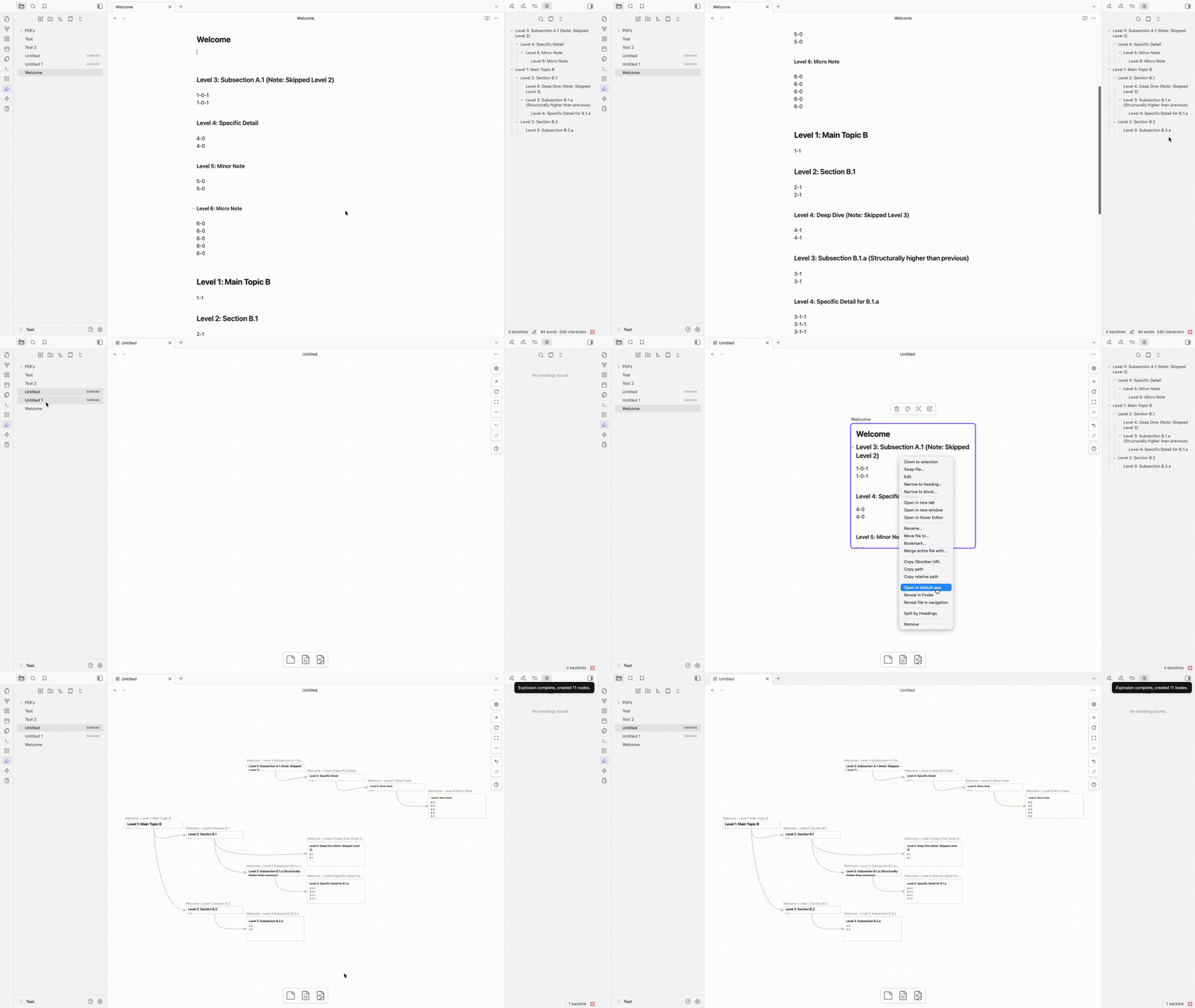
Split Node by Headings instantly deconstructs a single node into a hierarchical tree based on its headings. You can try this by right-clicking on a file (text) node and selecting "Split by headings" in Canvas.
- Choose the heading level: turn on Choose heading level on split in settings, and the plugin asks which level to split down to (e.g. H2). Deeper headings stay inside their parent card.
- Cards fit their content: with Auto-resize leaf nodes on split on, each new card's height fits its text and the tree is re-laid out. Max auto-resize height caps how tall a card can grow; longer content scrolls.
Add Notes by Tag
Right-click an empty spot on the Canvas and choose "Add notes by tag..." to add every note matching a tag query at once. Tags autocomplete as you type.
- Space means AND:
#project #active ORmeans OR:#book OR #article-excludes:#project -#archived
Send Note to Canvas
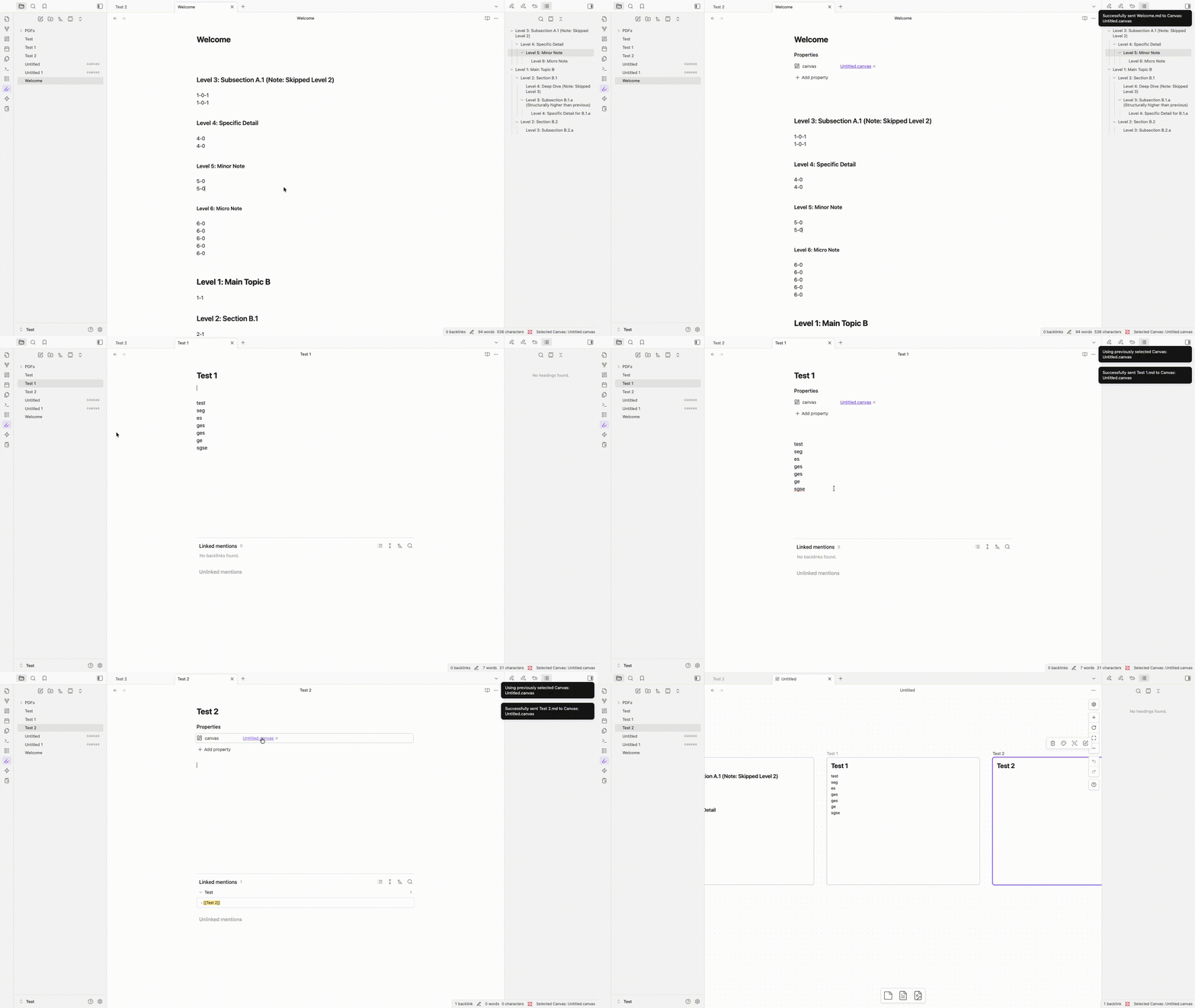
With the "Send to Canvas" command, you can push your current markdown note directly to a specific Canvas. It automatically appends a "canvas" property to your note, allowing you to navigate back to the board instantly in the future.
Once you have sent a note, that Canvas becomes the "Selected." You can then use the "Send to Selected Canvas" command on other notes to instantly add them to the same board—bypassing the file selection step entirely.
Auto-Resize Node
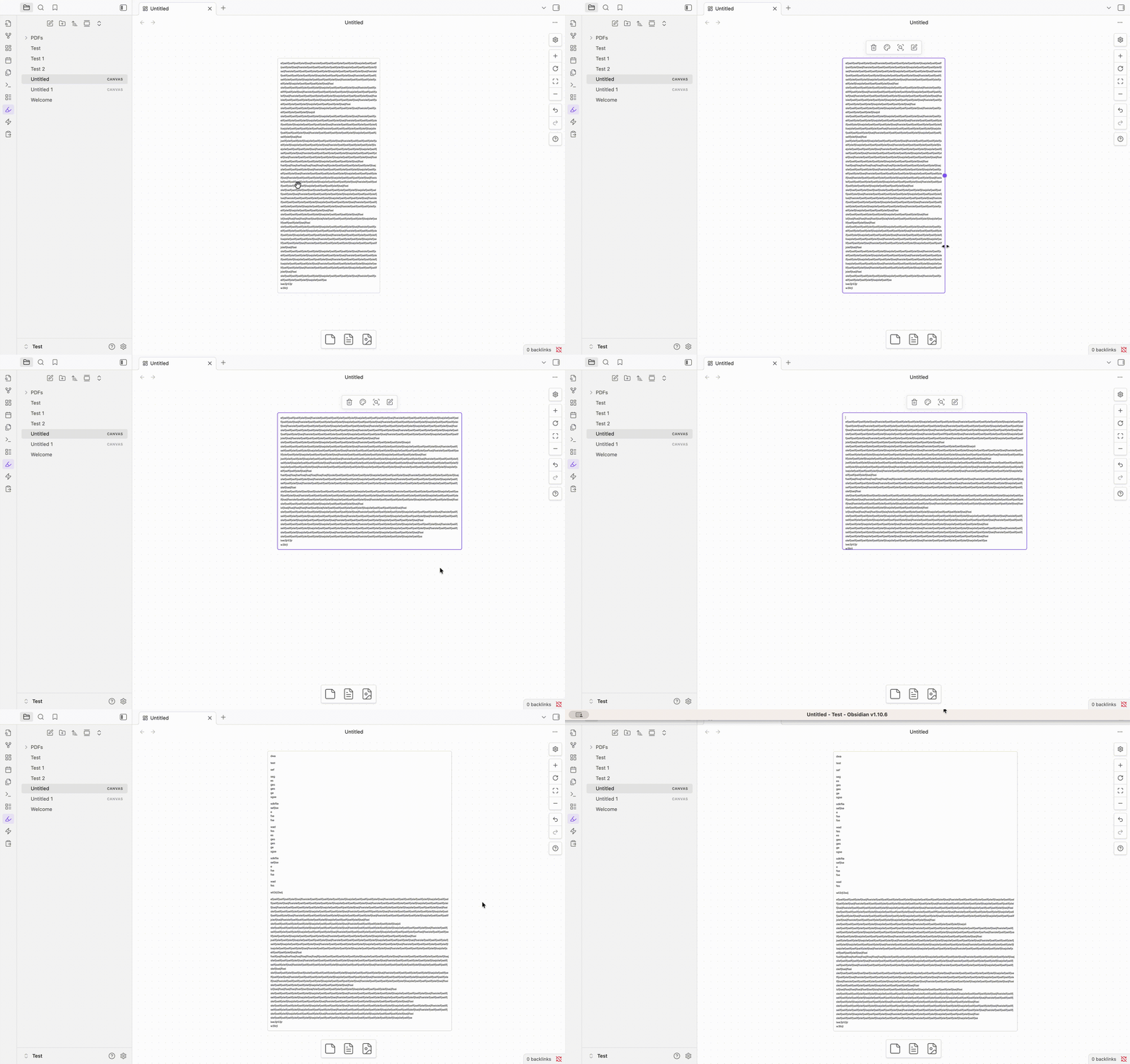
With this update, double-clicking the bottom edge engages "Auto-Resize." Now, when you drag the right edge to adjust the width or update the text, the height dynamically adjusts to fit your text. No need for repeated double-clicking!
Dragging the bottom edge to manually adjust the height disables the node's auto-resize feature.
Main Feature
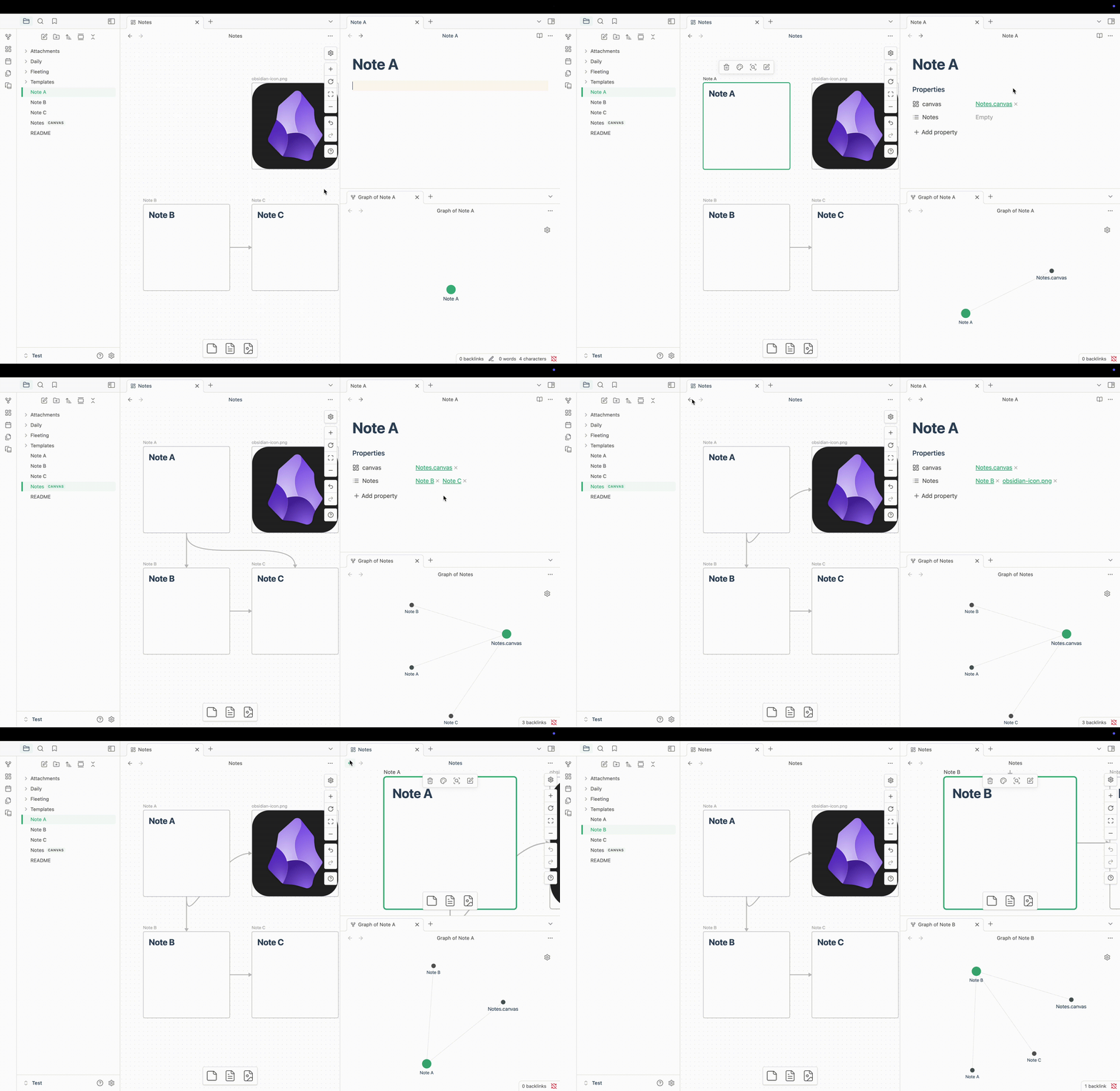
Based on this demo:
-
Node addition: When a note is added to the canvas, the plugin generates a 'canvas' property with a link to its corresponding canvas file.
-
Edge addition: Creating an edge in the Canvas generates a link to the target note within a property named after the canvas file (e.g., 'Canvas 1'), where the property name is derived from the canvas file name without its '.canvas' extension.
-
Node Focusing: Upon clicking a link to a .canvas file from a note, the system automatically focuses and zooms to the associated node in the canvas.
Note 1: All Canvas-related properties will be added when this plugin is enabled, and all properties added by this plugin will be removed upon disabling it.
Note 2: If you delete or rename a .canvas or Markdown file, all associated properties will also be updated.
Note 3: To stop the plugin from writing these properties, turn off Enable Frontmatter Synchronization in settings. Turning it off removes every property the plugin added.
Hide Properties in Canvas Nodes
The properties panel inside Canvas nodes and embedded notes is hidden. To show it again, turn off Enable Custom Visuals & CSS in settings.
Commands
-
Adjust edges with shortest path
- Adjusts edges between selected nodes using shortest path
-
Delete edges between selected nodes
- Removes all edges between selected nodes
-
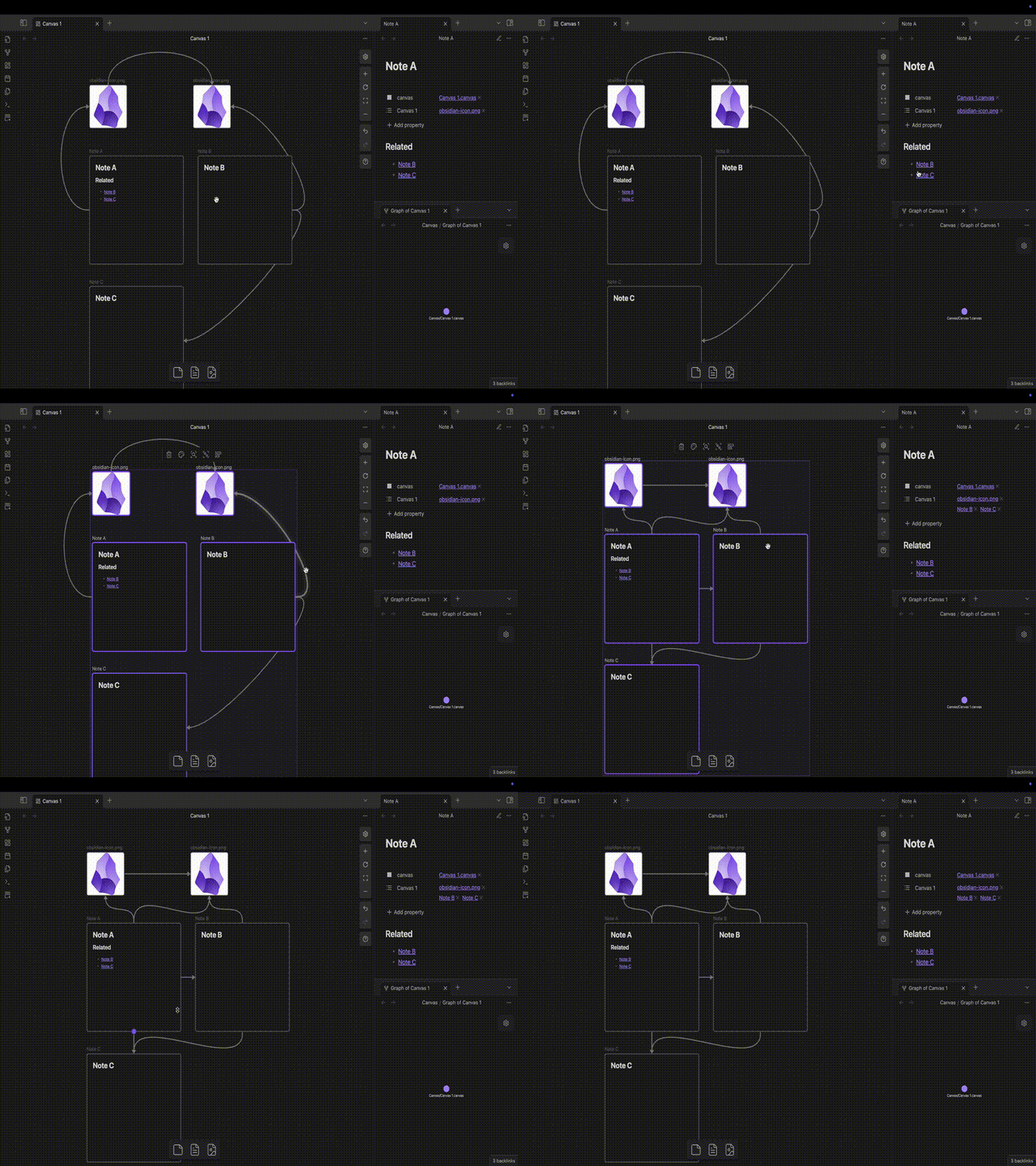
Add edges according the links in notes
- Automatically creates edges between selected nodes based on links within notes
-
Remove the property of all nodes in current Canvas
- Removes properties from all nodes in the current Canvas
-
Send to Canvas / Send to Selected Canvas / Clear selected Canvas file
-
Find in canvas (selected text or link) / Clear find highlights
- See Find in Canvas
-
Show feature guide
- Opens an in-app guide to every feature, with where to find it and which settings control it
Demo
- Add edges according the links in notes
-
Automatically establishes connections based on existing markdown links in notes
-
It integrates Adjust edges with shortest path
-
Optimizes edge paths in Canvas for minimal distance
-
Supports all node types (text nodes, group nodes, images, nested Canvases, etc.)
Installation Steps
Search for "Enhanced Canvas" in the community plugins and install it. Once enabled, it automatically adds all properties to existing .canvas files.
Contributing
All contributions are welcome!
Say Thank You
If you are enjoying Enhanced Canvas, then please support my work and enthusiasm by buying me a coffee on https://buymeacoffee.com/robertttbs.