
README file from
GithubObsidian Custom Note Width



Control the line width of every note in Obsidian: individually, per note, or globally. A small control in the status bar gives you instant access, YAML frontmatter persists widths per note, and a new Pills mode lets you switch between presets with a single click.
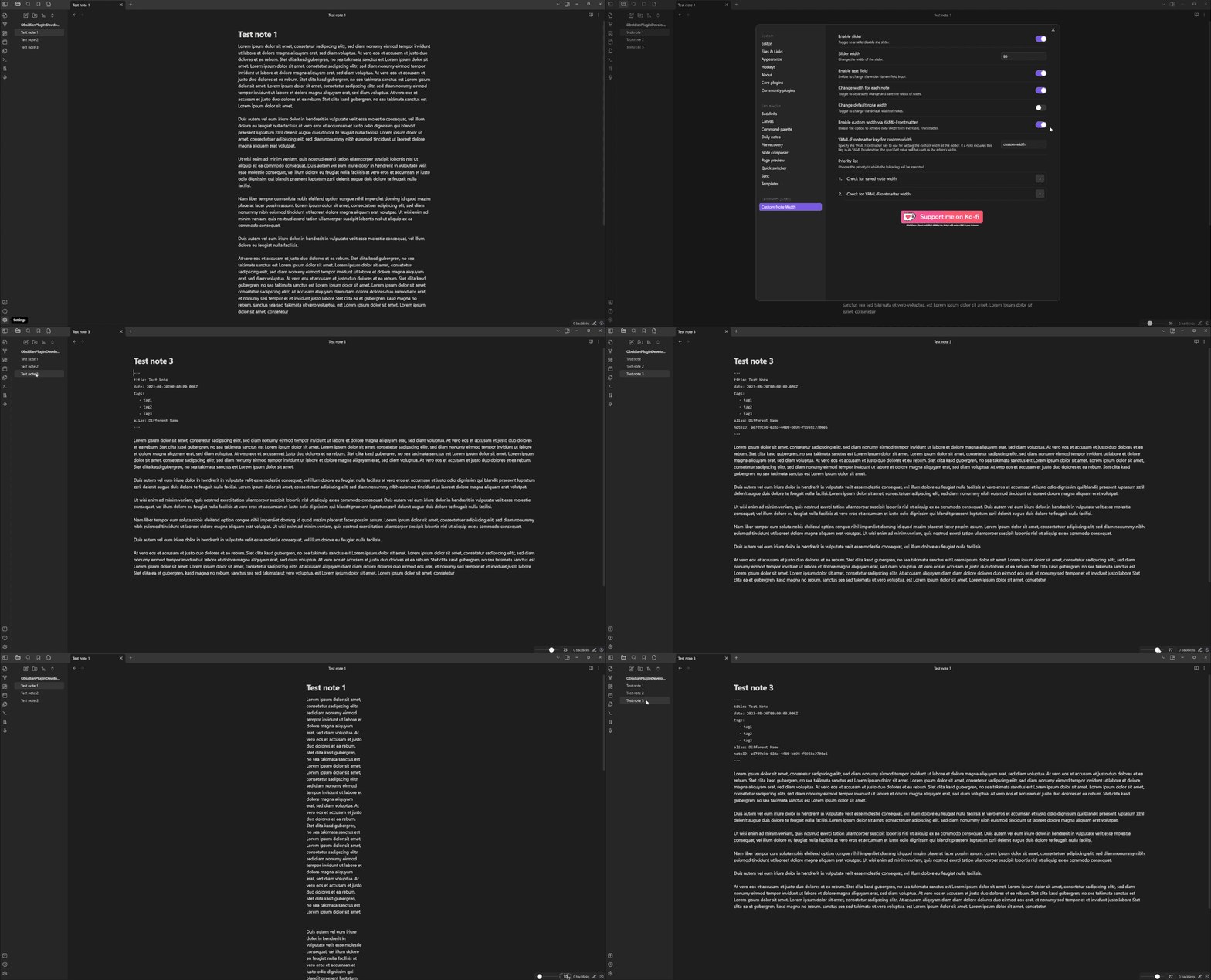
Features
- Per-note widths: stored in the note's frontmatter, kept locally on your device, or held only until the note is closed
- Status-bar controls: choose between a classic slider or Pills (three preset buttons)
- Three width units:
%,px,ch - Independent code block width: so narrow prose and wide code can coexist
- Hotkey-ready commands for every width operation
- Full English, German and Russian UI
Installation
From Community Plugins
- Open Settings → Community plugins
- Browse → search "Custom Note Width"
- Install → Enable
Manual
- Download
main.js,manifest.jsonandstyles.cssfrom the latest release - Copy them into
<vault>/.obsidian/plugins/custom-note-width/ - Restart Obsidian and enable the plugin
Requirement: Obsidian's Readable line length setting must be enabled (Settings → Editor → Readable line length).
Usage
The plugin modifies Obsidian's --file-line-width CSS variable. Control it three ways:
| Method | Best for |
|---|---|
| Status-bar control (slider or pills) | Quick adjustments while reading/editing |
YAML frontmatter (custom-width: 60) |
Persisting a specific width per note |
| Commands (palette / hotkeys) | Power users, keyboard-driven workflows |
Width units
- %: relative to the editor pane (0–100)
- px: absolute pixels (100–4000)
- ch: character widths (10–200)
Switch units via the unit label next to the slider/value (slider mode) or inside a preset editor (pills mode).
Pills mode
Enable under Settings → Control mode → Pills. The status bar shows three buttons with your configured preset values. Click to apply. The button matching the currently applied width is highlighted; no button is active when the width is a custom value.
Settings
| Setting | Description | Default |
|---|---|---|
| Language | Plugin UI language (Auto / English / Deutsch) | Auto |
| Enable slider | Shows the width control in the status bar | on |
| Control mode | Slider (draggable) or Pills (three preset buttons) | Slider |
| Slider width (Slider mode) | Horizontal size of the slider in pixels | 85 |
| Pill preset 1–3 (Pills mode) | Value and unit per preset | 30% / 50% / 100% |
| Value display in status bar | Editable input, read-only text, or hidden for a slider-only status bar | Editable |
| Show unit selector in status bar (slider mode) | Show the unit dropdown (%, px, ch) next to the slider; off keeps the unit fixed | on |
| Default width unit | Unit used for the global default width | % |
| Default width | Width applied when a note has no per-note width | 50 |
| % range | Min / max for percentage unit | 0 / 100 |
| px range | Min / max for pixel unit | 100 / 4000 |
| ch range | Min / max for character unit | 10 / 200 |
| Enable per-note width | Let notes have their own width instead of the global default | on |
| Where per-note width is stored (per-note mode) | Frontmatter (in the note), Local (kept in the plugin, note untouched), or View only (kept until the note is closed) | frontmatter |
| Reset local width overrides (local mode) | Removes every per-note width you have stored locally | button |
| YAML front matter key | Frontmatter key used to store the per-note width | custom-width |
| Enable code block width | Give code blocks an independent width | off |
| Code block width unit | Unit for code block width | px |
| Code block width | Size applied to code blocks | 800 |
| Reading mode | Apply code block width in preview | on |
| Source mode | Apply code block width in source view | on |
| Live preview mode | Apply code block width in live preview | on |
| Diagnostics | Create an anonymised diagnostics report for a bug report | button |
Commands
All commands appear in the palette and can be bound to hotkeys under Settings → Hotkeys (filter: Custom Note Width):
| Command | Action |
|---|---|
| Change the width of the open note | Opens a modal, applies width to current note |
| Change the default note width | Opens a modal, updates the global default |
| Change the width for all notes | Opens a modal, rewrites every note's YAML width |
| Apply pill preset 1 / 2 / 3 | Applies the given preset (Pills mode only) |
| Create diagnostics report | Writes an anonymised diagnostics.json, copies it to the clipboard, and reveals it |
Theme compatibility
Disclaimer: The plugin modifies
--file-line-width. Custom themes may override this variable; there is no guarantee the plugin works with every theme.
| Theme | Status | Obsidian Version | Notes |
|---|---|---|---|
| Default | Works | 1.12.4 | Fully functional |
| Things | Works | 1.12.4 | Fully functional |
Your theme isn't listed? Open a PR adding a row; see CONTRIBUTING.
Reporting bugs
The fastest way to get a width bug fixed is to include a diagnostics report:
- Run Create diagnostics report from the command palette (
Ctrl+P/Cmd+P, then search "Custom Note Width"), or click the button underSettings → Custom Note Width → Diagnostics. - The report is copied to your clipboard and saved as
diagnostics.jsonin the plugin folder, and the folder opens with the file highlighted. - Paste it into your bug report, or attach the file.
Also helpful:
- Console errors: open DevTools (
Ctrl+Shift+I/Cmd+Option+I), Console tab, copy anything red referencingcustom-note-width. - Steps to reproduce, and what you expected versus what happened.
- Screenshots or screen recordings: tools like LICEcap or ShareX work well.
Reports that only say "it doesn't work" are hard to investigate. The diagnostics report makes the difference.
Privacy of the diagnostics report
The report is written to diagnostics.json in the plugin folder, copied to your clipboard, and revealed in your file manager. You can read it before sharing it. It is designed to describe your setup without describing your notes.
What it contains:
- Plugin version, Obsidian version, Electron/Chrome/Node versions, platform and OS version, UI language, device pixel ratio and window/editor width
- Relevant Obsidian editor settings: readable line length, default view mode, live preview, base font size
- Active theme name and version, and the names of enabled CSS snippets
- Other enabled community plugins by id and version, with a flag for any that also control line width
- The plugin's own settings (with local per-note overrides reduced to a count, since their keys are file paths)
- The plugin's shipped files (
main.js,manifest.json,styles.css) with sizes and SHA-256 hashes, plus whetherstyles.cssis loaded and its version - For the active note: view mode, where its width comes from (frontmatter, local, or default), the width value and unit, the computed pixel width, and the width that is actually in effect
- Which CSS rules set the line width and
max-width(selector, value, origin such as app/theme/snippet/plugin, and whether they use!important) - Runtime counters and the plugin's own recent warnings and errors
What it never contains:
- Note contents
- File names, note titles, folder names or the vault name
- File-system paths or URLs (error messages are stripped of anything path-like before they are stored)
- Any frontmatter other than the width value itself
Backups
Always keep backups of your vault. The plugin writes to YAML frontmatter; bugs are possible. Protect your data.
Contributing
See CONTRIBUTING.md for development setup, code style, and the PR process.
License
MIT, provided as-is, no warranty.
Support
