
README file from
GithubWorkLife Calendar for Obsidian
Say goodbye to chaos. A smart calendar, task tracker, time tracker, habit tracker, and finance manager—all in one beautiful, connected workspace.



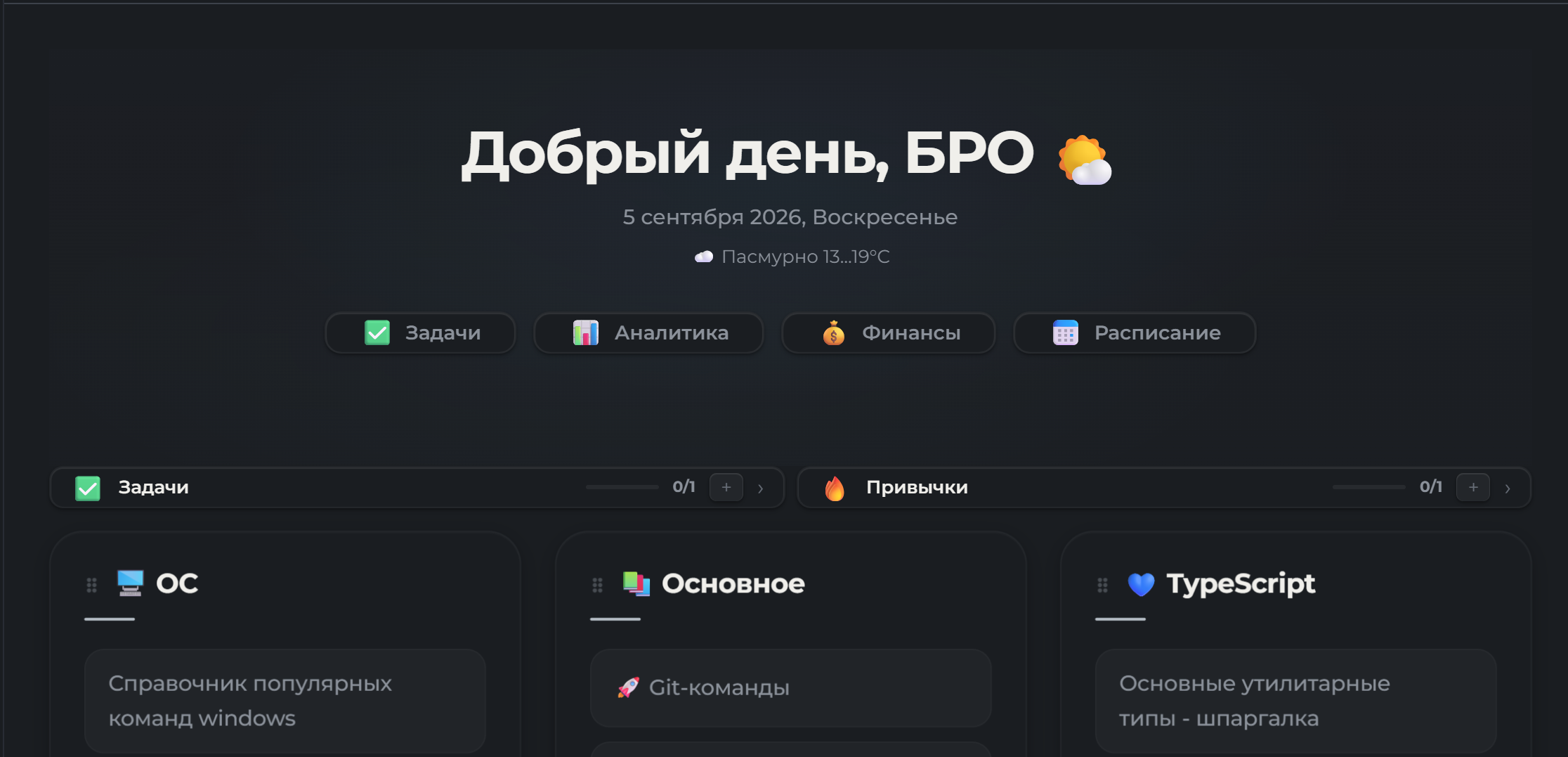
💡 Why this plugin exists
Many workflows have the same problem: tasks live in one place, the calendar in another, time tracking in a third, while finances and reports are managed manually in spreadsheets. As a result, the same data has to be entered multiple times.
This plugin solves that problem. It doesn’t just add another calendar or task tracker. It connects planning, execution, and analysis in one system:
- A task affects your calendar.
- Your calendar feeds into time tracking.
- Tracked time is used to calculate income.
- Income powers automatic analytics.
🚀 Who it’s for
- Freelancers and developers who want to automatically calculate the value of their work by the hour.
- Students and researchers who need to keep track of deadlines, projects, and daily habits.
- Anyone tired of juggling a dozen disconnected apps and ready to get organized in one Obsidian workspace.
✨ What’s included
| Feature | What you get |
|---|---|
| 📅 Schedule | Day / week / month calendar, drag and drop, weather in the calendar grid |
| ✅ Tasks | Quick natural-language entry, Kanban, recurring tasks, live timer |
| ⏱ Time & income | Work timer → hours × rate → automatic earnings |
| ⚖️ Habits & health | Habit streaks, weight chart |
| 💰 Finances | Budget planning, savings goals, income, expenses, Markdown / Excel summaries |
| 📊 Analytics | Charts for projects, income, and habits |
| 🤖 Local AI (Ollama) | Task extraction, summaries, schedule commands, AI chat, free time slots, expense analysis, workout plans, brainstorming in the context of a note |
| 🔔 Notifications | Desktop reminders + phone push notifications via ntfy.sh |
[!NOTE] 🎁 Bonus The
themefolder includes a theme! Make Obsidian look even better.
📦 Installation
Community plugins (recommended)
- Open Settings → Community plugins in Obsidian.
- Click Browse and search for WorkLife Calendar.
- Click Install, then Enable.
Via BRAT
- Install the BRAT plugin.
- Open BRAT settings → Add Beta Plugin.
- Paste this link:
https://github.com/AtinsS/WorkLife-Calendar-for-Obsidian - Click Add Plugin.
Manual installation
- Download the release archive or clone the repository.
- Copy
main.js,manifest.json, andstyles.css. - Place them in
.obsidian/plugins/worklife-calendar/(create the folder if it doesn’t exist). - Enable the plugin in Settings → Community plugins.
[!WARNING] Requirements Obsidian 1.13.0+ is required. Works on desktop and mobile (AI is desktop-only).
🧭 Quick start
- Tasks — open Tasks or click “Quick Add Task”, then type naturally: “Submit report on Friday @Work !urgent”.
- Finances — open the Finances section. It has four tabs: Budget / Savings / Income / Expenses. Add your first expense in the Expenses tab.
- Monthly summary — at the end of the month, select Markdown or Excel and click “Summary” to generate a report.
[!TIP] Set your Finances → Currency symbol and Summary folder in the settings. It takes a minute and keeps your reports organized.
☕ Support
If the plugin saves you time and helps with your work, you can support its development:
- ⭐ Star the repository.
- ☕ Buy the author a coffee and a pastry.
📅 Smart planning
- Understands natural language. Just type “! tomorrow 14:00 submit project @Work” and the plugin will automatically set the date, time, project, and priority.
- AI can help create multiple tasks from a single prompt.
- Visual day / week / month calendar with drag and drop. Drag a task to change its time.
- Weather in the calendar grid helps you plan your days.
✅ Focus and task management
- Kanban board and lists with five statuses: To Do → In Progress → On Hold → Done → Not Done.
- Live timer: track time right from a task card. The timer won’t reset if you restart Obsidian. (The timer starts when a task moves to In Progress; you can disable this in settings.)
- Recurring tasks: set them up once to repeat daily, weekly, or monthly.
- Automatically move overdue tasks to the next day (can be disabled).
- Work tasks with hourly or daily rates—the plugin calculates earnings automatically.
⚖️ Balance: habits and health
- Habit tracker with progress charts and streaks.
- Weight tracking: log your weight daily and view a chart showing progress toward your goal.
💰 Finances
A unified Finances section with four tabs—planned and actual figures are kept separate:
| Tab | What’s included |
|---|---|
| Budget | Monthly plan (estimates only): planned income, how to allocate it, how much to save, and rules. Does not affect actual figures |
| Savings | Savings goals; contributions are recorded as actual expenses |
| Income | Earnings from tasks (hours × rate or daily rate), additional income sources, and categories |
| Expenses | Actual spending, expense categories, text-based expense analysis (manual or AI-assisted), and savings contributions |
Additional features:
- Automatic income calculation — tracked time × your hourly or daily rate.
- Monthly summaries — select Markdown / Excel from the dropdown and click “Summary”:
- Markdown — a note with totals, expenses by category, and savings contributions.
- Excel (.xls) — seven sheets: summary, income, expenses, by category, by day, savings, and budget plan. With AI tips enabled, an additional Tips sheet is included.
- Currency — choose a symbol in settings: ₽, $, €, £, ₸, ₴, ₺, ¥, ₮, ₾, ₿, or enter your own text.
- Analytics dashboard — charts for projects, income, and habits.
🤖 Local AI (Ollama)
Runs entirely on your computer—your data isn’t sent anywhere.
[!IMPORTANT] Requirements You need Ollama and at least one model. For example:
ollama pull llama3.1orollama pull qwen2.5:7b.
What it can do:
- Tasks — extract tasks from a note (right-click a
.mdfile), break tasks into subtasks, generate descriptions, and use smart input (for example, “Create several tasks titled ‘Call’, repeat every Thursday, project ‘Work’”). - Notes — summarize a folder or selected notes in these styles: Concise / Detailed / Bullet Points / For Managers / Custom.
- Schedule (AI Actions) — summarize a period, assess workload with “Apply Recommendations” (preview → confirmation), and process natural-language commands (“move tasks in the ‘Home’ project by one day,” “create ‘Buy milk’ next Thursday for 1 hour”). Changes always go through an operation plan that you confirm.
- AI chat (Ask AI) — brainstorm in the context of a note or group of notes (right-click → AI Tools or use the command palette). Copy a response or chat, add it to a note, and save chat history.
- Finances — analyze expenses from text, forecast budgets, create allocation rules, and provide tips in Markdown / Excel summaries.
- Workout plans — questionnaire → plan → tasks and workout streaks. If you have no equipment, the plan uses bodyweight exercises only; static exercises (such as planks) always include a hold duration.
Smart free time slots
When you create a task with a date and duration but no time—for example, “Buy milk next Thursday, 1 hour”—the plugin schedules it in the first available slot (09:00–21:00, in 30-minute intervals), avoiding conflicts. The time is shown before confirmation in quick-add chips or AI review cards. If the day is fully booked, you’ll see a warning and the task will be created without a time.
Available in Quick Add and AI schedule commands.
Summary styles
| Style | Format | Best for |
|---|---|---|
| Concise | A heading plus 2–4 sentences covering everything in one continuous summary | Quickly refreshing your memory about a collection of notes |
| Detailed | Overview → Key ideas → Conclusions (bullet points) | Understanding the material in depth |
| Bullet Points | A bulleted list only, with no prose | Skimming or getting a quick introduction to a topic |
| For Managers | Main points → Facts and figures → Risks and questions | Meeting reports, status updates, and management briefings |
| Custom | Your own formatting rules (in settings or when generating a summary in the modal) | Corporate style, a fixed list of sections, language, or tone |
All styles create one unified summary of all notes, without separate sections for each file. Names, dates, and figures are preserved. The Additional instructions field is appended to the prompt—for example, “highlight only actions and dates.”
AI actions in the schedule
| Tab | What it does |
|---|---|
| Analysis | Choose a period (day / week / month / etc.) and select What’s done or Assess workload. After the workload assessment, click “Apply Recommendations” to turn suggestions into operations, review the plan, and confirm. |
| Command | Enter a natural-language command → get an operation plan (move, setStatus, setTime, create, delete, etc.) → preview → click Apply. |
Every change is shown in advance. Recommendations from What’s done are not applied; that view is retrospective.
One or two models
- One model for everything — the simplest option.
- Two models by role — one primary model for summaries, forecasts, tips, and workout plans, and one parsing model for expenses, quick entry, and subtasks. You can use a fast, lightweight model for parsing to get quicker responses.
Privacy
- Requests go to the Ollama server you configure (by default,
http://localhost:11434). - The model receives only the content needed for the current action: note or summary text, task titles and times, amounts, or chat questions.
- Passwords, tokens, and your entire vault are not sent.
- ⚠️ The address field accepts remote endpoints (LAN / SSH / cloud), in which case the data goes to another machine. Keep it set to
localhostfor personal data. - AI is hidden on mobile and works only on desktop.
Settings: Settings → AI (Ollama) — enable AI, configure the address and models, toggle actions, and manage privacy settings.
🔔 Notifications that help you stay on top of things
- Desktop reminders N minutes before an event.
- Phone notifications via ntfy.sh, so you can receive deadline reminders even when Obsidian is closed.
Data storage format
The plugin stores data as JSON files in the calendar-data/ folder at the root of your vault. When “Sync to vault root” is enabled, this becomes the primary data storage format and supports fast loading and syncing via:
- Obsidian Sync / Remotely Save*
- Syncthing
[!WARNING] Financial data If you track finances in the plugin and use cloud sync, your income and expense data will be stored unencrypted in the cloud. Consider using generic project names or excluding the
calendar-data/folder from sync.
External calendars (Google Calendar and others)
- Create a GitHub Personal Access Token (classic) with the
gistscope. - Paste the token into the plugin settings and click “Sync”.
- The plugin will create a Gist containing an
.icsfile and provide a link. - Add that link to your calendar using its Subscribe by URL feature.
Optionally, enable auto-sync to update the Gist whenever tasks change.
The plugin includes a notification system to help you stay on top of important things.
| Type | When it triggers |
|---|---|
| Local (browser) | N minutes before an event, when a task is overdue, when a time limit is exceeded, or on a deadline day |
| On your phone (ntfy.sh) | Push notifications delivered to your phone |
Setting up ntfy.sh
A simple way to receive notifications on your phone:
- Install the ntfy.sh app on your phone.
- Enable ntfy.sh in the plugin settings and set a topic.
- Subscribe to that topic in the app.
You can also enable scheduled push notifications (queued when Obsidian opens so they arrive on time, even when it’s closed) and a daily summary.
[!CAUTION] Security Use a unique topic, such as a randomly generated UUID like
a7f9b2c4-8e1d-4f3a-9c5b-2d6e8f0a1b3c, so no one else can subscribe to your notifications. The plugin sends only notification triggers (for example, “Overdue: Task title”), not financial data or full text.
Dashboard
Insert this code block into any note to add a widget panel (tasks / habits / goals):
```dashboard
```
Or right-click the page and select “Insert Dashboard”.
Dashboard widgets (tasks / habits / goals) can be configured in Settings → Dashboard.
Greeting
Insert a greeting with quick navigation, note search, and weight entry:
```hello
```
Or right-click the page and select “Insert Greeting”.
Quick weight entry and note search can be shown in the greeting and toggled under Settings → Dashboard → Greeting Buttons. You can also customize the order of navigation buttons.
🐛 Issues and bug reports
Found a bug or have a feature request? Open an issue on GitHub:
When reporting a bug, please include:
- Obsidian version
- Plugin version
- Steps to reproduce
- Expected and actual behavior
- Console errors, if any: Ctrl+Shift+I → Console tab
Credits and license
This project is based on obsidian-calendar-plugin by Liam Cain (MIT) and has been significantly expanded.
Third-party libraries bundled in main.js are listed in THIRD_PARTY_NOTICES.md.